TABLE OF CONTENTS
1. Infrasys Report
1.1 Daily Sales Report
Please follow the below steps to access the sales reports in Infrasys:
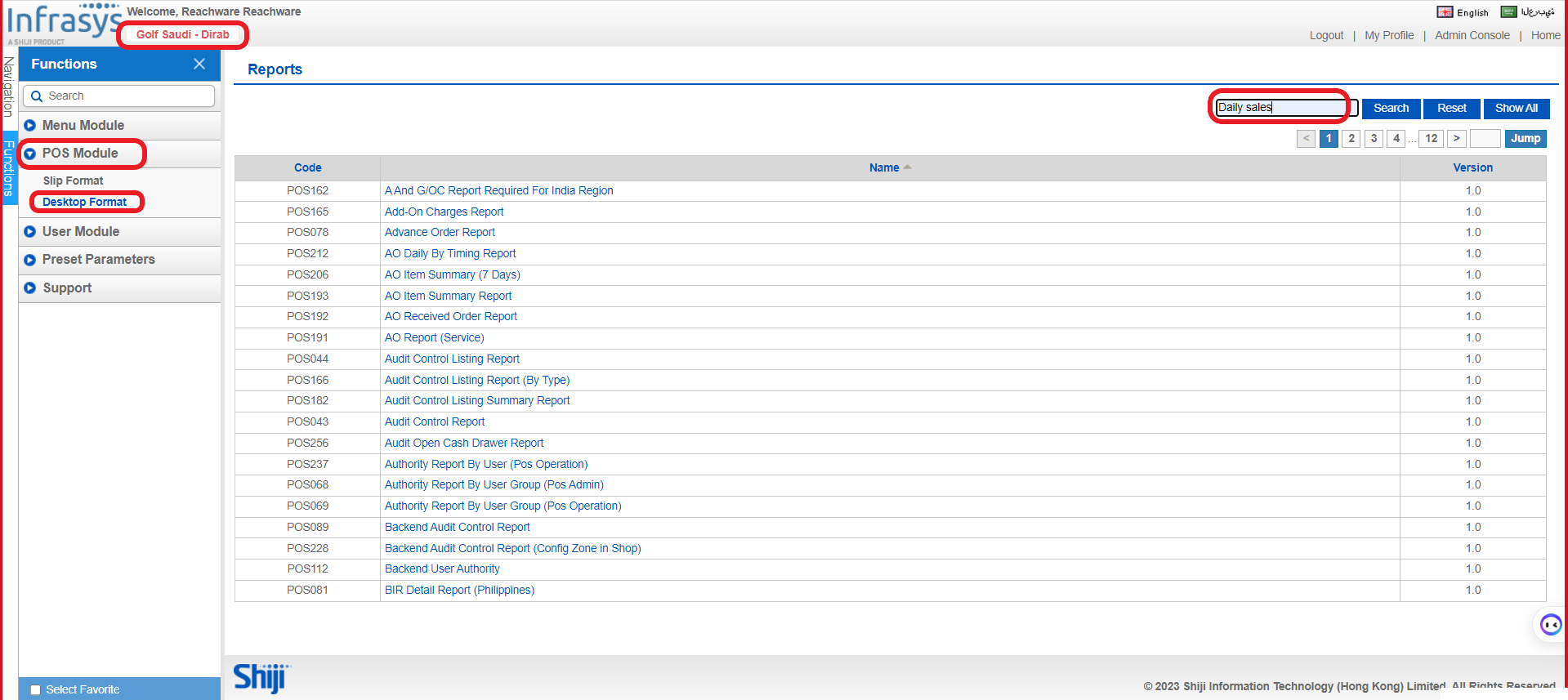
A. Make sure you are in the correct location.
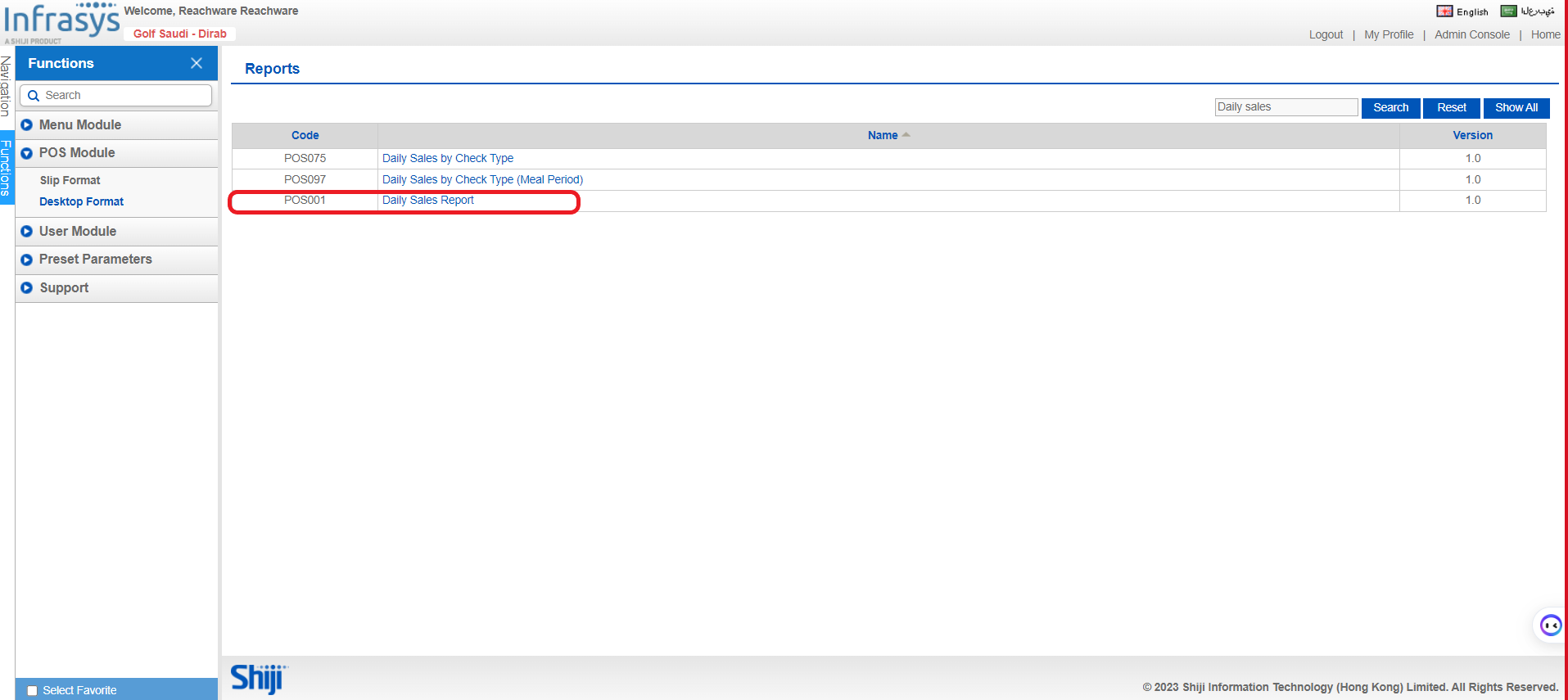
B. POS Module → Desktop Format → Search bar → Daily Sales → POS001 Daily Sales Report
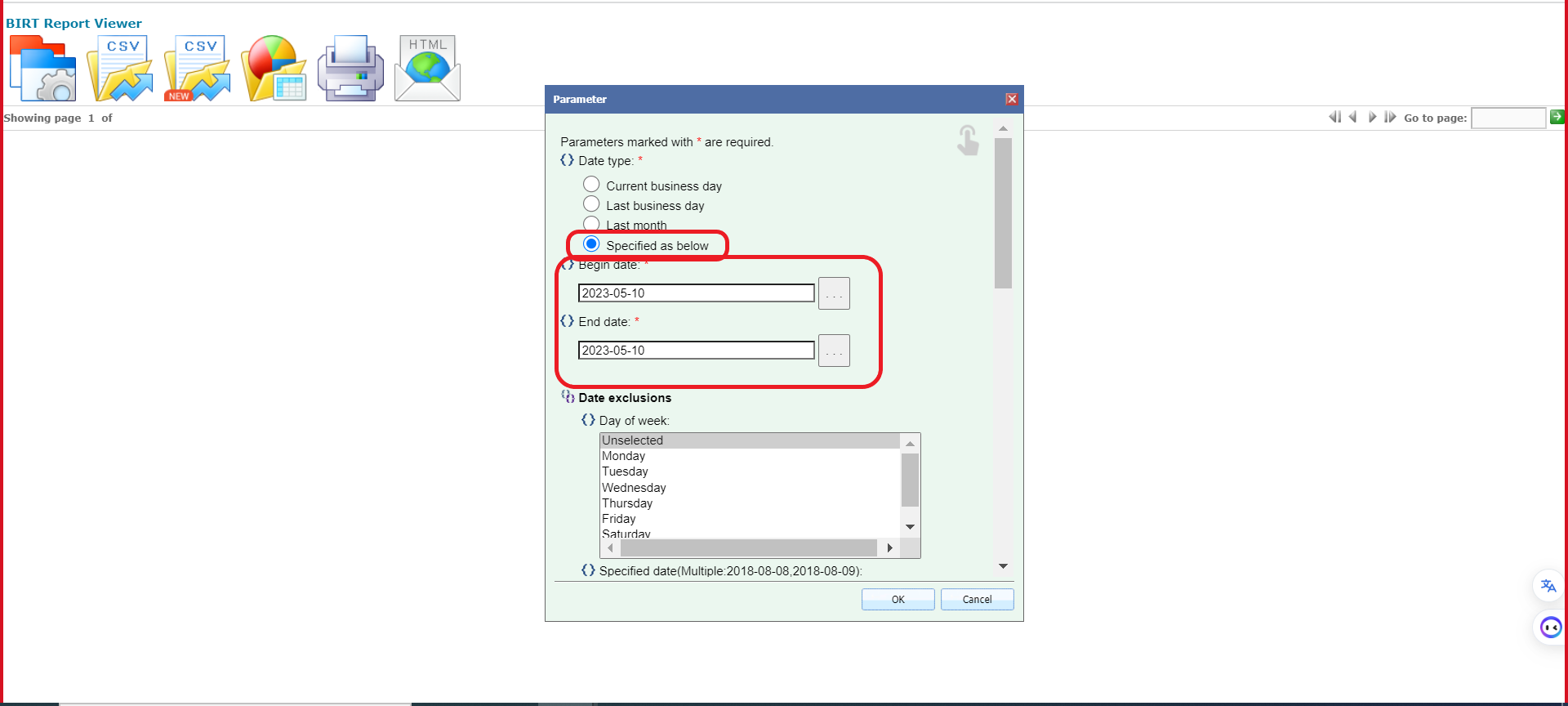
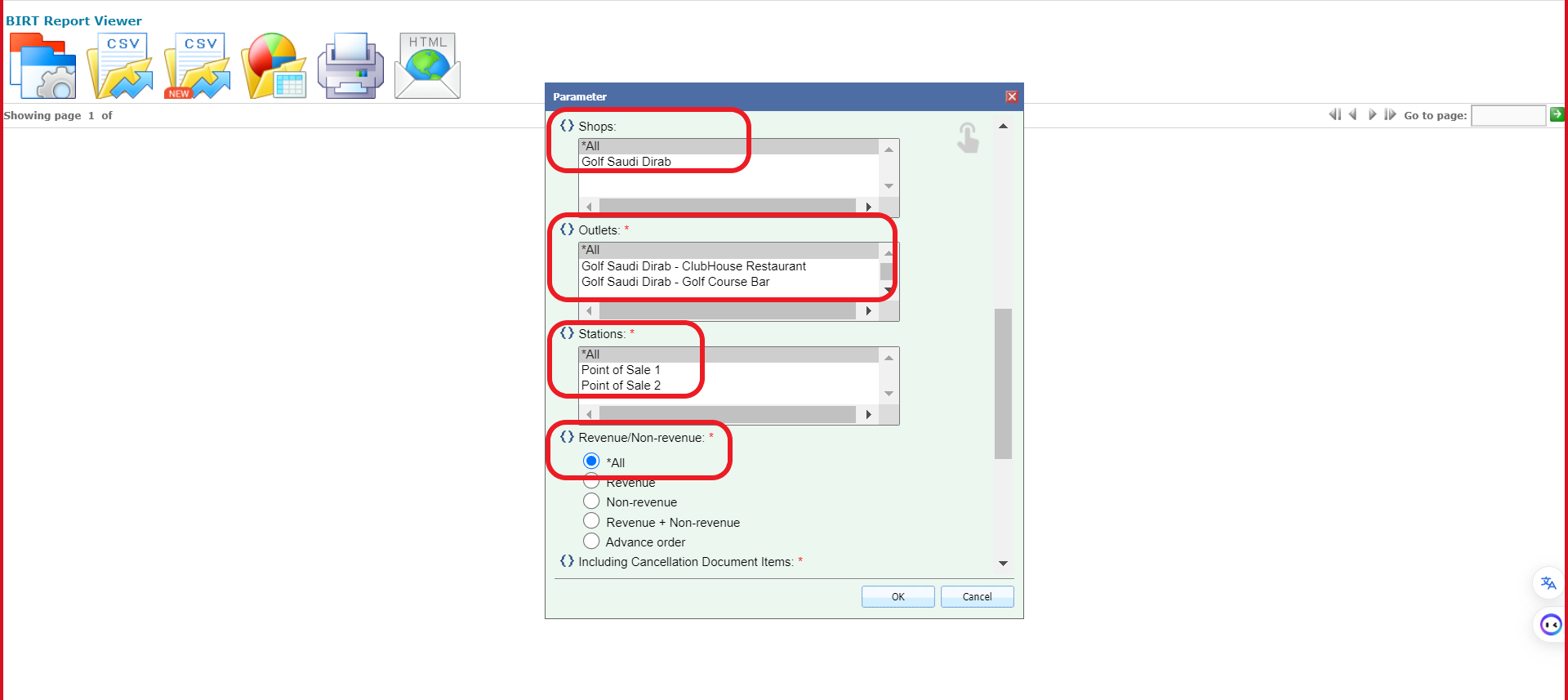
C. Please specify the begin and end date, and all the required fields.
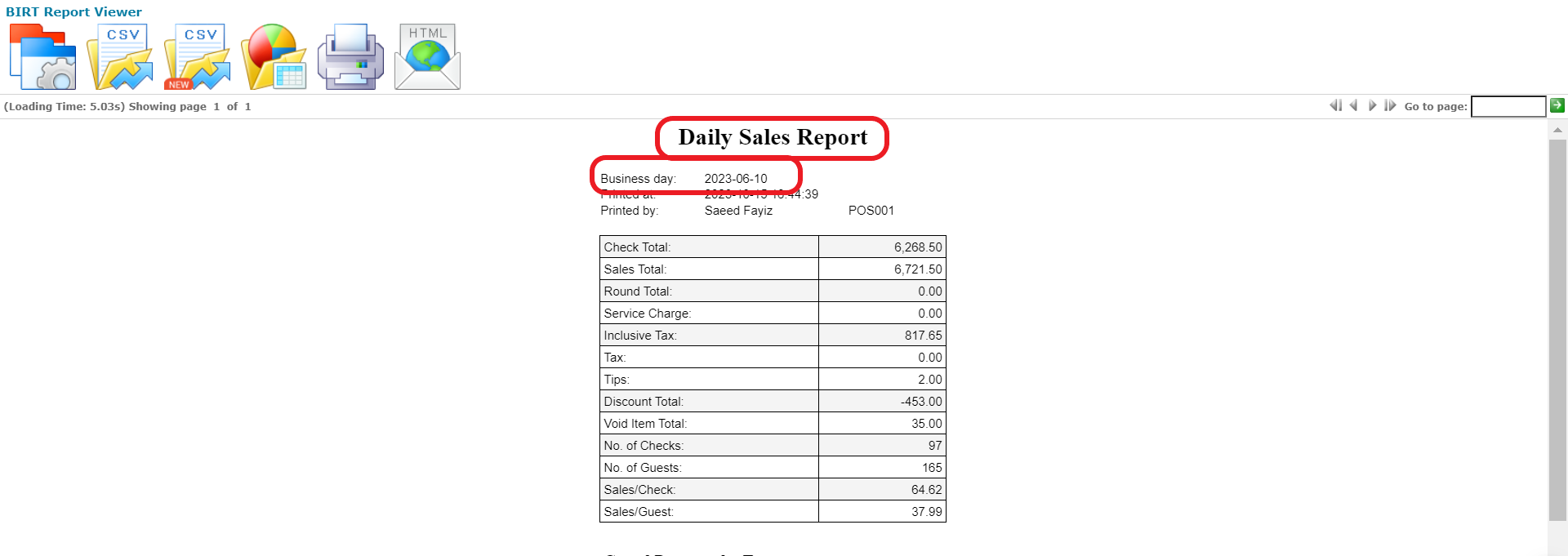
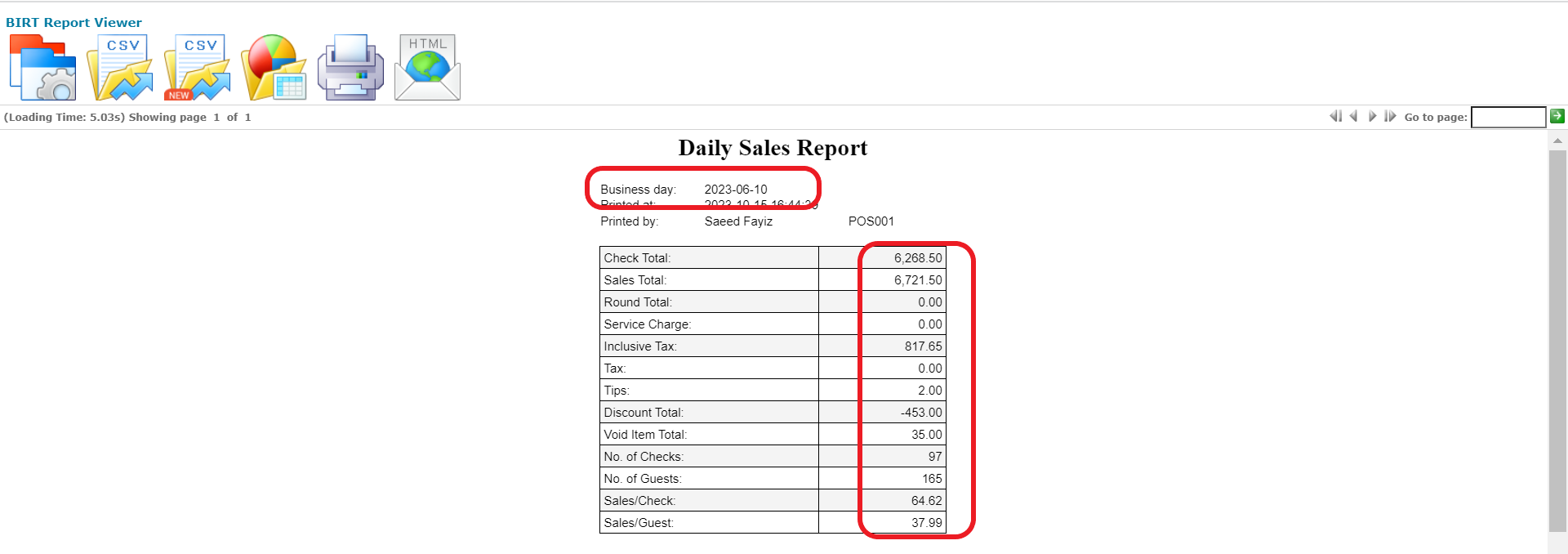
As seen below you can see the daily sales report for the specified date.
1.2 Daily Item Department Sales Report
Please follow the below steps to access the sales reports in Infrasys:
A. Make sure you are in the correct location.
B. POS Module → Desktop Format → Search bar → 141→ POS141 Daily Item Department Sales Report
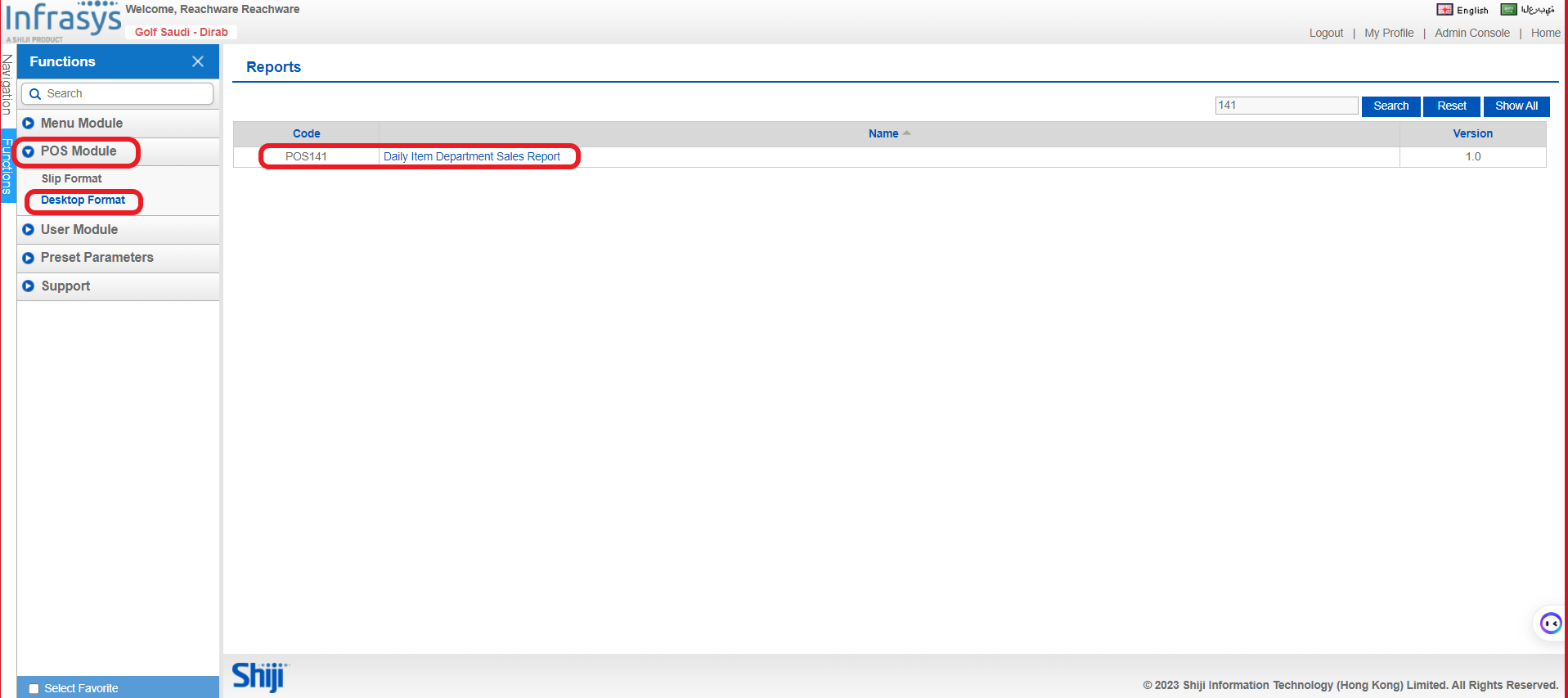
C. Please specify the begin and end date, and all the required fields.
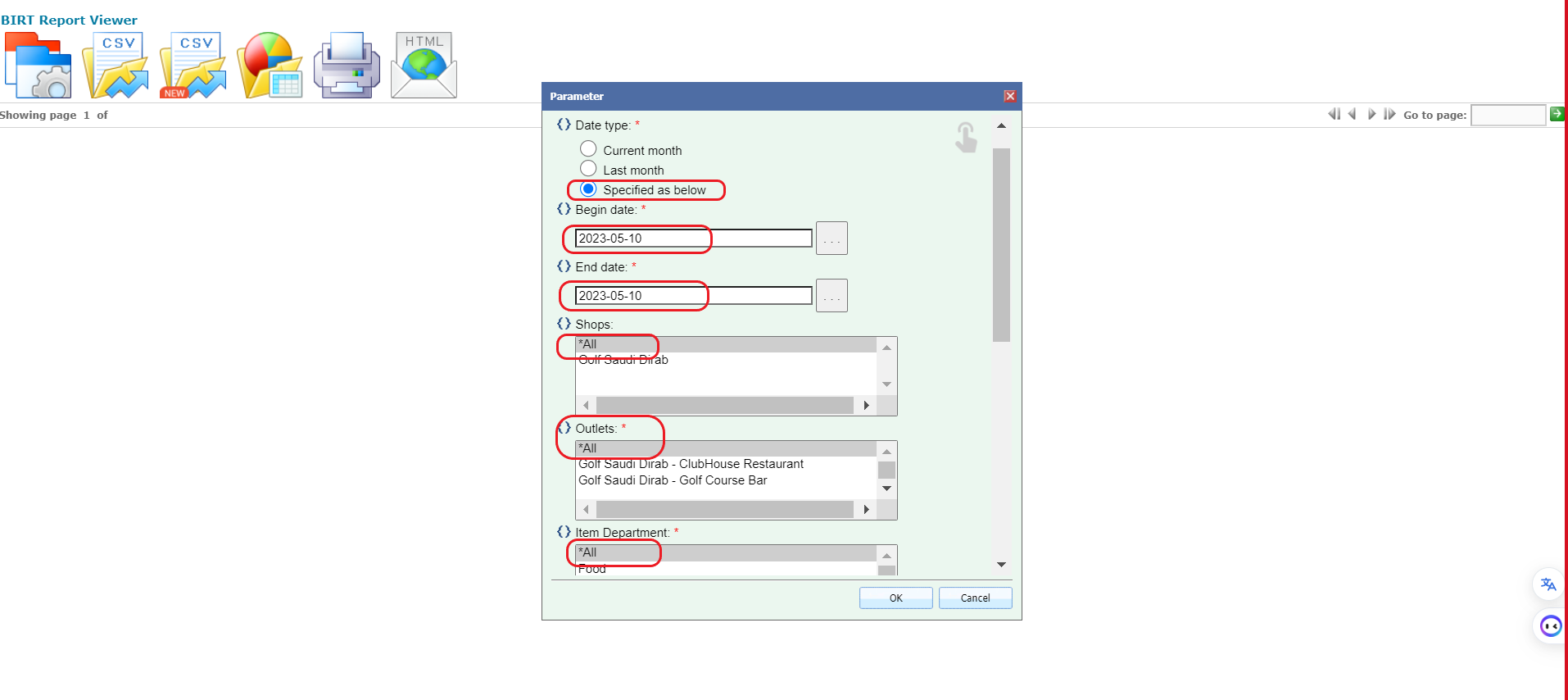 As seen below, you can see the food and beverage sales report for the specified date.

Please note that the amount in the Gross Account doesn’t include the discount.
1.3 Payment Report
Please follow the below steps to access the payment reports in Infrasys:
A. Make sure you are in the correct location.
B. POS Module → Desktop Format → Search bar → Daily Sales → POS001 Daily Sales Report
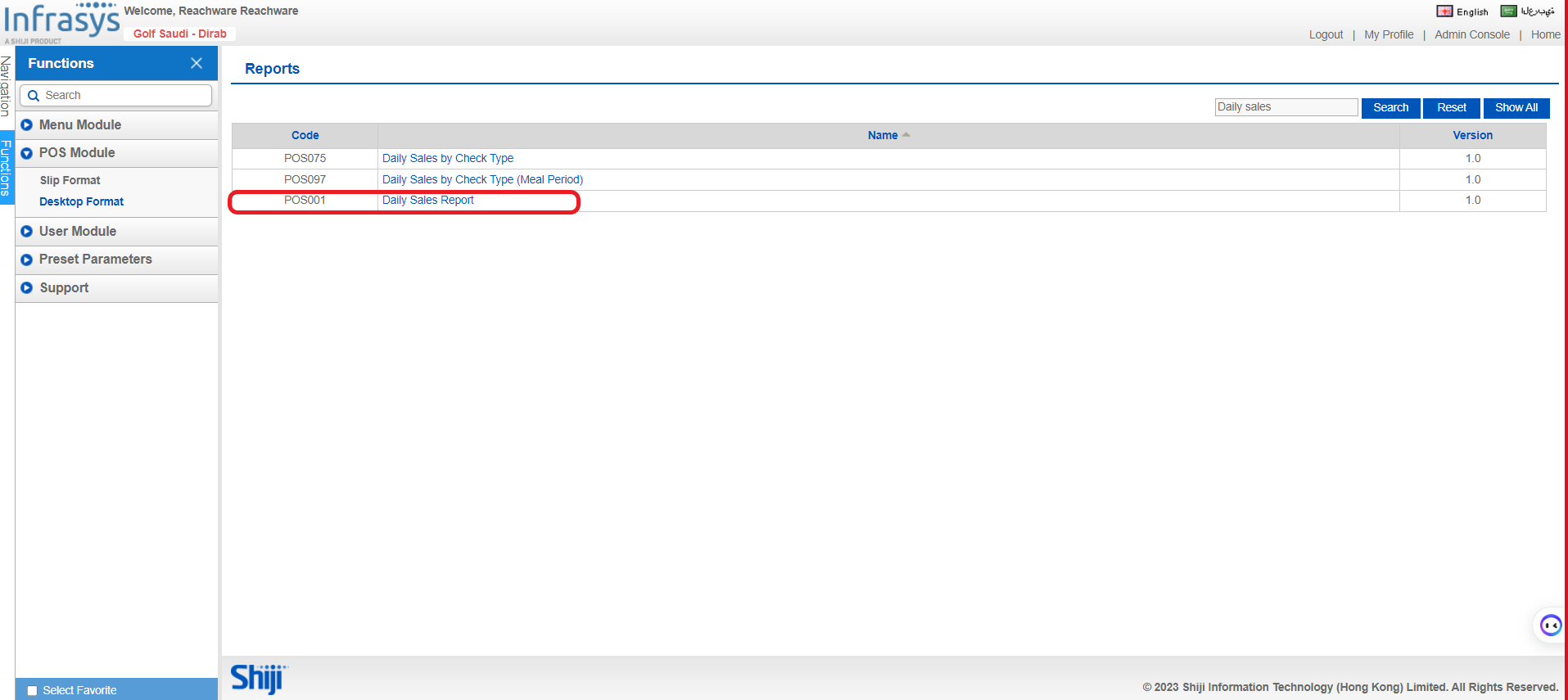
C. Please specify the begin and end date, and all the required fields.
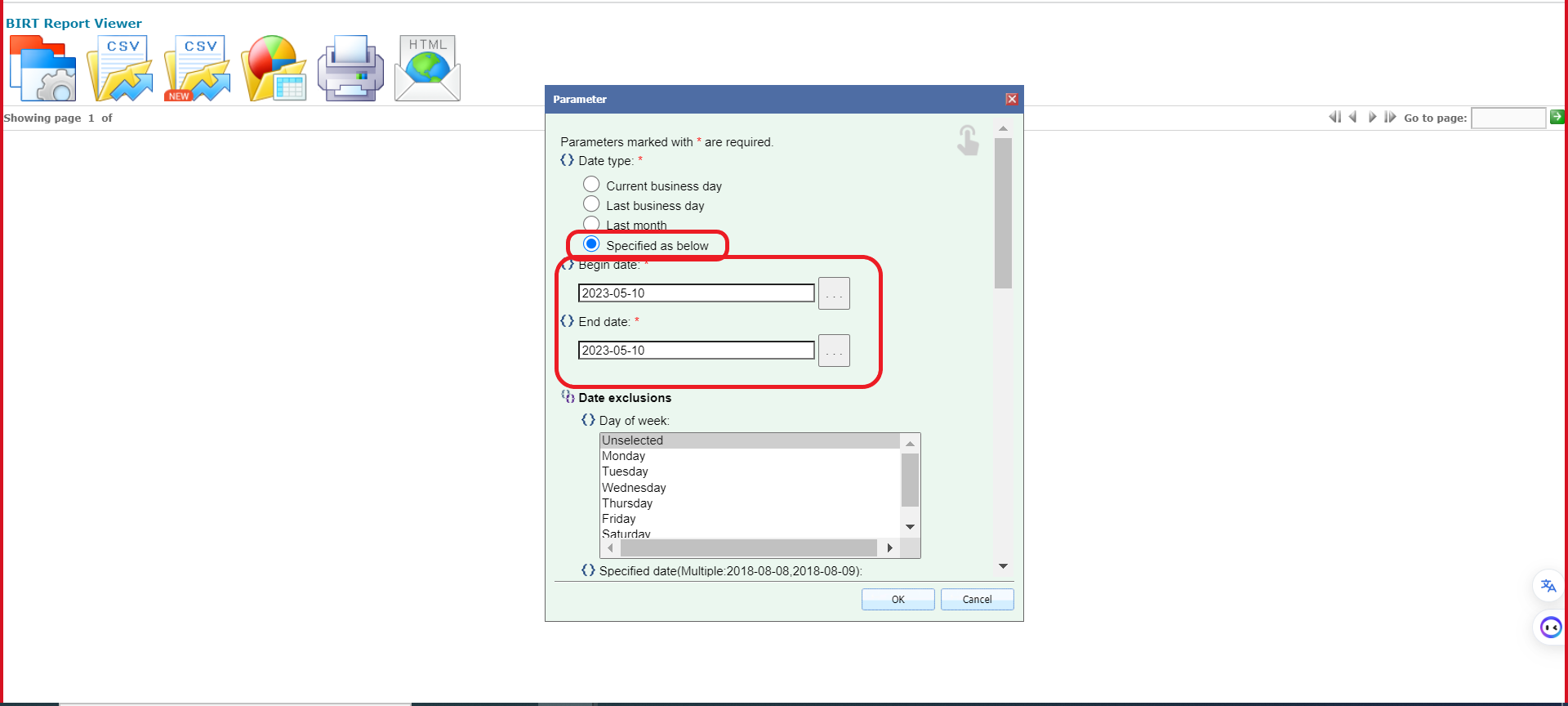
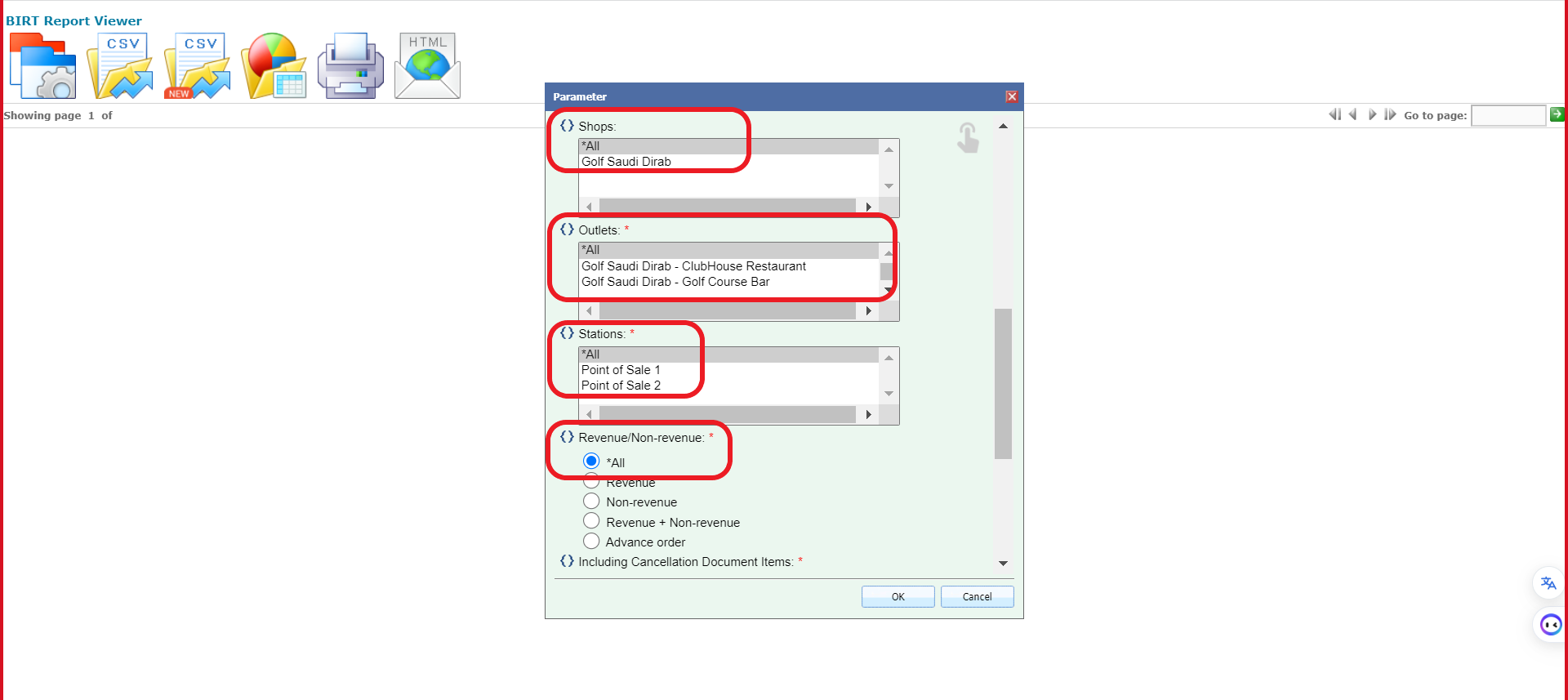
As seen below you can see the daily payment report for the specified date.

2. Market Man Report
2.1 Sales Report
Please follow the below steps to access the sales reports in Market Man:
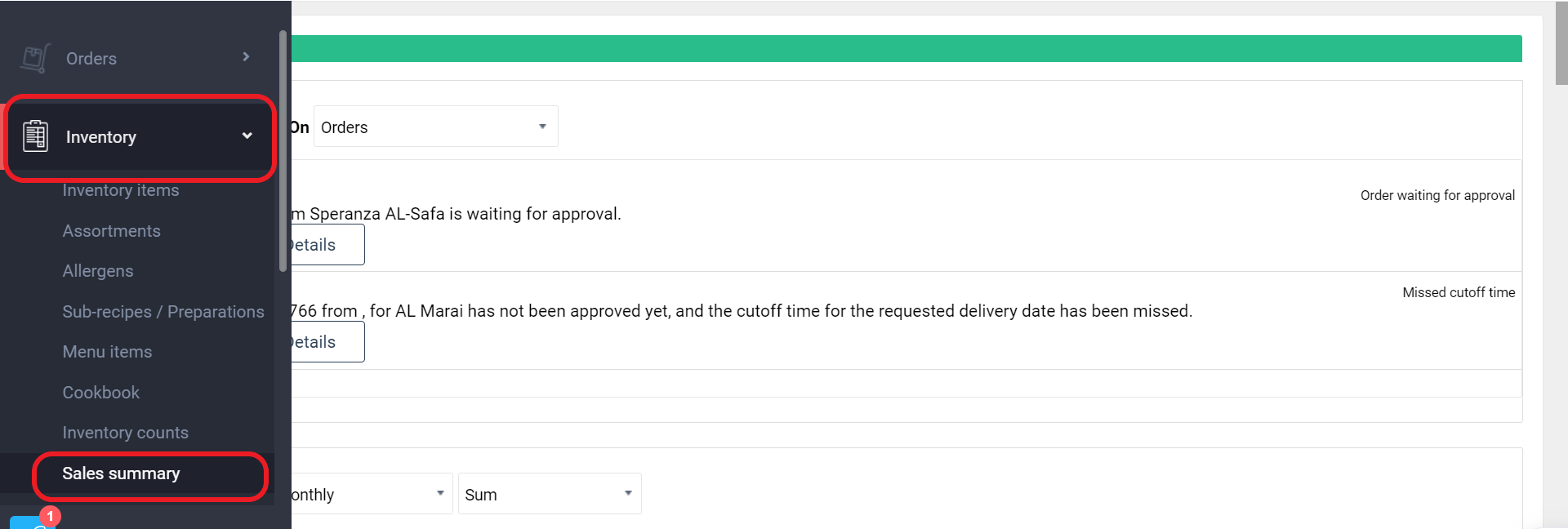
Please enter the correct location and date to see the sales report.
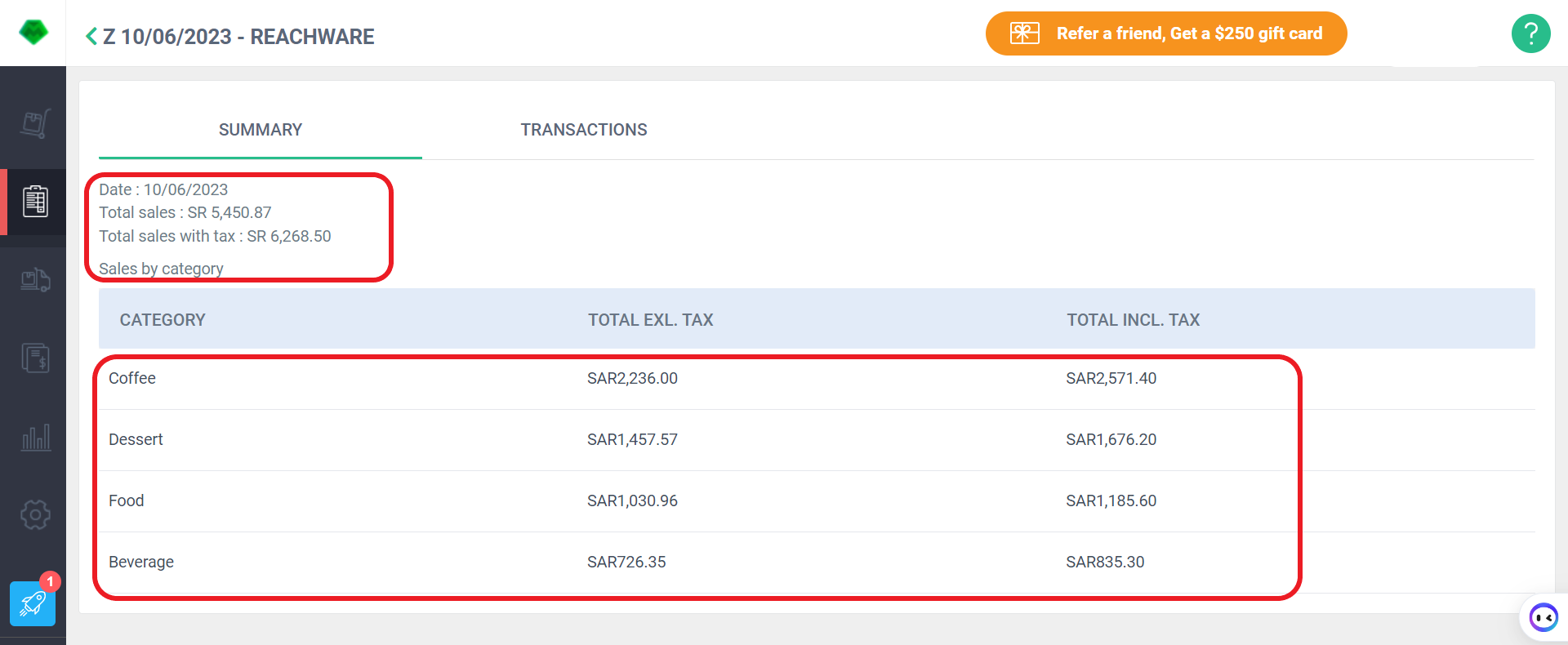
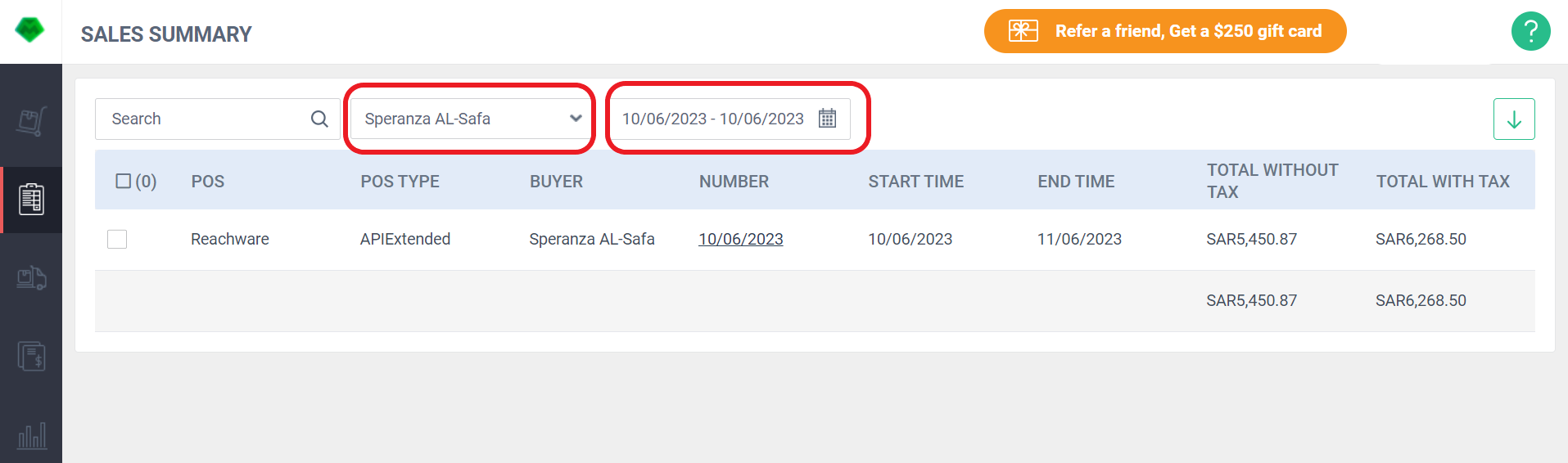 Click on the date to view the sales report details.
 Click on transactions to see the transaction details.
3. Validation
3.1 Sales Validation
Please find the sales validation between Infrasys and Market Man.

Was this article helpful?
That’s Great!
Thank you for your feedback
Sorry! We couldn't be helpful
Thank you for your feedback
Feedback sent
We appreciate your effort and will try to fix the article