.png)
Infrasys is a cloud POS platform that helps restaurants and hospitality businesses run their operations efficiently. It enables centralized management of menus, outlets, staff, and payments while offering multilingual support and robust integration options.
Table of Contents
System Configuration
The system uses OAuth 2.0 with client credentials as the authentication method.
When an operation is called, a token is generated. Each operation call creates a new token valid for 1 hour.
When calling any operation, the integration must request an OAuth 2.0 access token using client credentials.
POST https://api.hero-cloud.com:8243/token

Content-Type: application/x-www-form-urlencoded

grant_type=client_credentials
client_id={{CLIENT_ID}}
client_secret={{CLIENT_SECRET}}
Response:
{
  "access_token": "xxxxxx",
  "token_type": "Bearer",
  "expires_in": 3600
}
Normally, tokens are generated at the Connection level as described in this article: API Key Authentication. However, in Infrasys POS, the System generates the token using OAuth 2.0 to avoid complications.
Connection
Connection name: infrasys token OAuth 2
This is where the client information is stored. The 'secretKey', 'client_id', 'client_secret' is identified and read for the system and the operations.
For Infrasys, the operation it calls is an irrelevent placeholder ('Retrieve Shop Information Request'). As mentioned in System configuration, the token is generated in the System end.
Operations
Headers: Each operation requires:
Authorization: Bearer <access_token>secret_key: <CLIENT_SECRET_KEY>
Parameters: Most operations require the "languages" parameter in the URL query, using ISO 639-1 codes (e.g., ar, en).
Variables: Variables for URLs can be found in the Infrasys POS admin site:
Infrasys POS AdminExample Request
GET item departments

BASE URL: https://api.hero-cloud.com:8243
RELATIVE URI: /pos/8.2.0/shops/{{shopCode}}/item_departments?={{languages}}

HEADERS:
Authorization: Bearer {{ACCESS_TOKEN}}
secret_key: {{SECRET_KEY}}

VARIABLES:
shopCode = CO001
languages = en
Validation
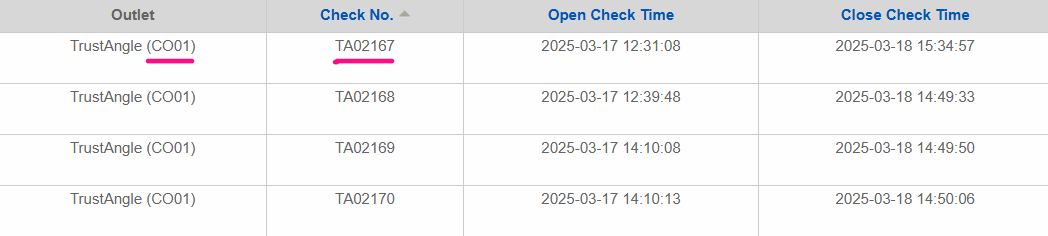
To validate checks/receipts:
- Go to Infrasys POS Admin Homepage make sure you are in the correct Config zone
- Go to Functions > POS System > Tools > View Receipt. Alternatively you can search directly for View Receipt
- Select the correct Outlet and Date.
Was this article helpful?
That’s Great!
Thank you for your feedback
Sorry! We couldn't be helpful
Thank you for your feedback
Feedback sent
We appreciate your effort and will try to fix the article