
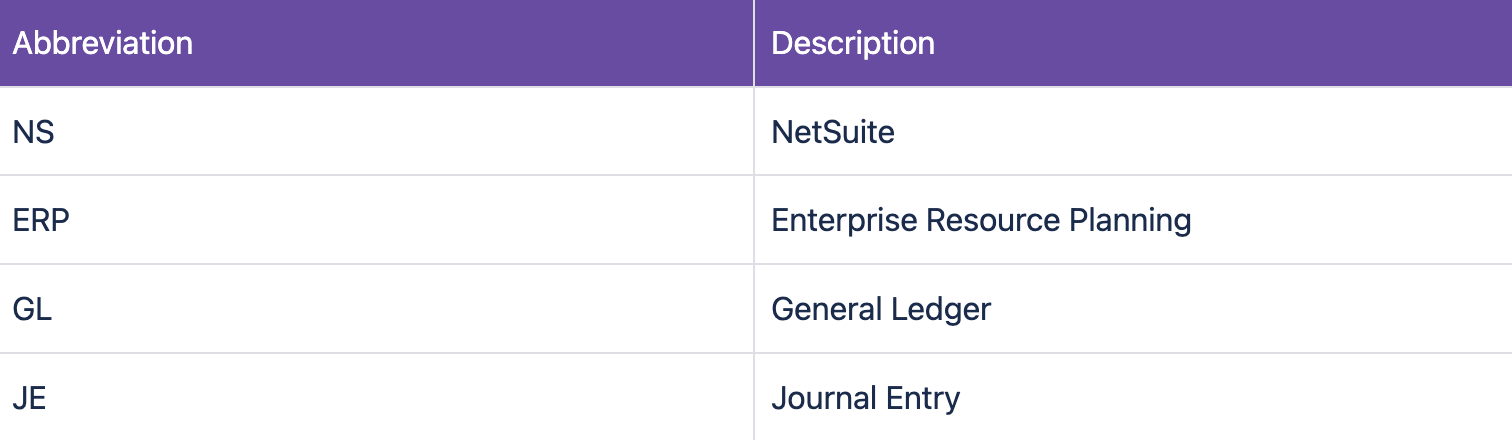
Glossary and Abbreviations
Integration Overview
Here is an evolving requirement document to discuss functionalities and customization to develop an integration between NetSuite ERP System and ZenHR.
Integration Design

TABLE OF CONTENTS
- Glossary and Abbreviations
- Integration Overview
- Table of Content
- Integration Scope
- Financial Transactions:
- Vacations:
- In ZenHR View Go to:
- Vacation in Advance:
- Tickets:
- Gosi
- EOS
- Provision
- Off-cycle settlements
- General Salary Details
- Employees
- Run Payroll
- Run Provisions
- Mapping
- Journal Entry In NetSuite:
Integration Scope
Financial transactions
Vacations
Vacation in advance
Tickets
Gosi
EOS
Provision
Off-cycle settlements
General Salary Details
Employees
Financial Transactions:
Please follow the below steps to find Financial transactions:
In ZenHR System Preferences
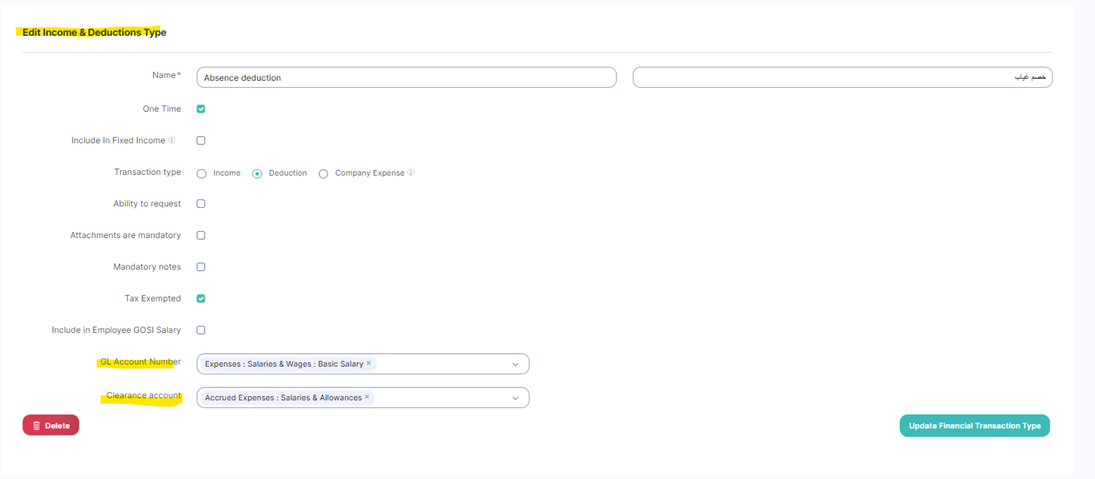
Go to: System Preferences > Financial Transactions types > Income & Deductions > Loan Types > Edit Overtime Type
Steps of mapping :
Go to Financial transaction types.
Select transactions.
Click on Edit.
Set GL Account Number & Clearance Account.
Update Financial transaction types.
Vacations:
Please follow the below steps to find Financial transactions:
In ZenHR View Go to:
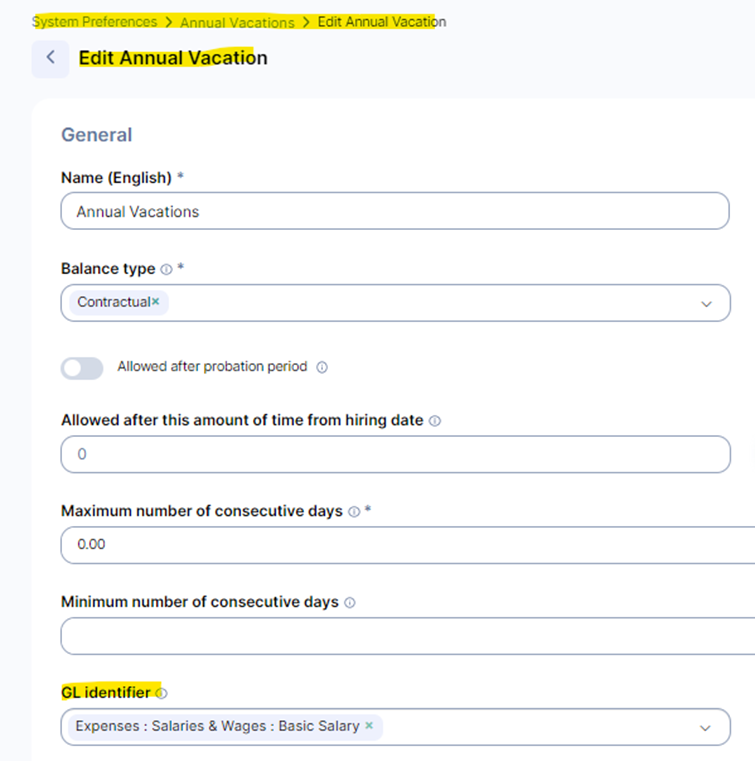
Steps of mapping:
Annual vacation type
Edit Annual Vacation
GL identifier
Vacation in Advance:
Please follow the below steps to find Financial transactions:
In ZenHR View Go to:
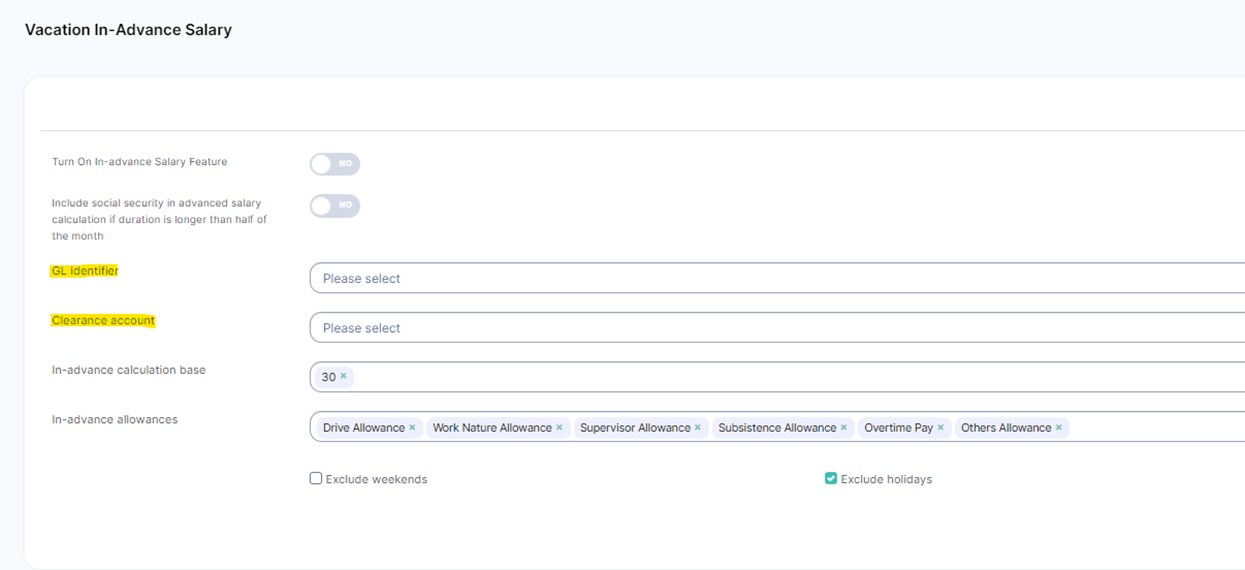
System Preferences > Financial setup > Vacation In-Advance Salary
Steps of mapping:
System Preferences
Financial setup
Vacation In-Advance Salary
GL identifier
Clearance account
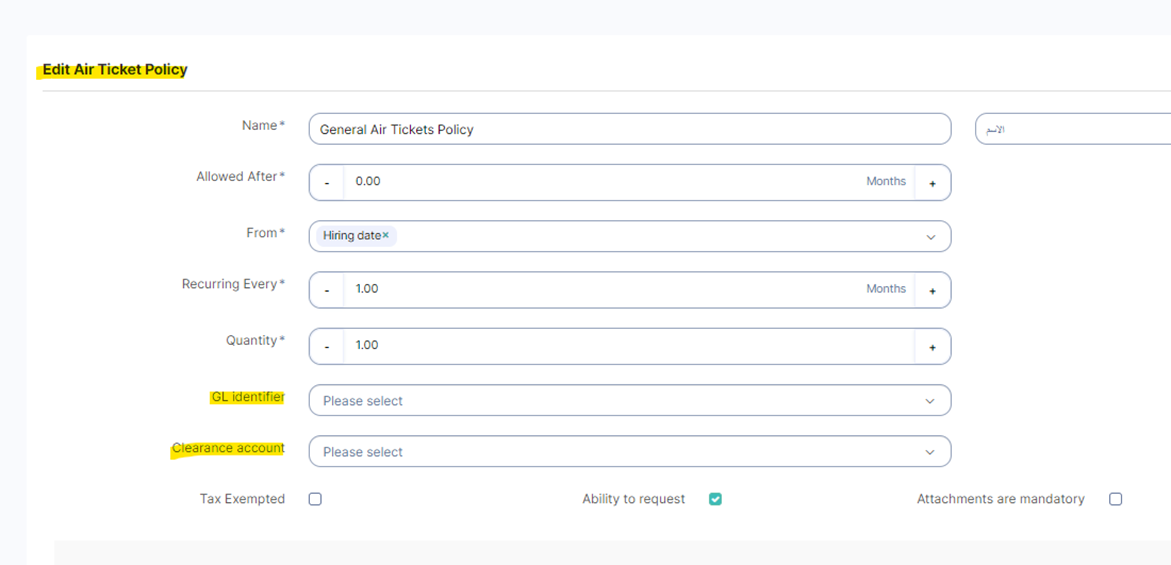
Tickets:
Please follow the below steps to find Financial transactions:
In ZenHR View Go to:
System Preferences > Financial setup > Air Ticket Policies List
Steps of mapping:
System Preferences
Financial setup
Edit the Air Ticket Policy
GL identifier
Clearance account
Gosi
Please follow the below steps to find Financial transactions:
In ZenHR View Go to:
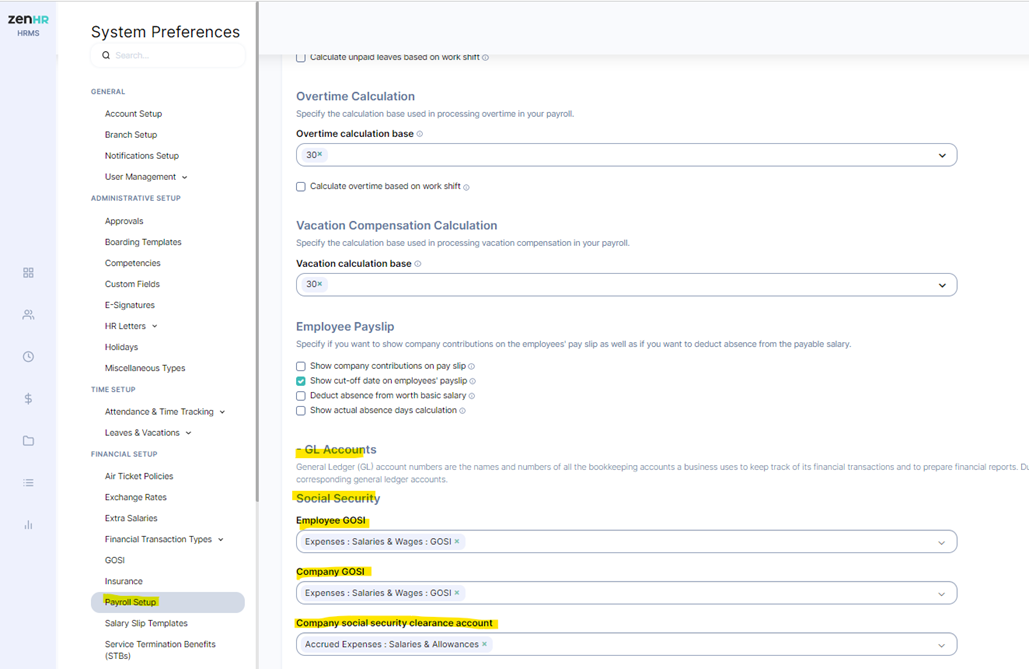
System Preferences > Financial setup > GOSI
Steps of mapping:
System Preferences
Financial setup
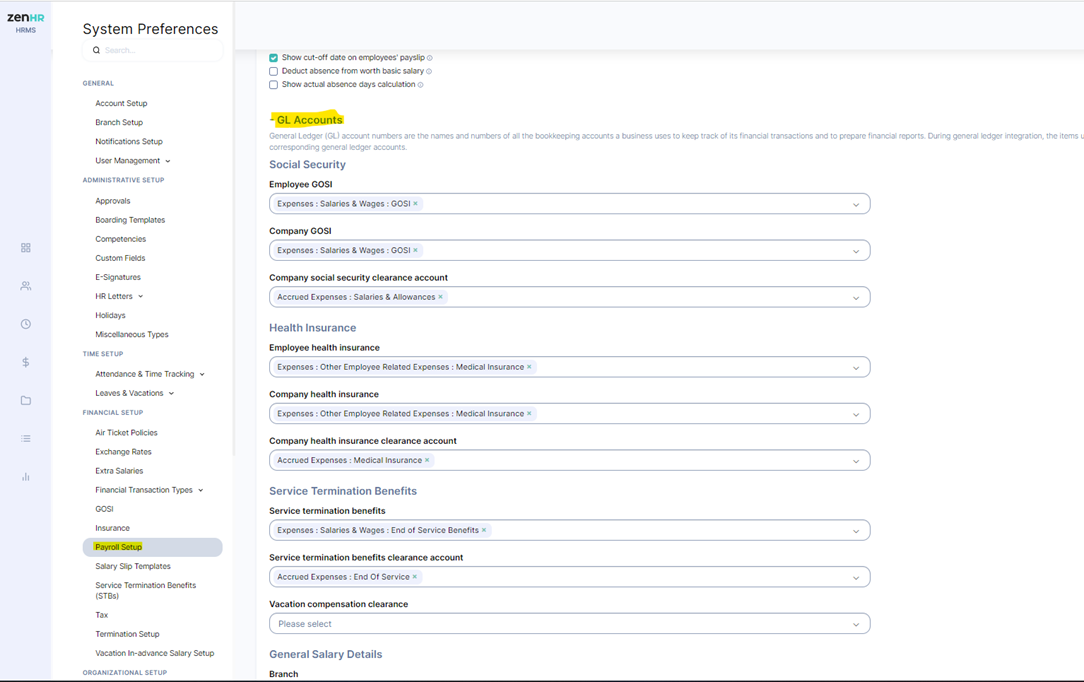
Payroll Setup
GL Accounts
Social Security
Employee GOSI
Company GOSI
Company social security clearance account
EOS
Please follow the below steps to find Financial transactions:
In ZenHR View Go to:
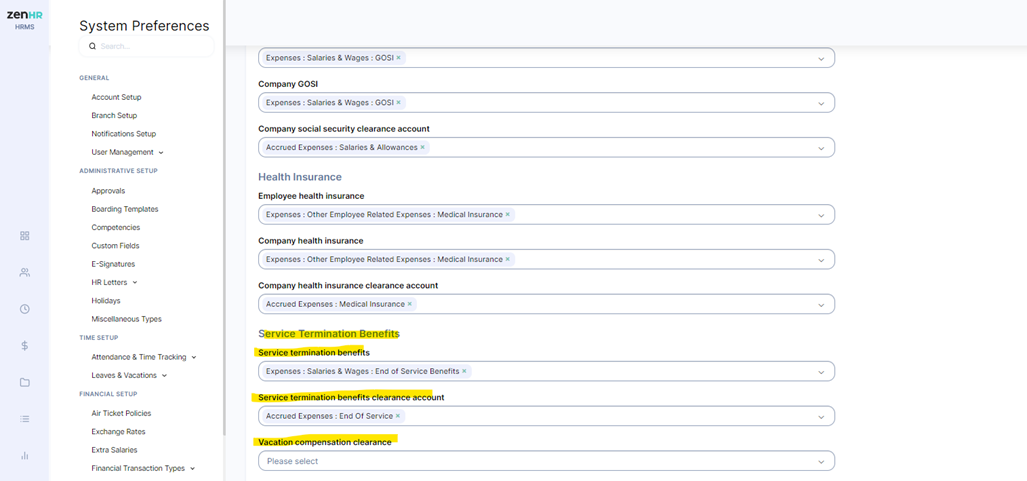
System Preferences > Financial setup > Payroll setup
Steps of mapping:
System Preferences
Financial setup
Payroll Setup
Service Termination Benefits
Service termination benefits clearance account
Vacation compensation clearance
Provision
Please follow the below steps to find Financial transactions:
In ZenHR View Go to:
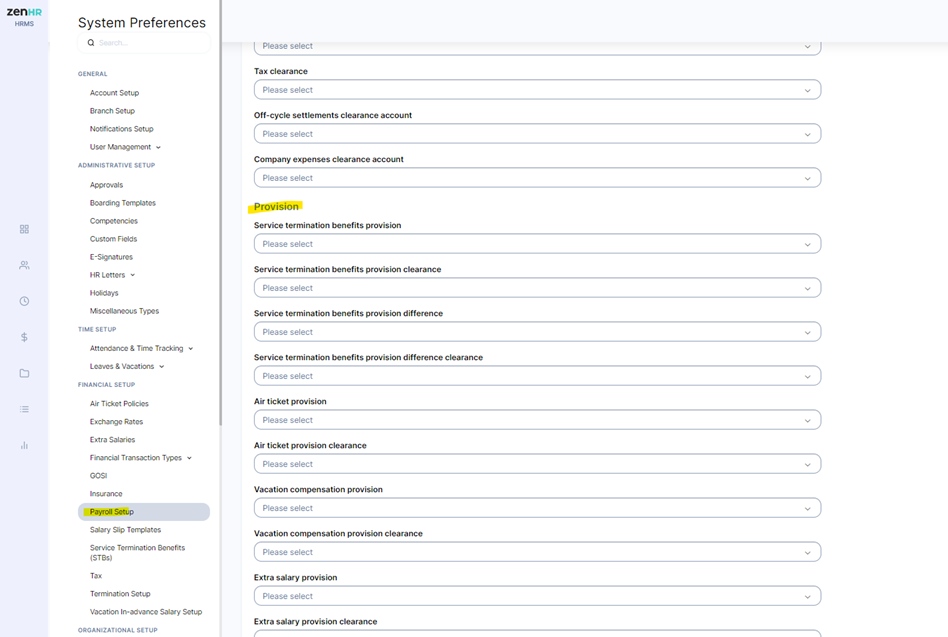
System Preferences > Financial setup > Payroll setup
Steps of mapping:
System Preferences
Financial setup
Payroll Setup
Provision
Service termination benefits provision
Service termination benefits provision clearance
Service termination benefits provision difference
Service termination benefits provision difference clearance
Air ticket provision
Air ticket provision clearance
Vacation compensation provision
Vacation compensation provision clearance
Extra salary provision
Extra salary provision clearance
Off-cycle settlements
Please follow the below steps to find Financial transactions:
In ZenHR View Go to:
System Preferences> Financial setup> Payroll setup
Steps of mapping:
System Preferences
Financial setup
Payroll Setup
General Salary Details.
Off-cycle settlements clearance account.

General Salary Details
In ZenHR View Go to:
System Preferences> Financial setup> Payroll setup
Steps of mapping:
System Preferences
Financial setup
Payroll Setup.
General Salary Details.
Employees
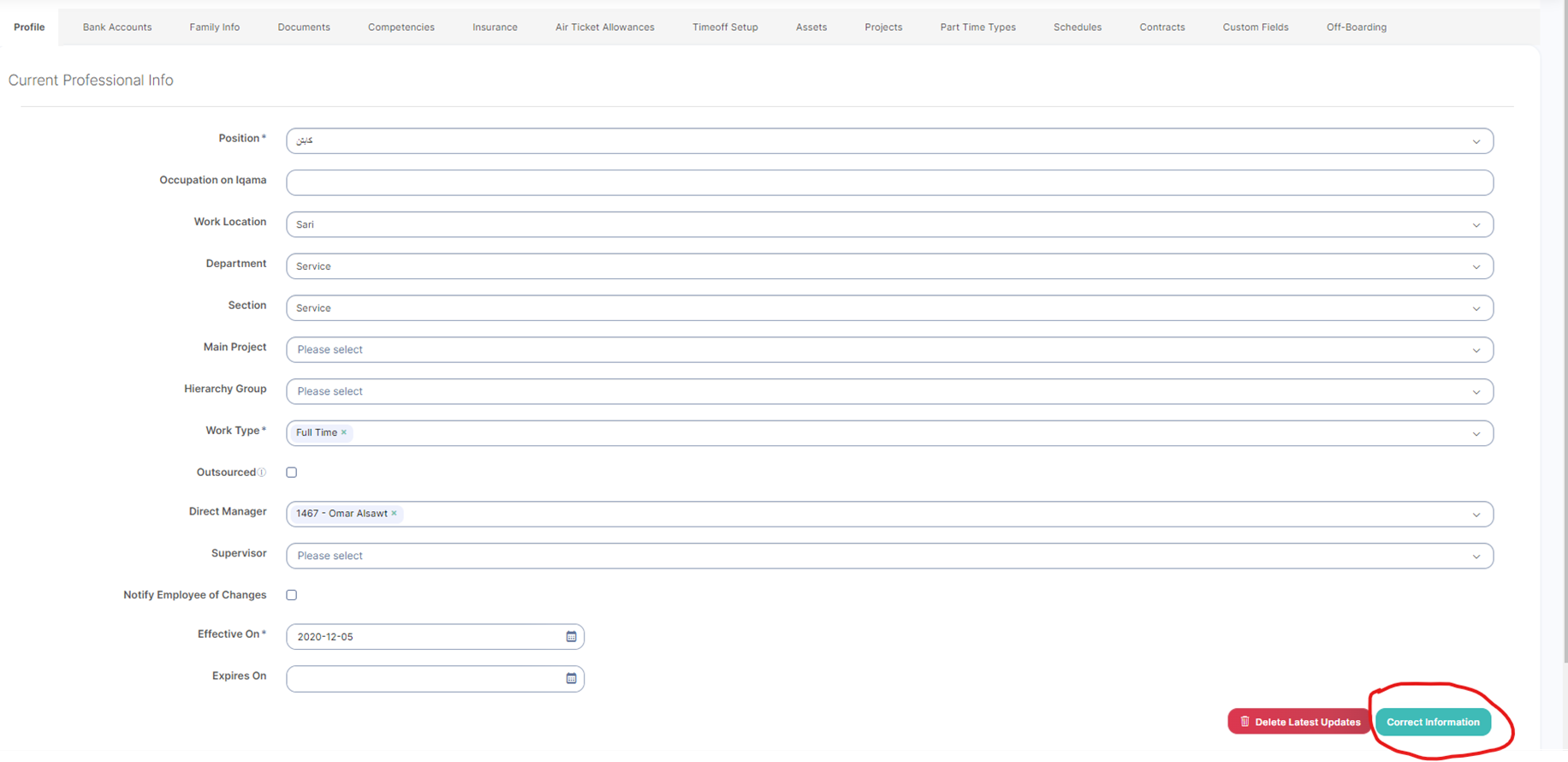
When creating an employee and adding a location and department is sent to NetSuite automatically.
Kindly note, When the employee's data is updated, please click on Correct information to be transferred to the NetSuite

Run Payroll
After calculation of salaries:
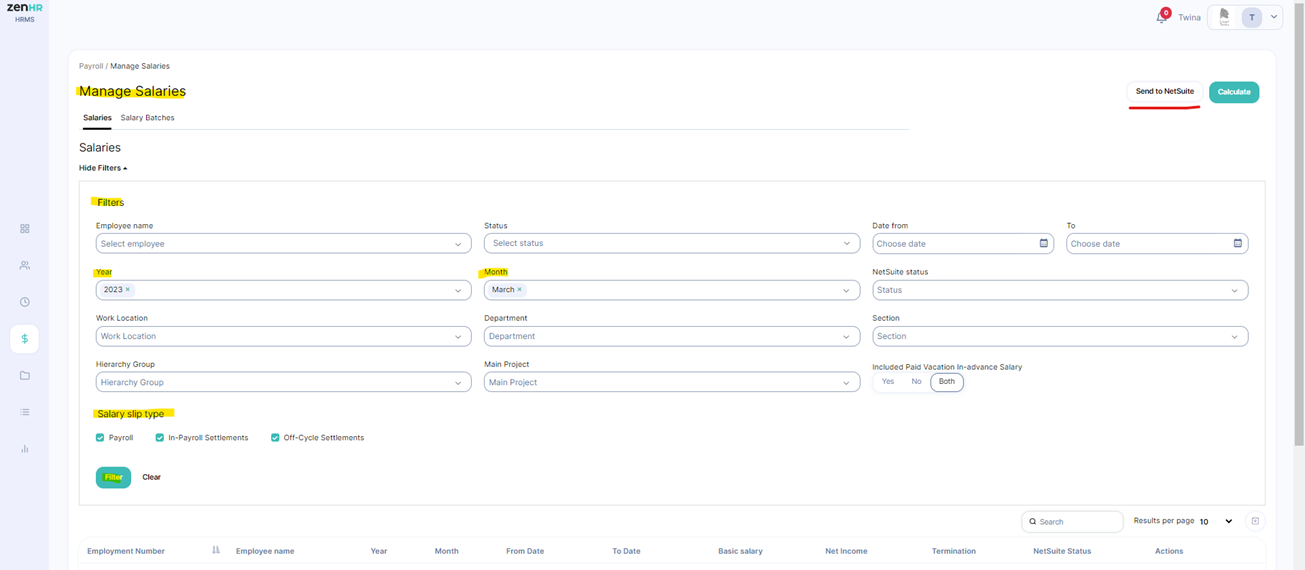
Please follow the below steps to run payroll to NetSuite:
In ZenHR system Go to:
Payroll > Manage Salaries> Salaries> filters > choose Year, month, and Salary slip type
(Payroll, In-Payroll Settlements and Off-Cycle Settlements then select employees and click sent to NetSuite)
Run Provisions
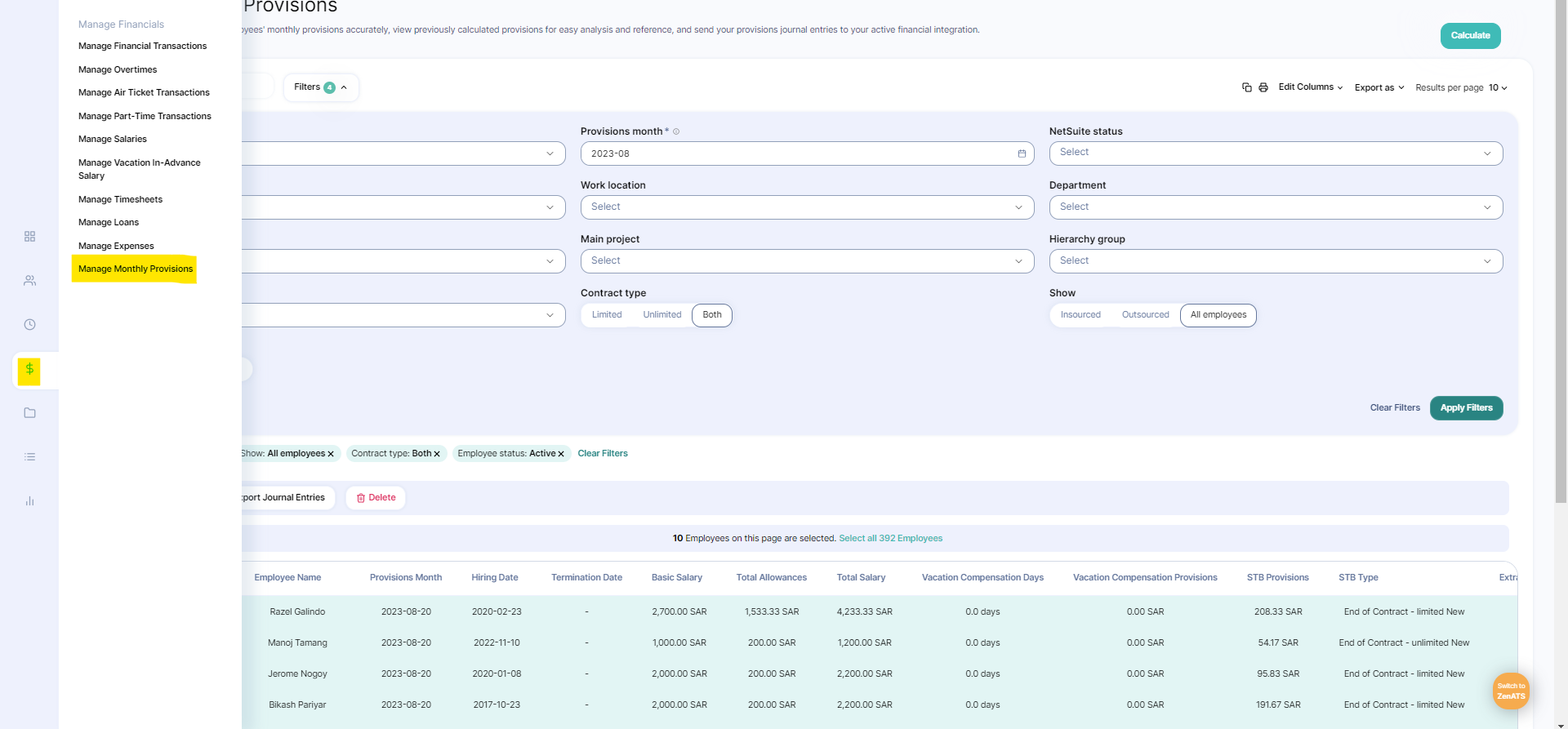
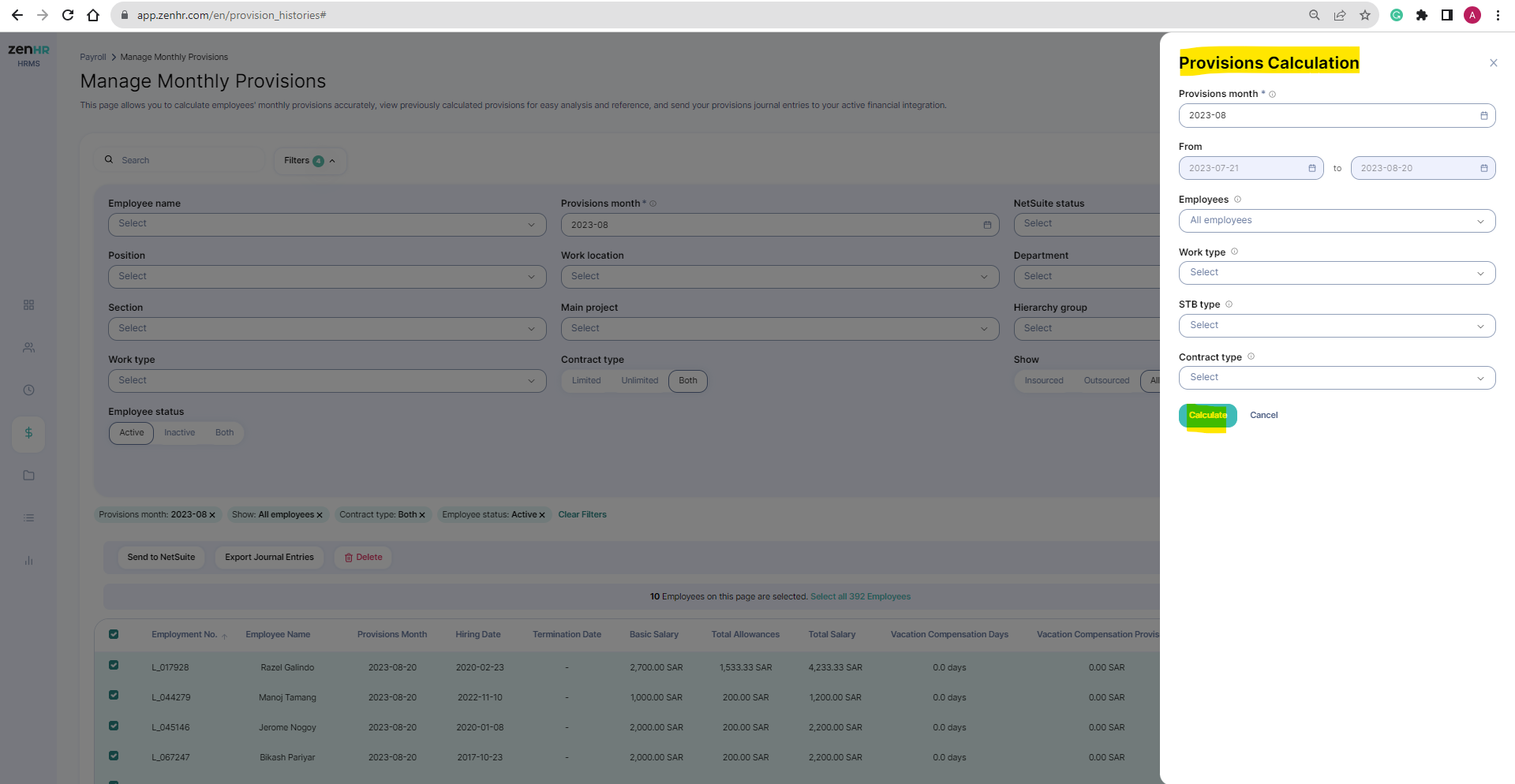
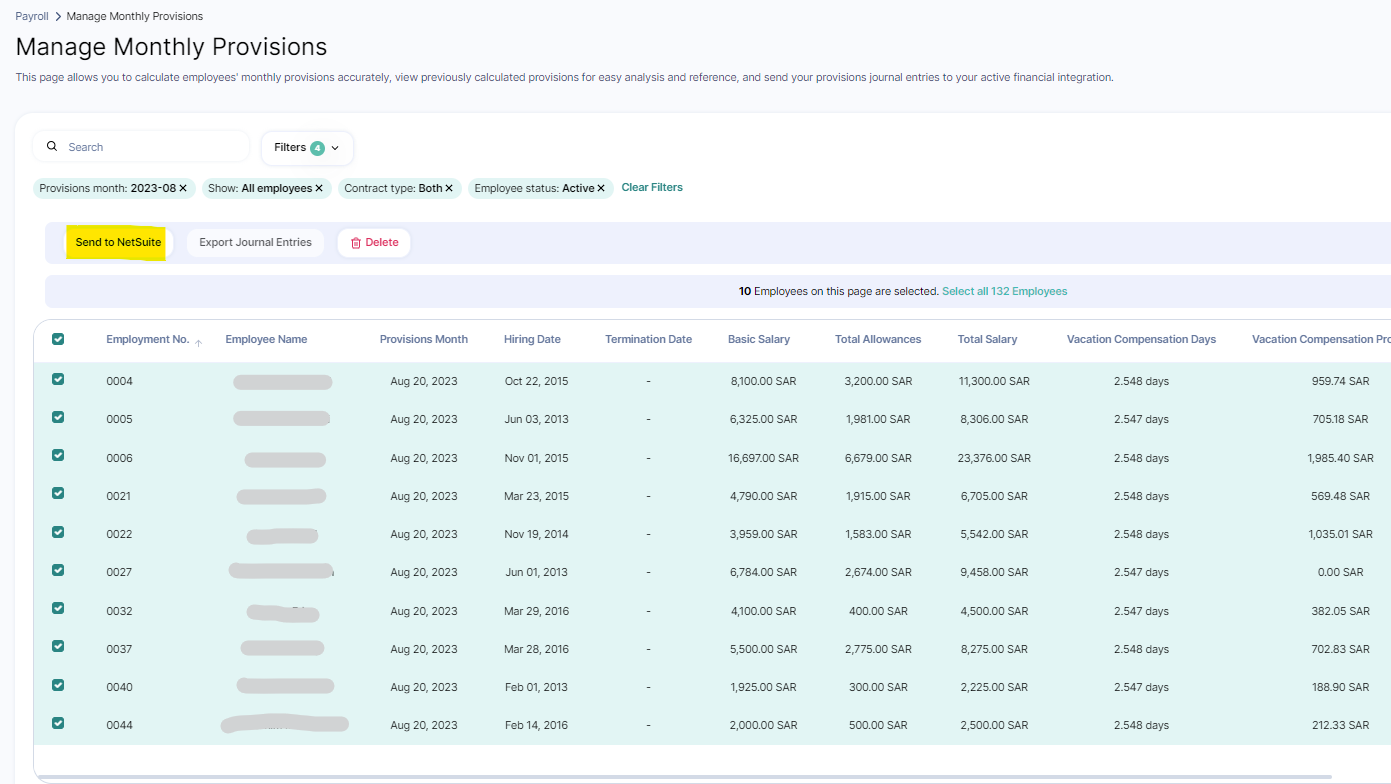
Please follow the below steps to run privation to NetSuite:
Go to Payroll> Manage Monthly provision> click calculate at top of page in green.
Will appear small page> Choose the month and then click Calculate.
Select employees> After selecting employees you will see Send to NetSuite
Mapping
Regarding Mapping, need to map Department, and location from NS side
Please follow the below steps to run payroll to NetSuite:
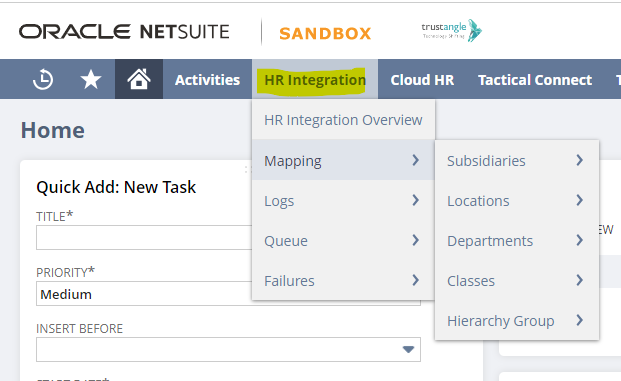
Go to NS System
Select HR Integration tab> Mappers
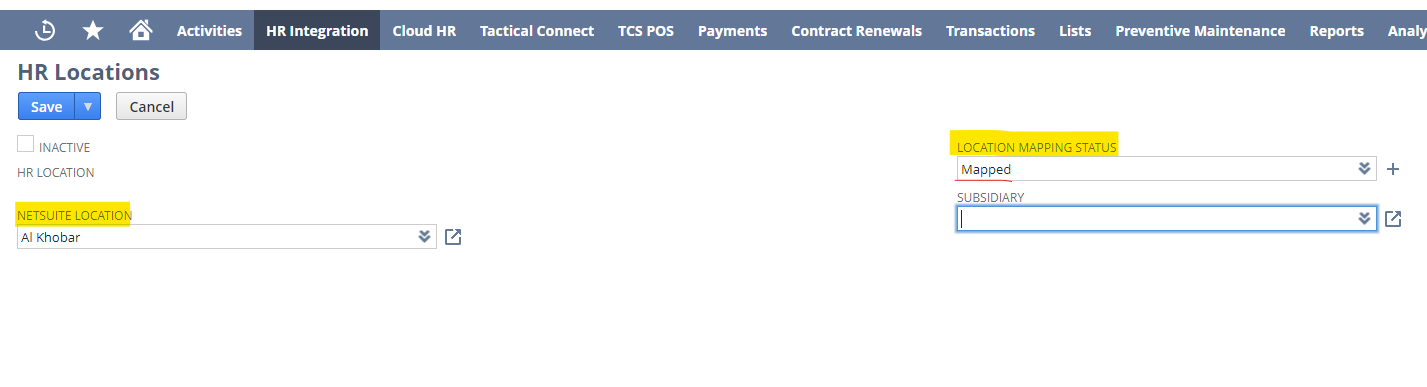
Select Subsidiaries then Location then Department then classes and Hierarchy Group if you have them
Assign each type with its corresponding and change the status to Mapped.
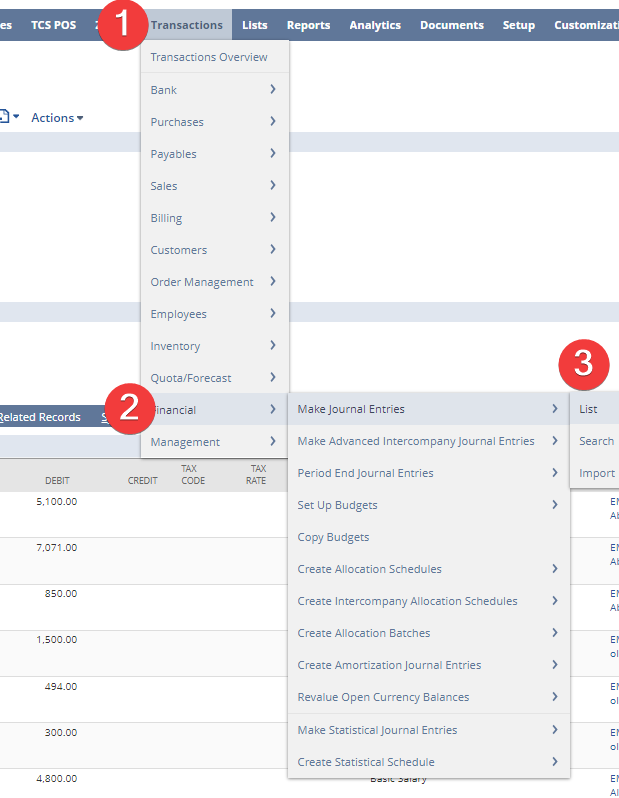
Journal Entry In NetSuite:
Regarding Journal Entry, need to Go to NS System
Please follow the below steps to run payroll to NetSuite:
Go to NS system
Select Transactions>Financial > Make Journal Entries> List.
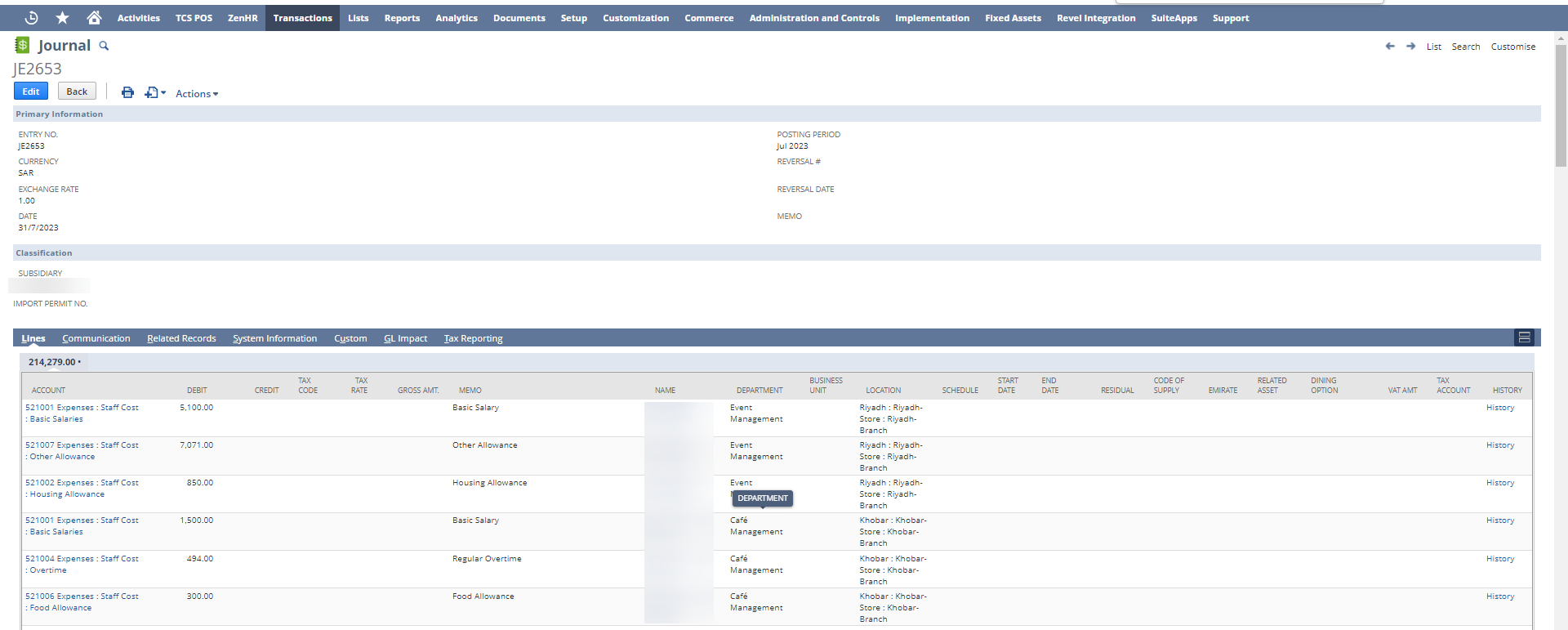
You will also receive an email with the journal number that has been created as a link that you can click on and go to the journal directly.
Was this article helpful?
That’s Great!
Thank you for your feedback
Sorry! We couldn't be helpful
Thank you for your feedback
Feedback sent
We appreciate your effort and will try to fix the article