TABLE OF CONTENTS
- Integration Scope
- Integration Design
- ISell Integration Settings
- Invoice Integration
- Payment Integration
- Credit Memo Integration
- Refunds Integration
- Load Request Integration
- Unload Request Integration
- Customer
- Product
- UOM Integration
Integration Scope
Invoices
Payments
Credit Memo
Refunds
Inventory Adjustments
Load Request
Unload Request
Customers
Products
UOM
Integration Design
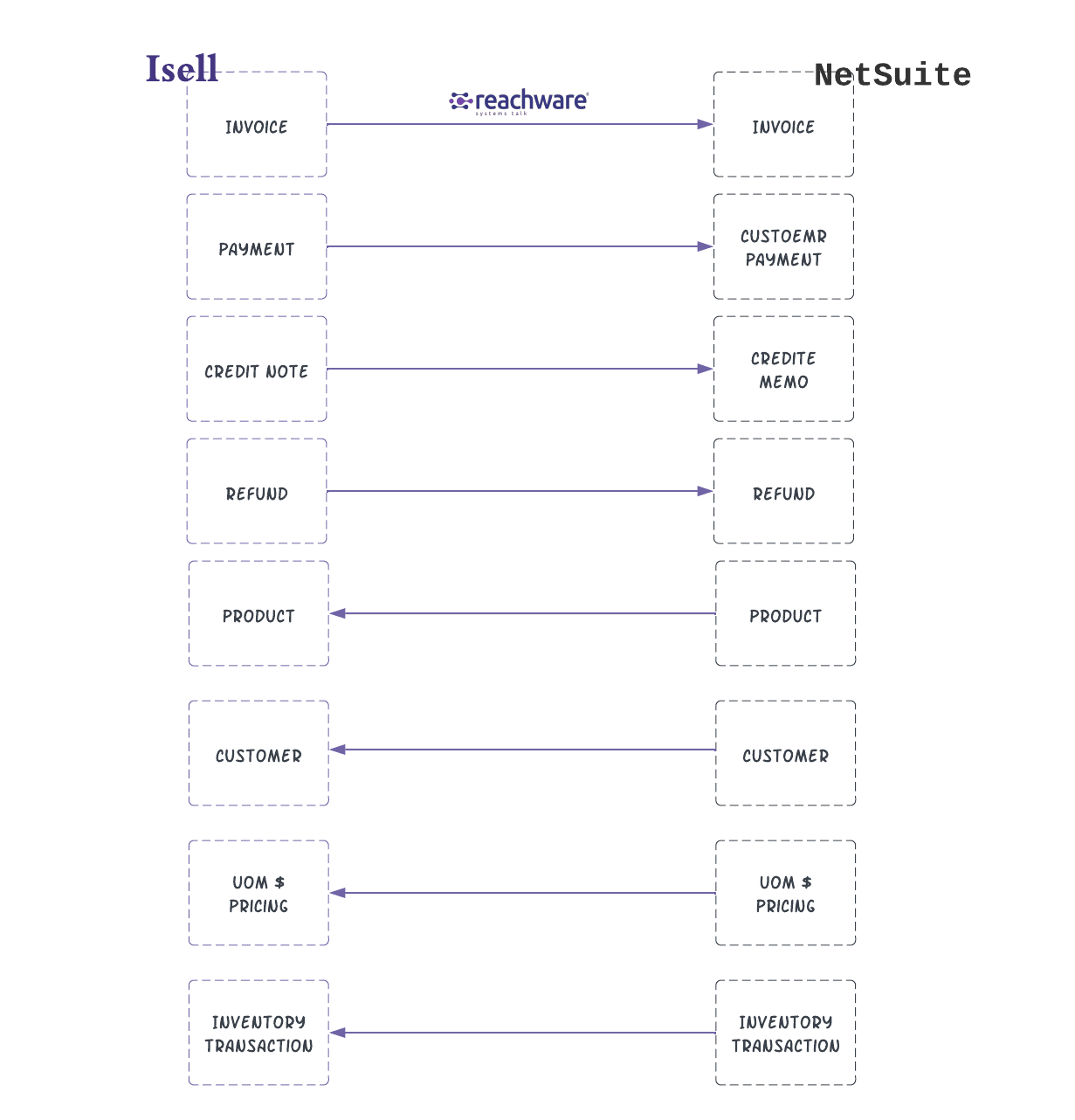
ISell Integration Settings
Please follow the below steps to find General Setting of the integration on NetSuite:
Go to: ISell Integration → Integration Settings → Integration Mapping
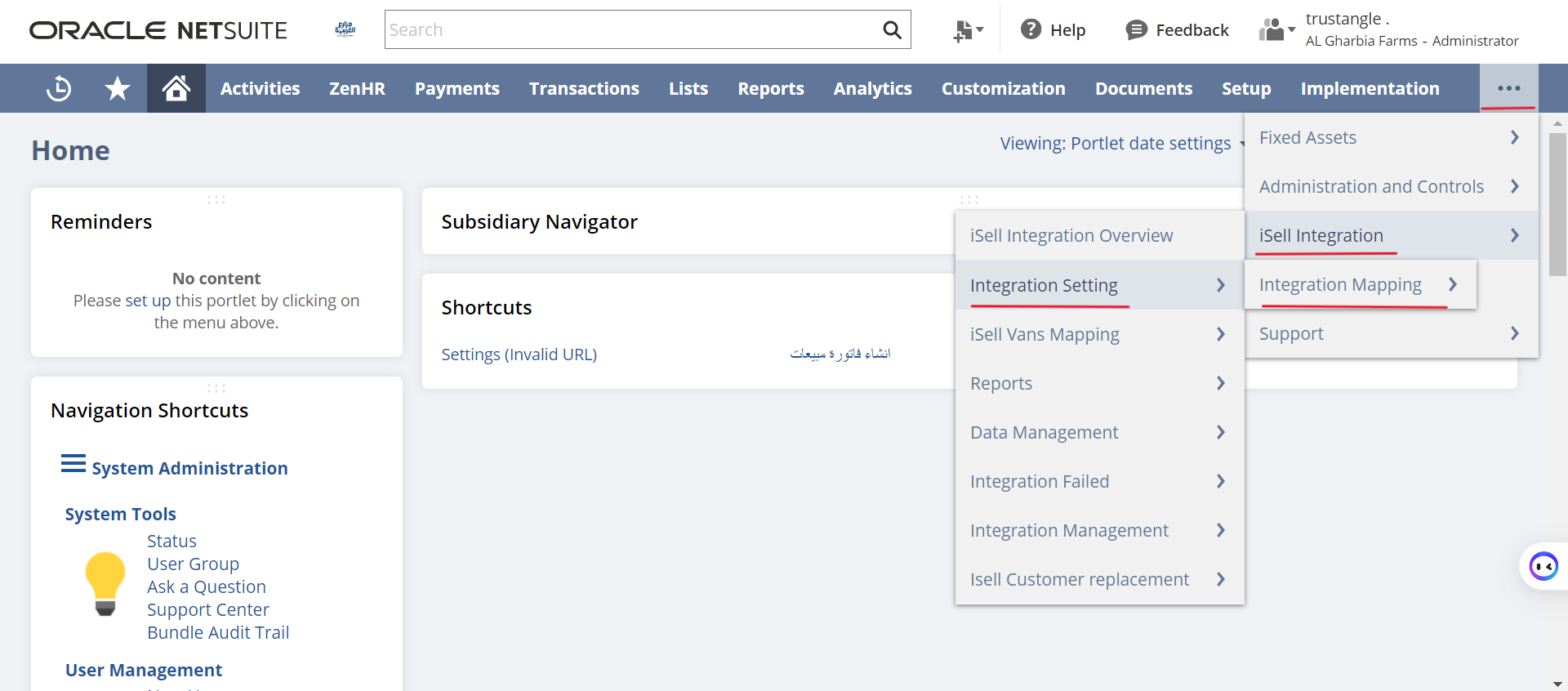
From the page below, you can see all item mapping and all integration details.
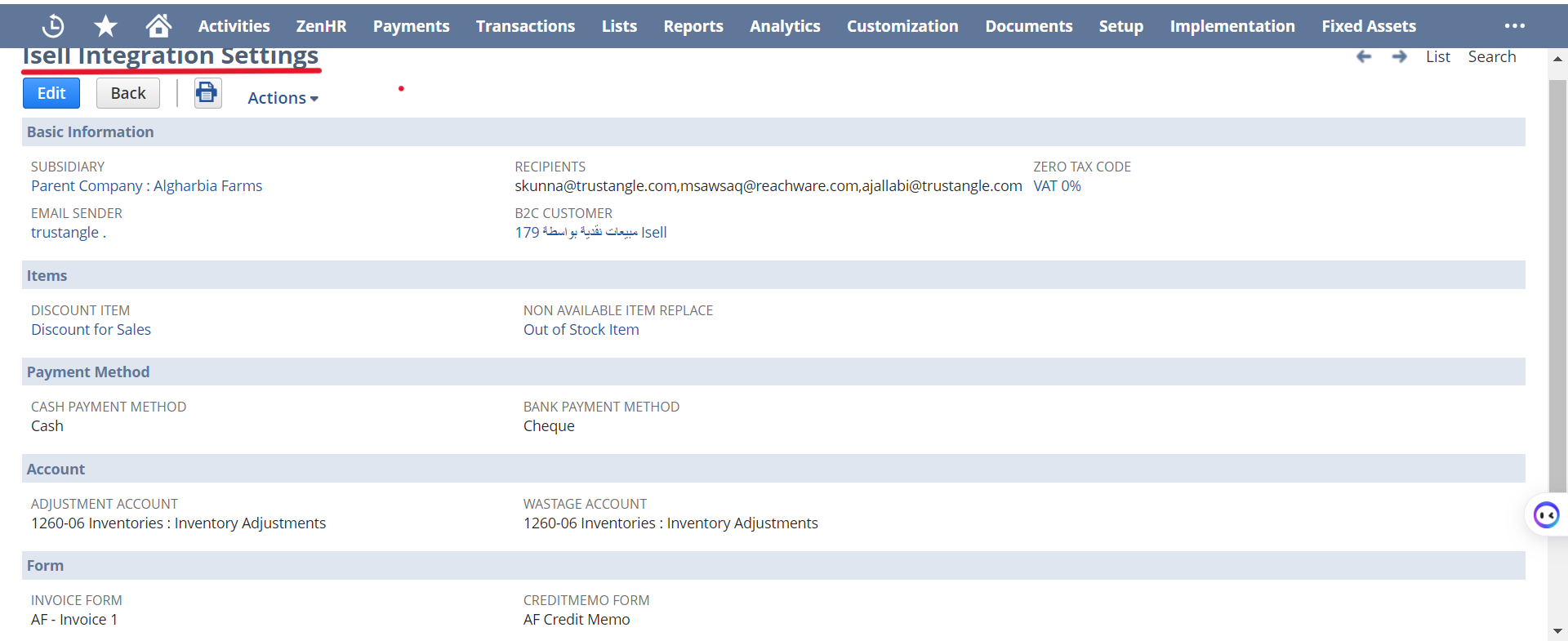
Isell Integration Settings
Please make sure the below information are filled before the running the Integration:
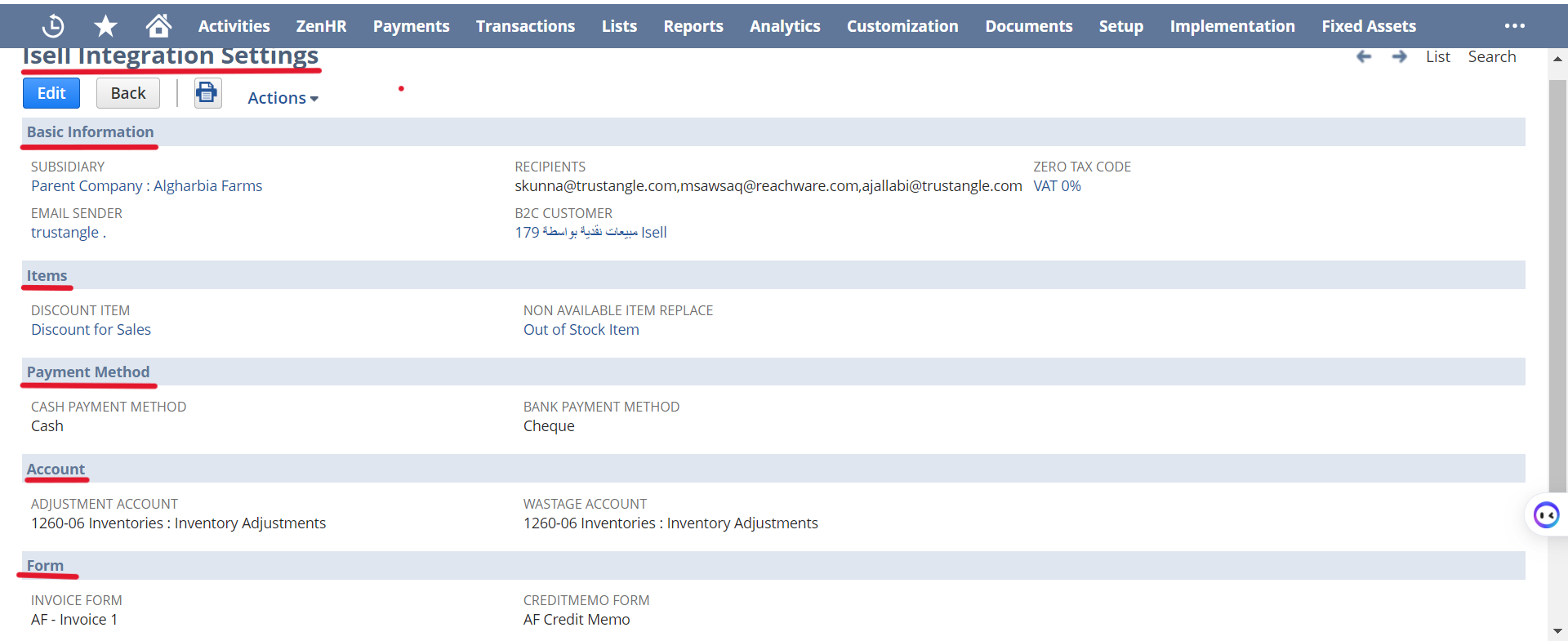
Need to set up the essentially information : Basic Information, Item, Payment Method, Account, and Form.
Invoice Integration
ISell
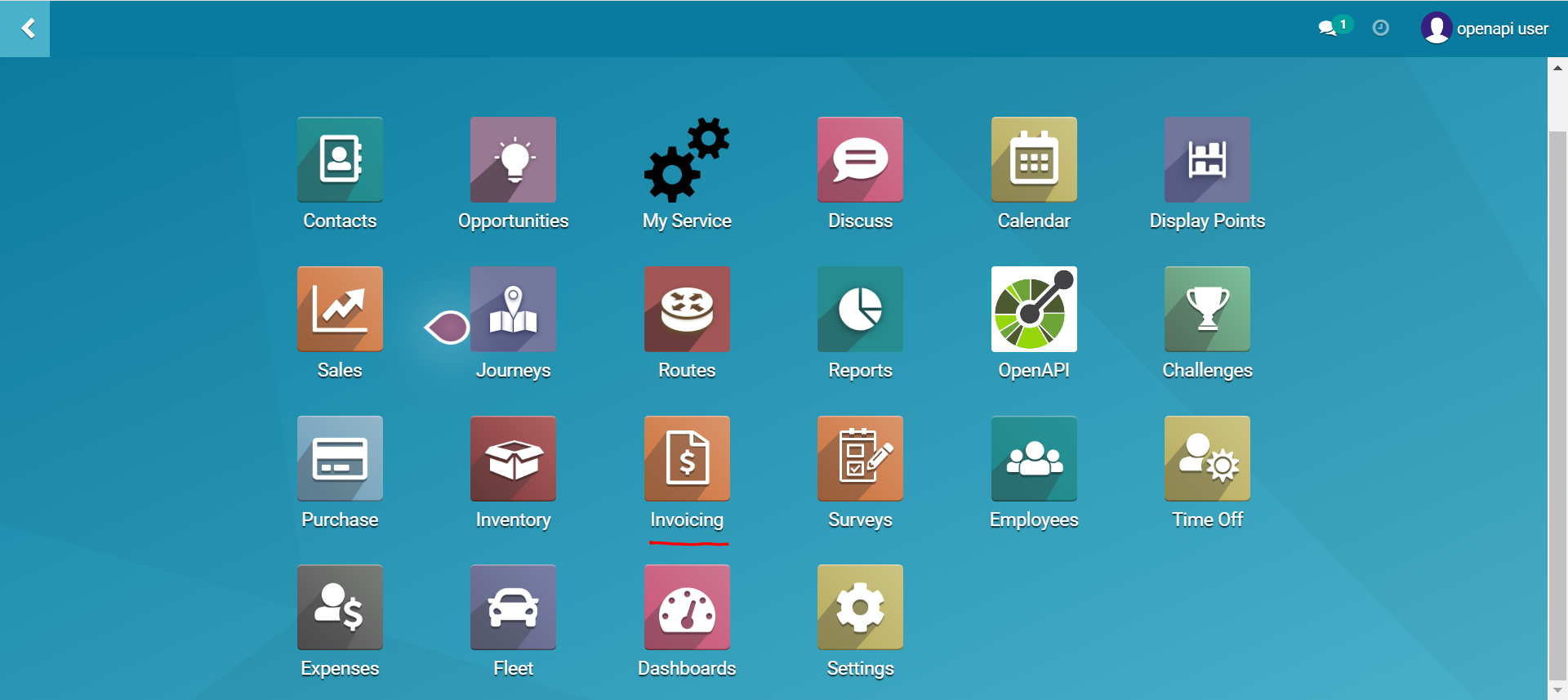
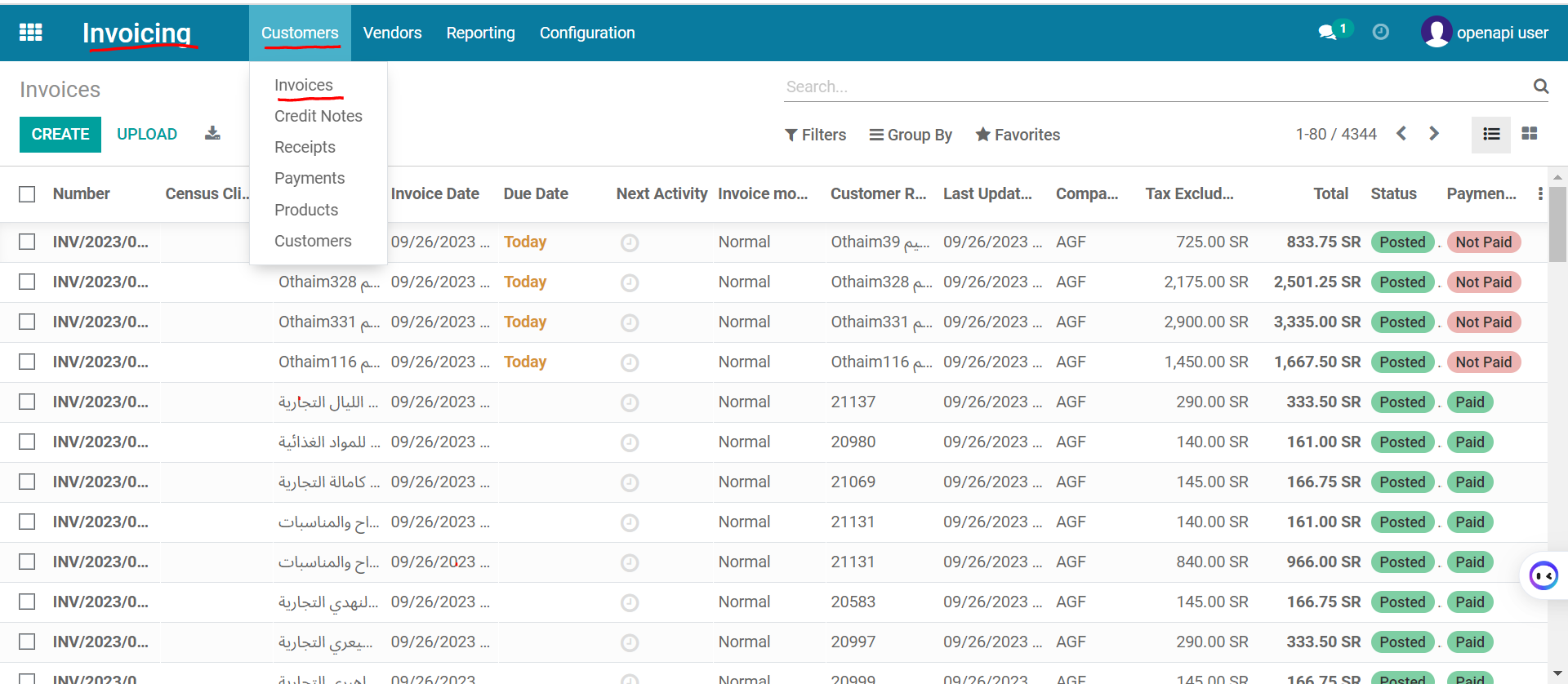
Please follow the below steps to find Invoices in ISell for customer:
Go to: ISell Home Page → Invoicing → Customer → Invoice
Note: The user can create an invoice here.
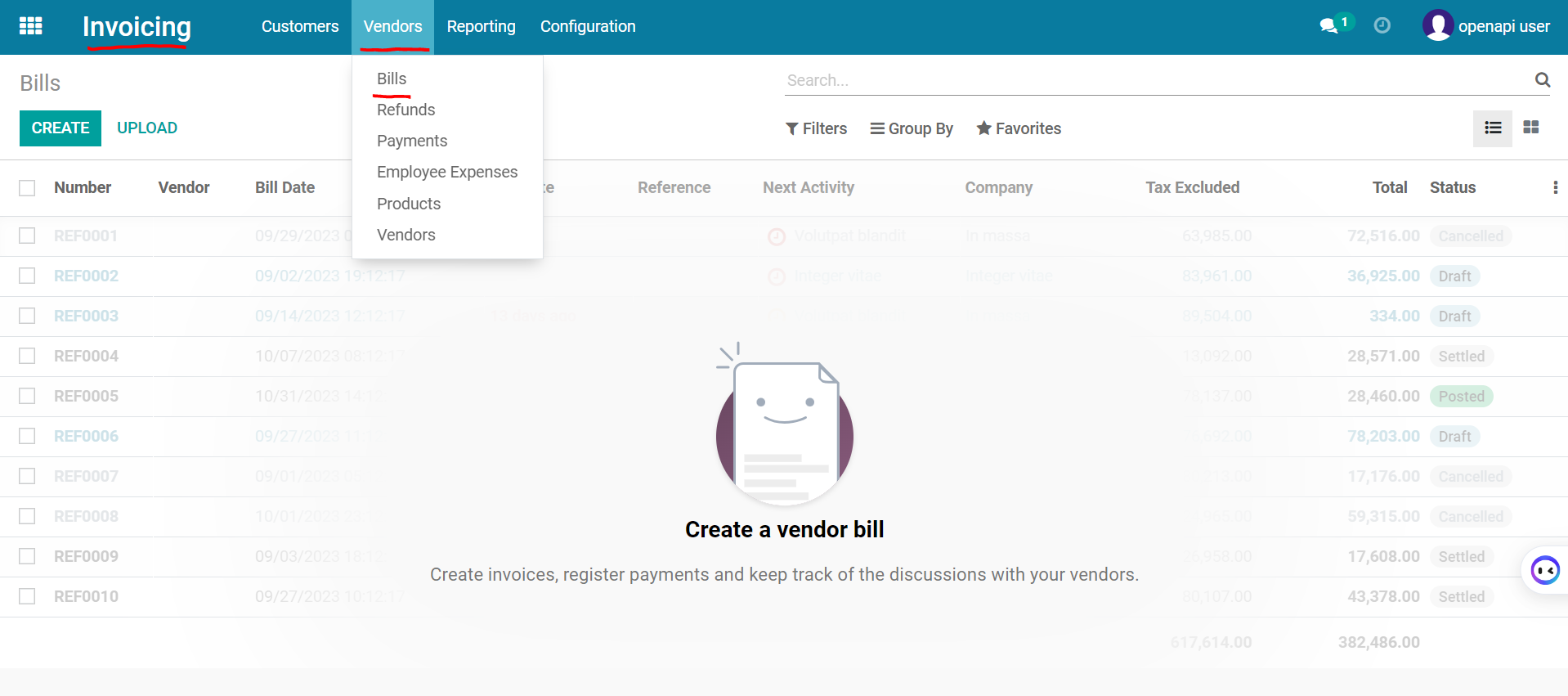
Please follow the below steps to find Invoices In ISell For Vendors:
Go to: ISell Home Page → Invoicing → Vendors → Bill
Invoice
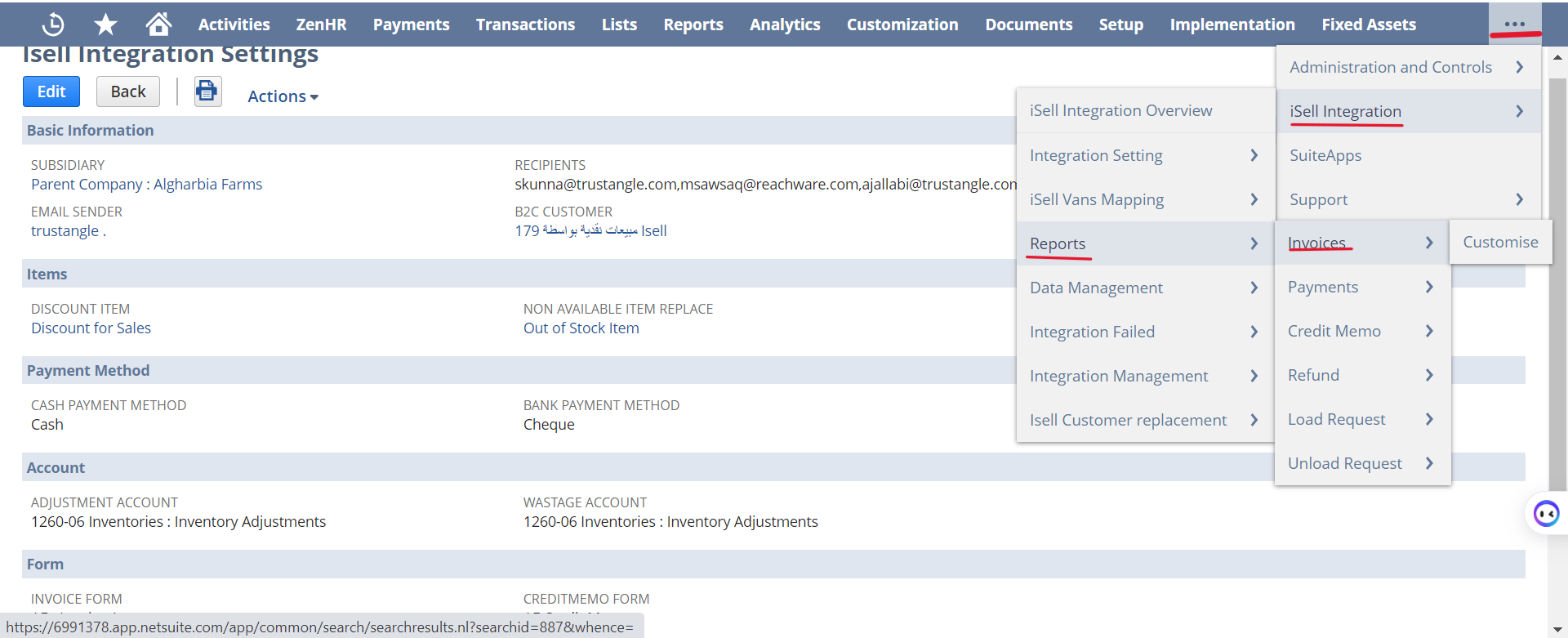
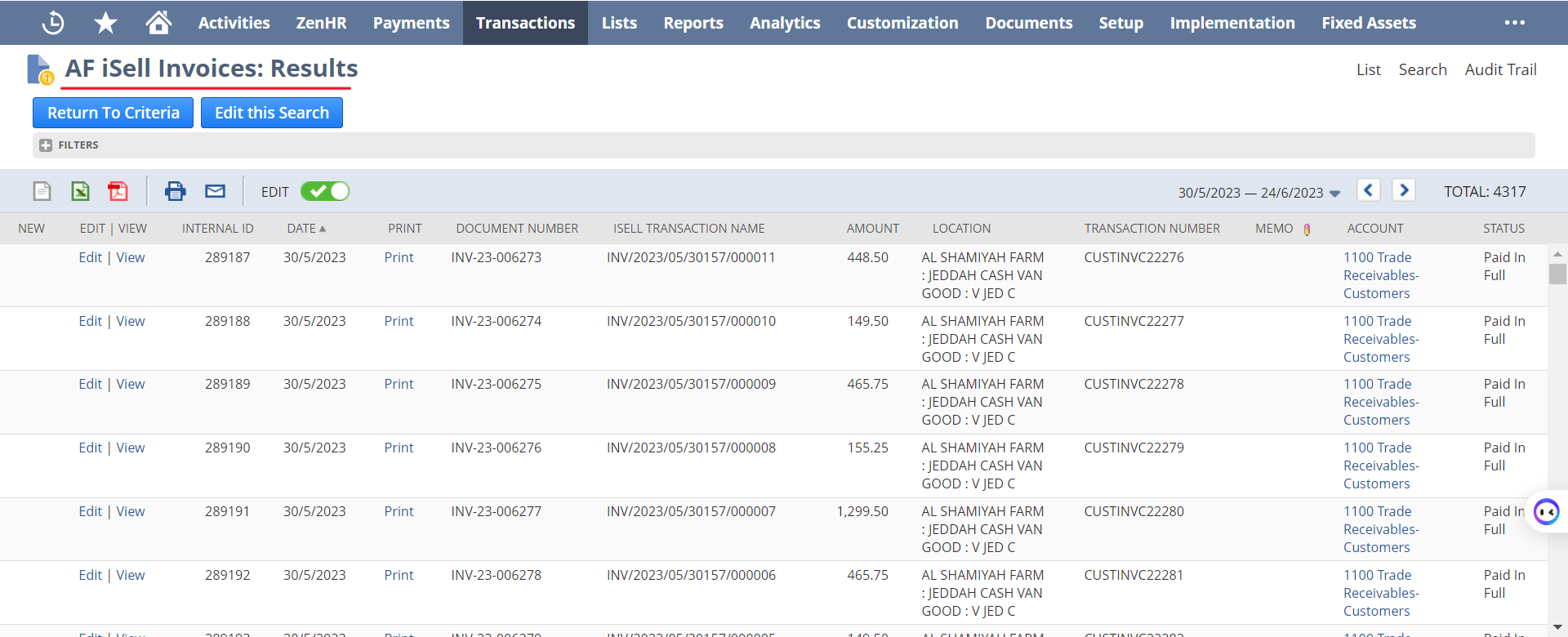
Please follow the below steps to find Invoice Page of the integration on NetSuite:
Go to: ISell Integration → Report → Invoice
Search options
ISELL INVOICE NAME
Integration Schedule
Daily
Trigger
Done
From the page below , the user can cee all the Invoices from ISell to NetSuite.
Payment Integration
ISell
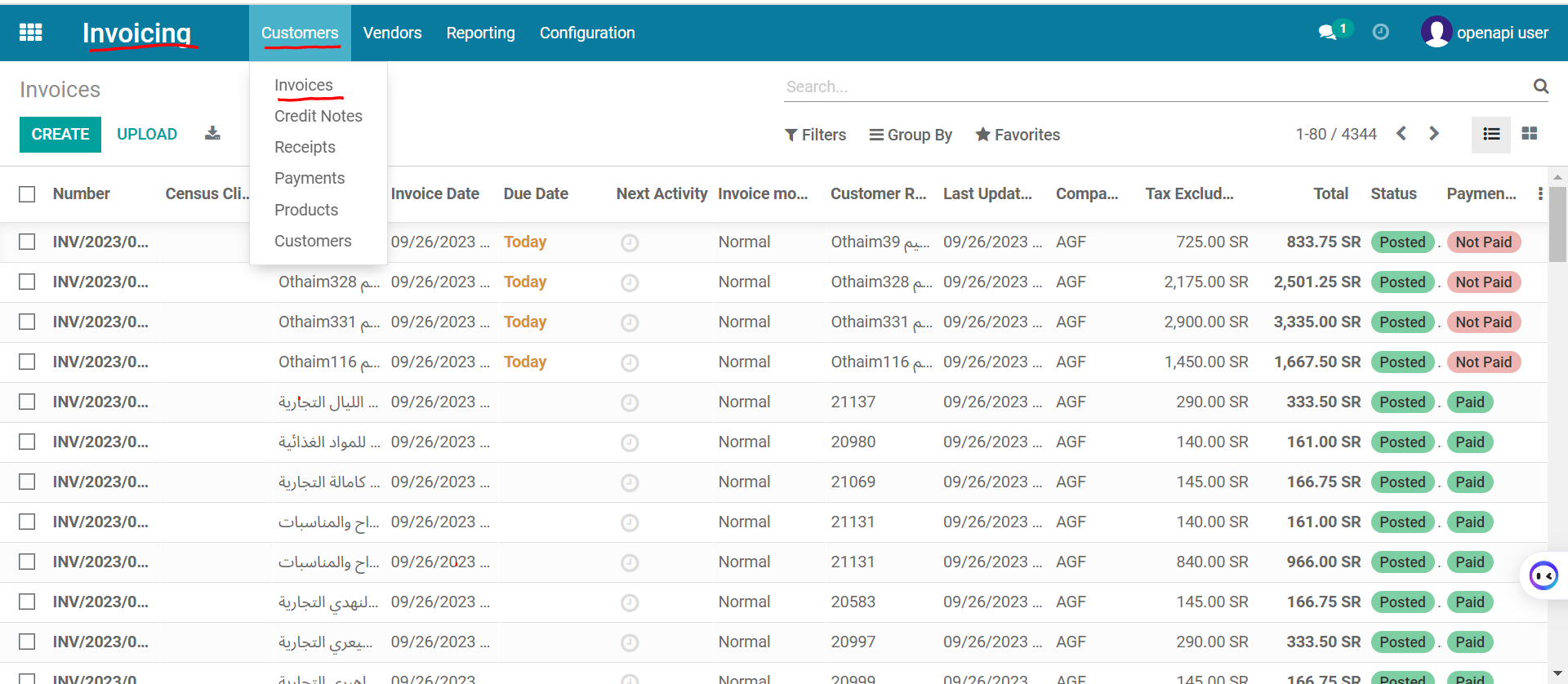
Please follow the below steps to find Payment in ISell for Customer:
Go to: ISell Home Page → Invoicing → Customer → Payments
Note: The user can create a payment here.
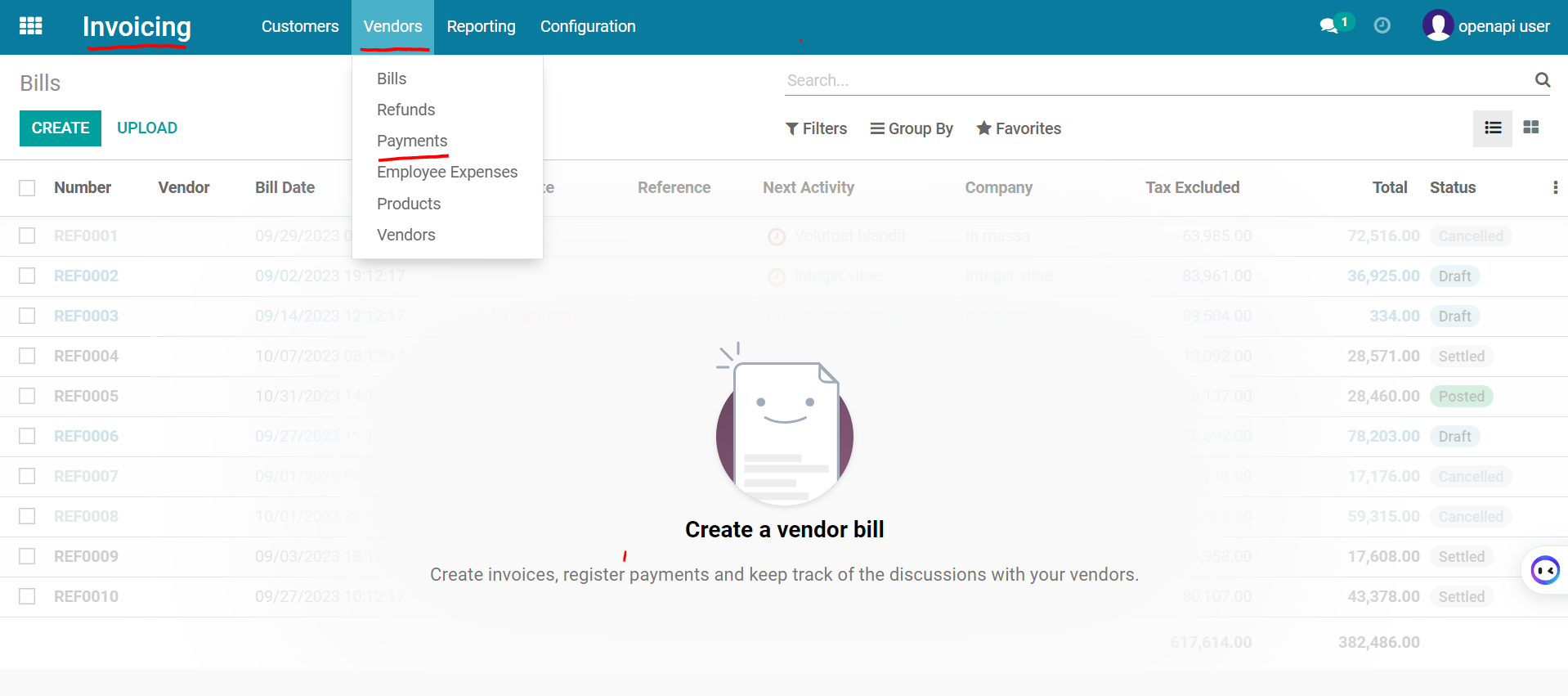
Please follow the below steps to find Payment in ISell for Vendor:
Go to: ISell Home Page → Invoicing → Vendor→ Payments
NetSuite
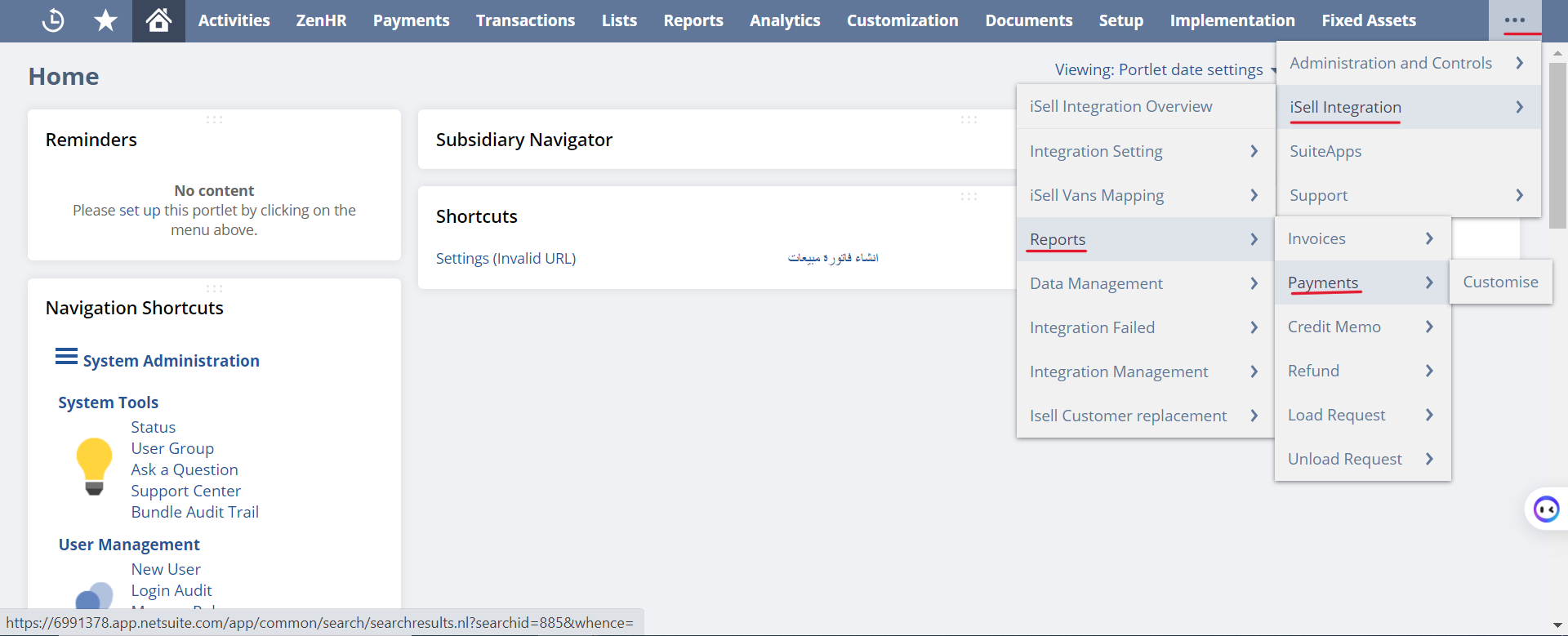
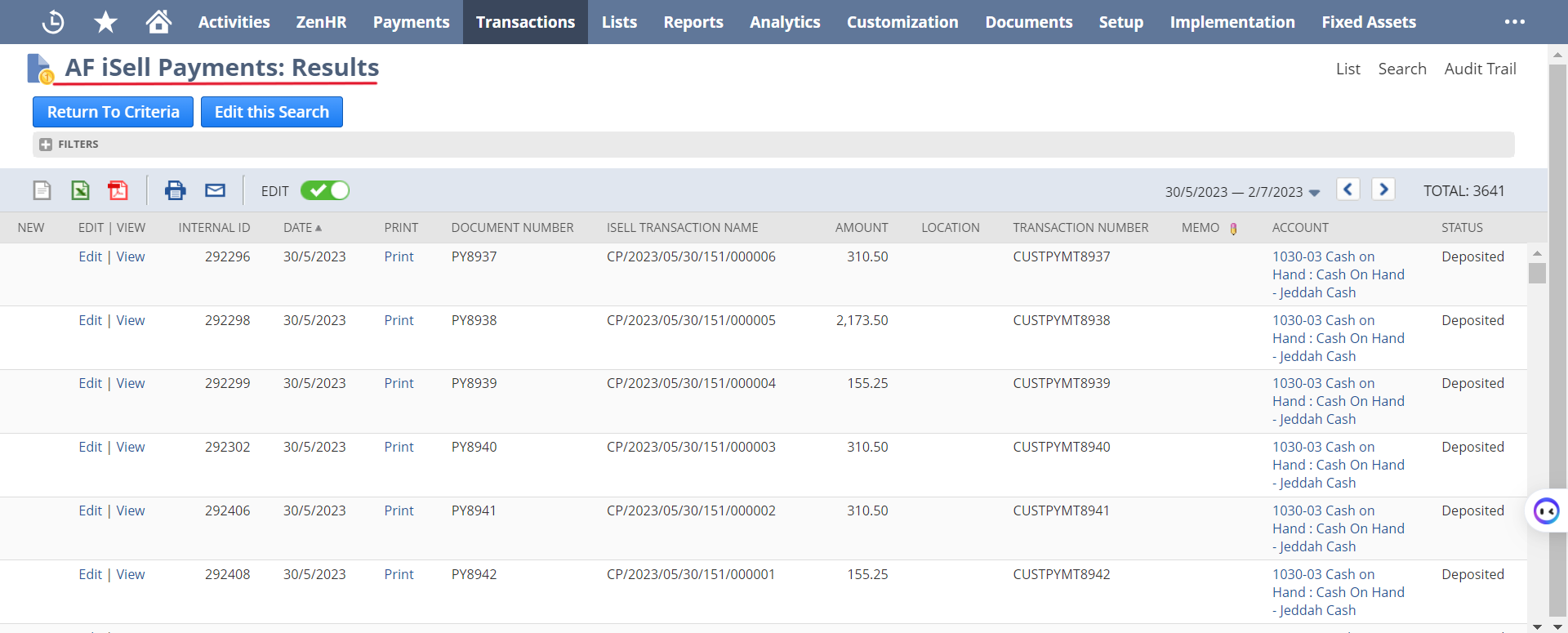
Please follow the below steps to find Payment Page of the integration on NetSuite:
Go to: ISell Integration → Report → Payment
Search options
ISELL TRANSACTION NAME
Integration Schedule
Daily
Trigger
Done
From the page below, the user can see all the Payment from ISell to NetSuite.
Credit Memo Integration
ISell
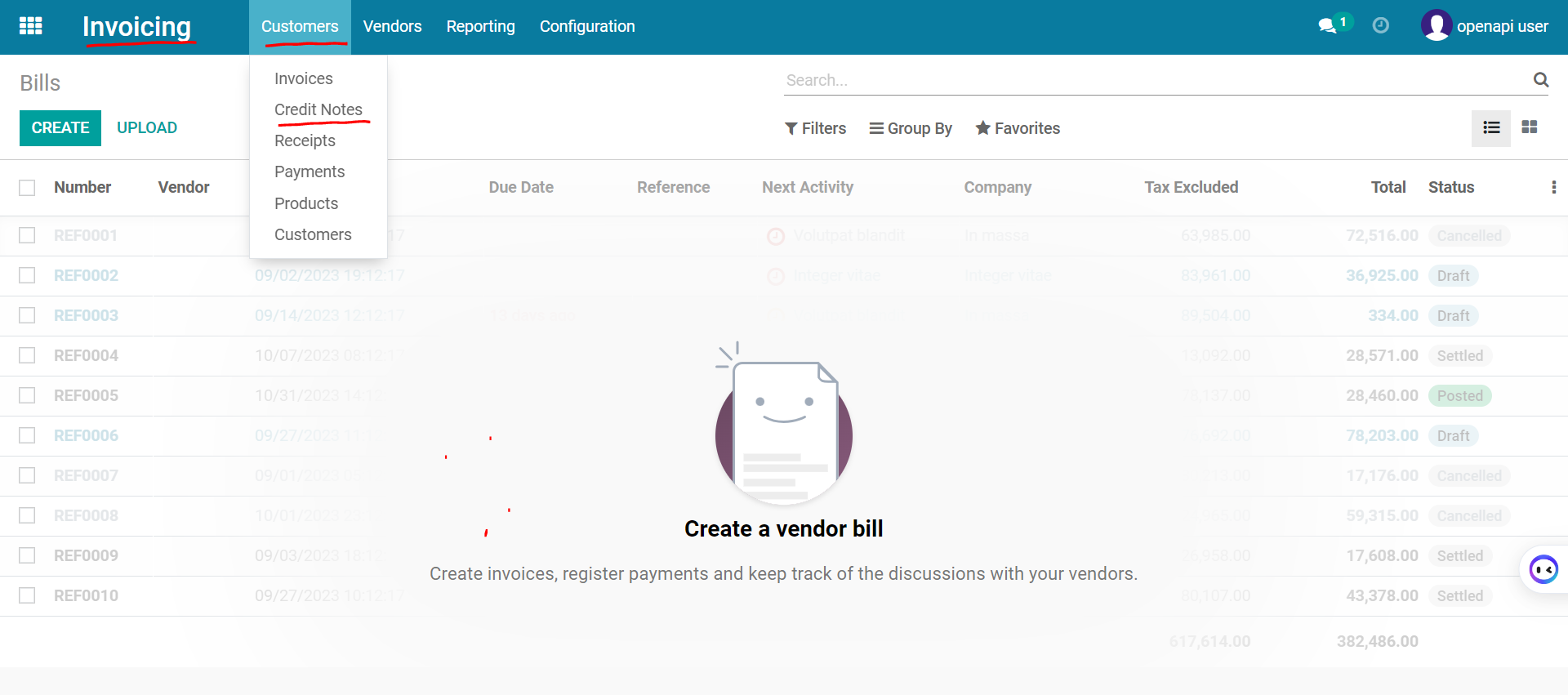
Please follow the below steps to find Credit Notes in ISell
Go to: ISell Home Page → Invoicing→ Customer → Credit Notes
Note: The user can create credit notes here.
NetSuite
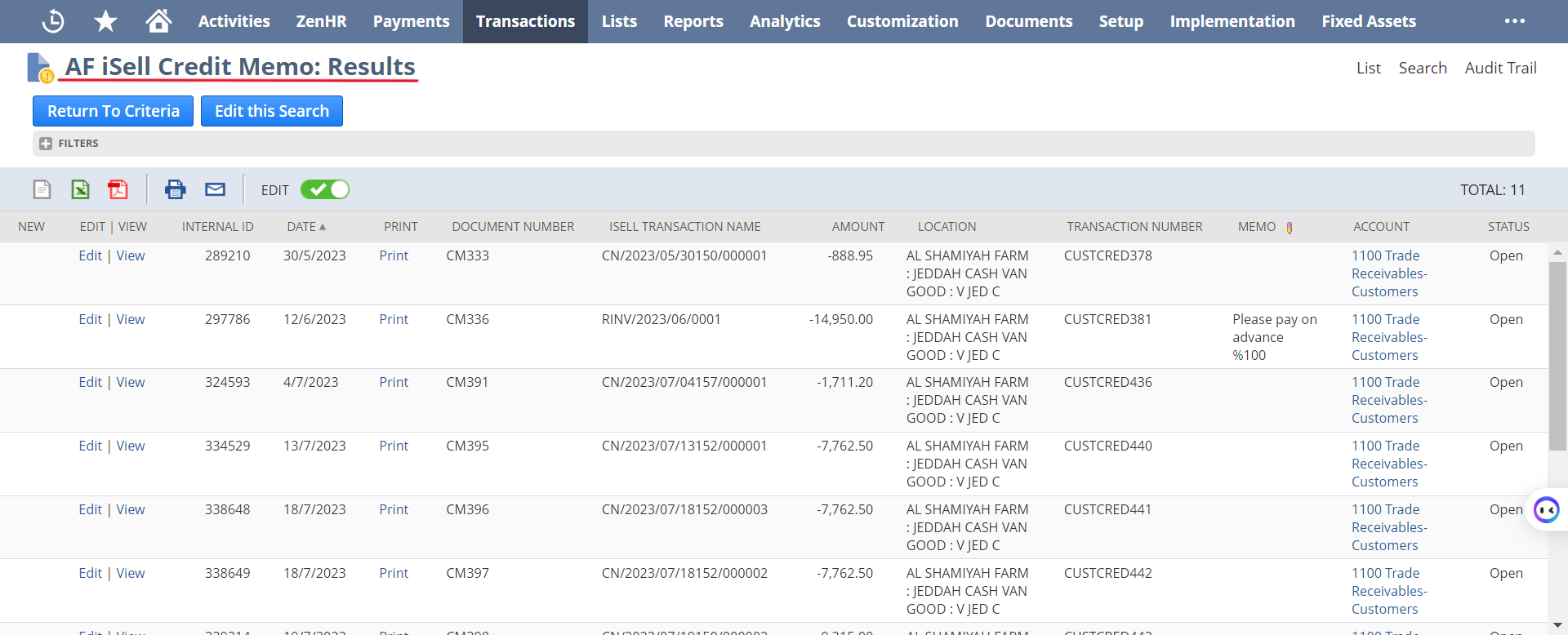
Please follow the below steps to find Credit Memo page of the integration on NetSuite:
Go to: ISell Integration → Report → Credit Memo

Search options
ISELL CREDIT NOTE NO.
Integration Schedule
Daily
Trigger
Done
From the page below, the user can see all the Credit Memo from ISell to the NetSuite.
Refunds Integration
ISell
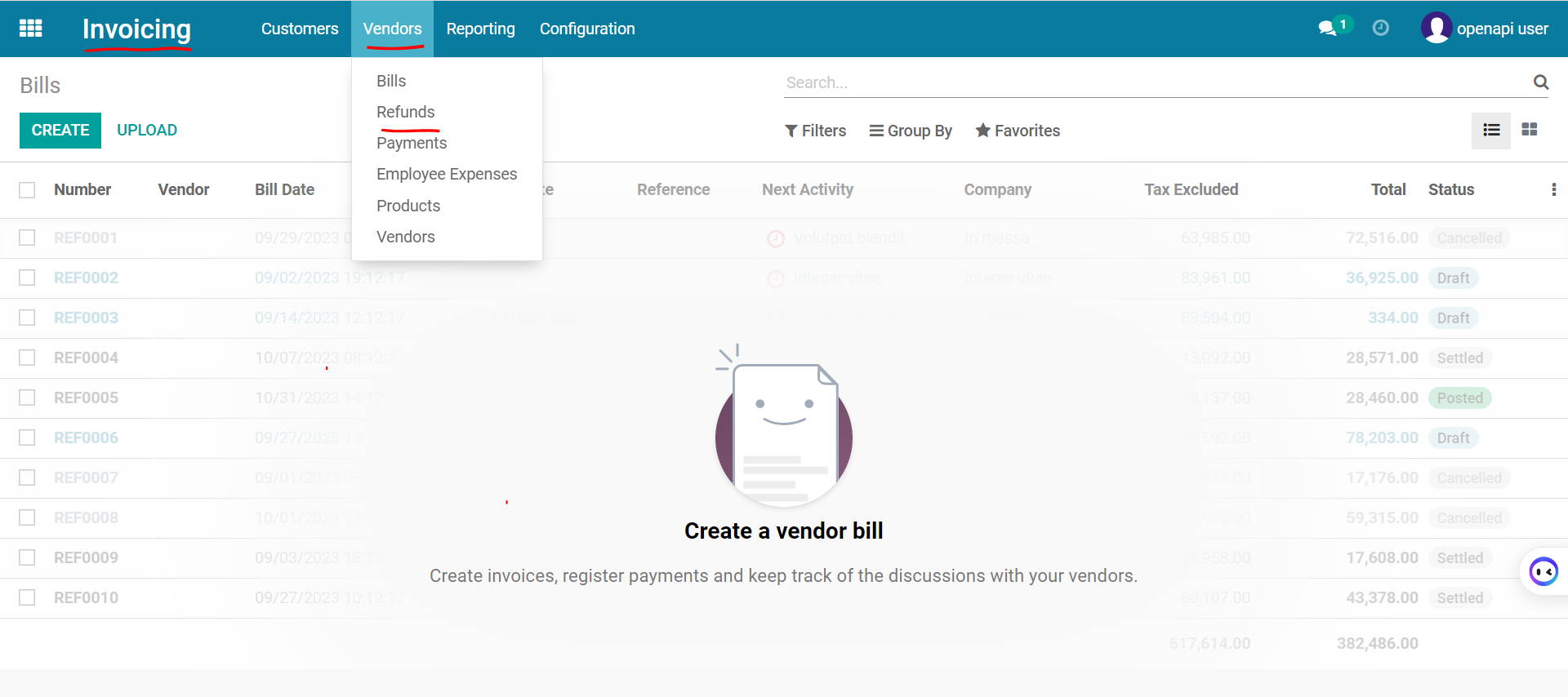
Please follow the below steps to find refunds in ISell for vendor:
Go to: ISell Home Page > Invoicing > Vendor > Refund
Note: The user can create refund here.
NetSuite
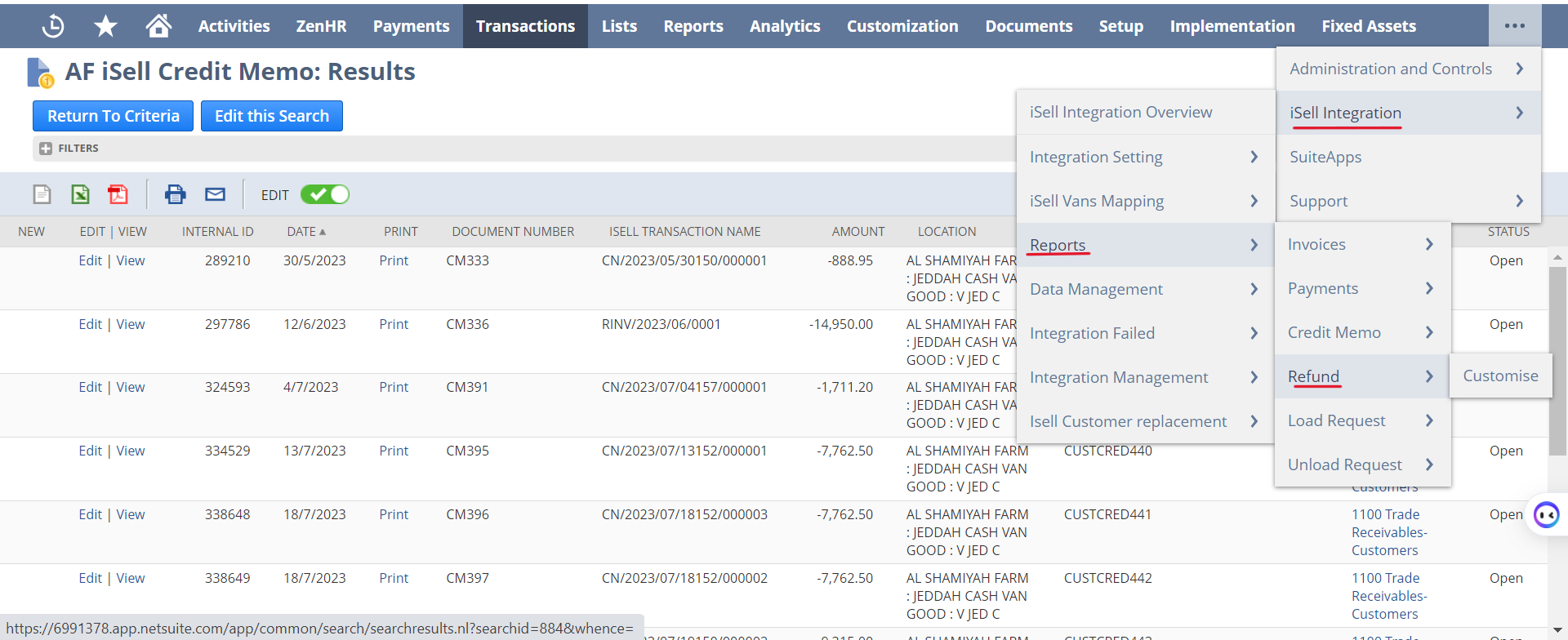
Please follow the below steps to find Refund in NetSuite:
Go to: Isell Home Page → Invoice → Customer → Refund
Search options
ISELL REFUND NO.
Integration Schedule
Daily
Trigger
Done
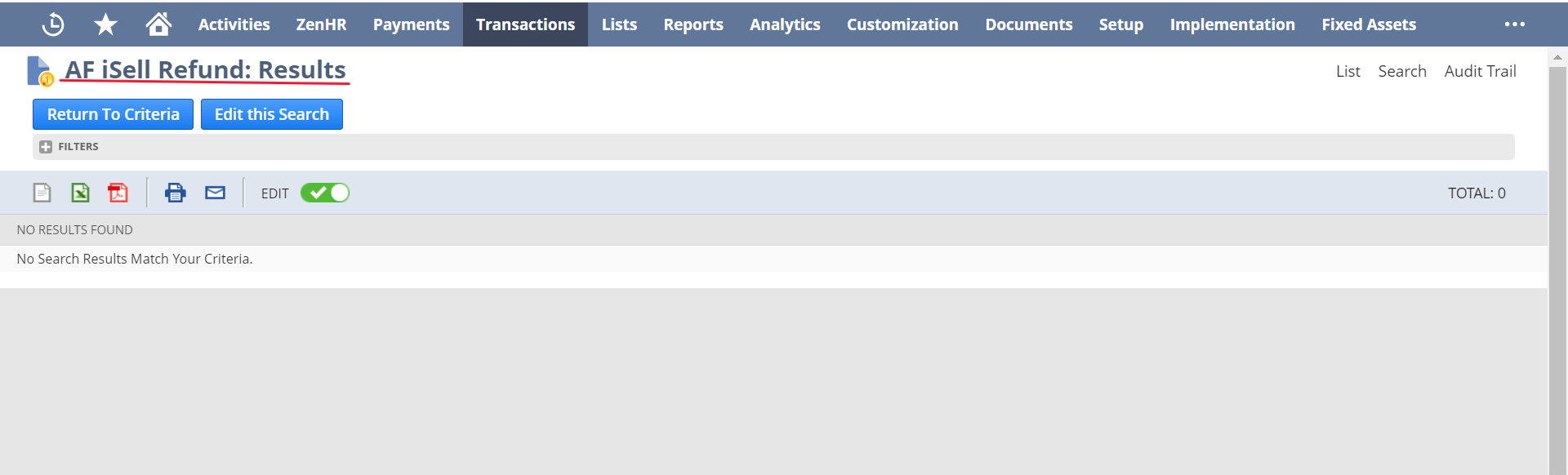
From the page below , the user can see all the Refund from ISell to the NetSuite.
Load Request Integration
ISell
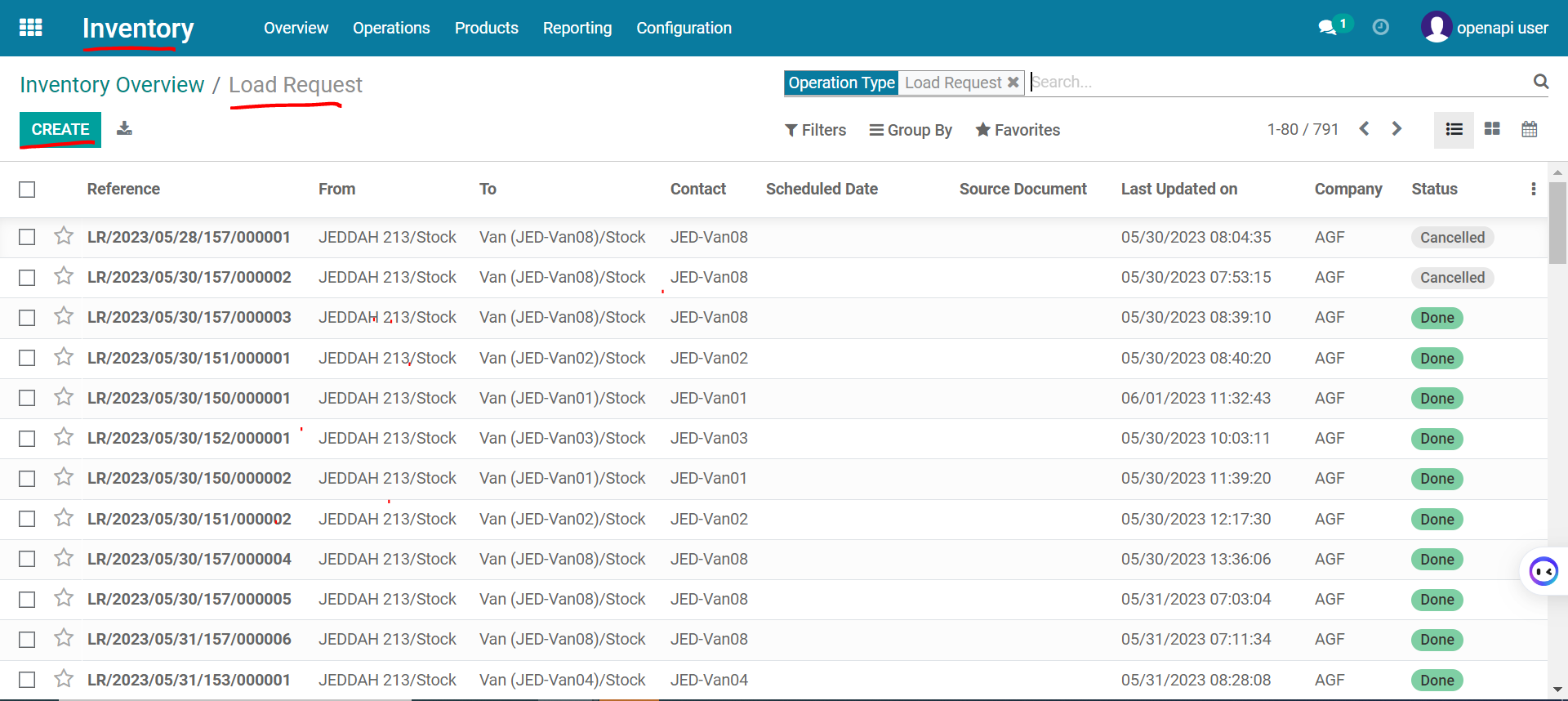
Please follow the below steps to find Load Request in ISell
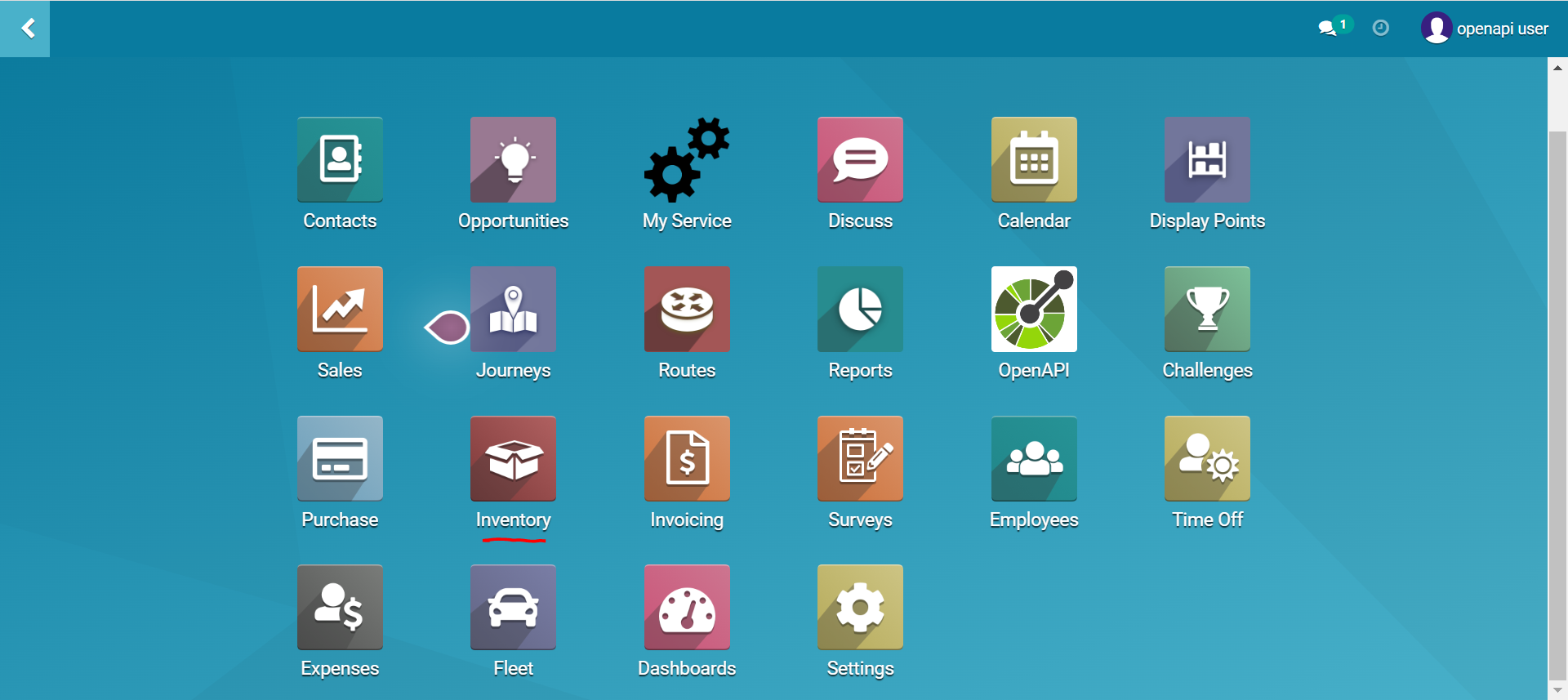
Go to: ISell Home Page → Inventory → Inventory Overview → Load Request
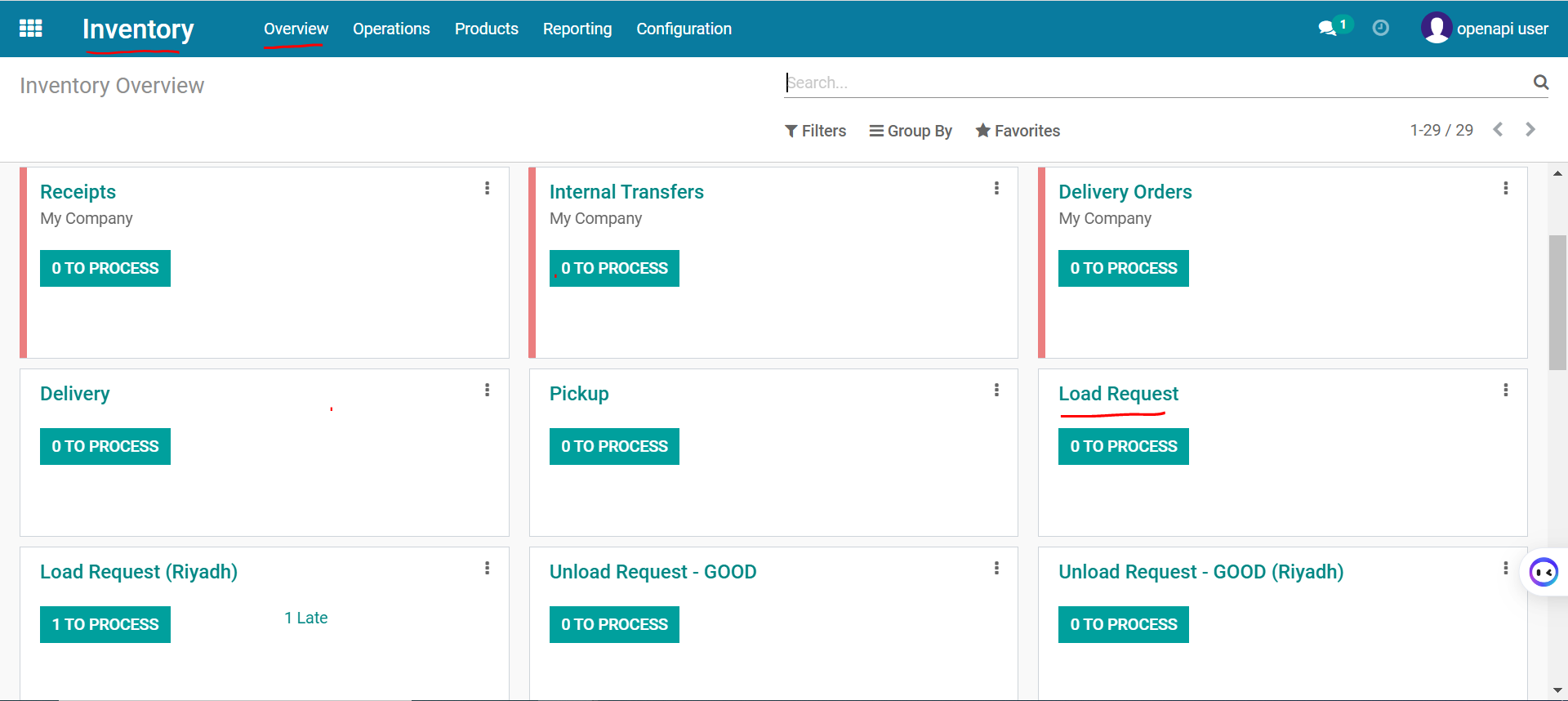
Note: The user can create Load Request here.
NetSuite
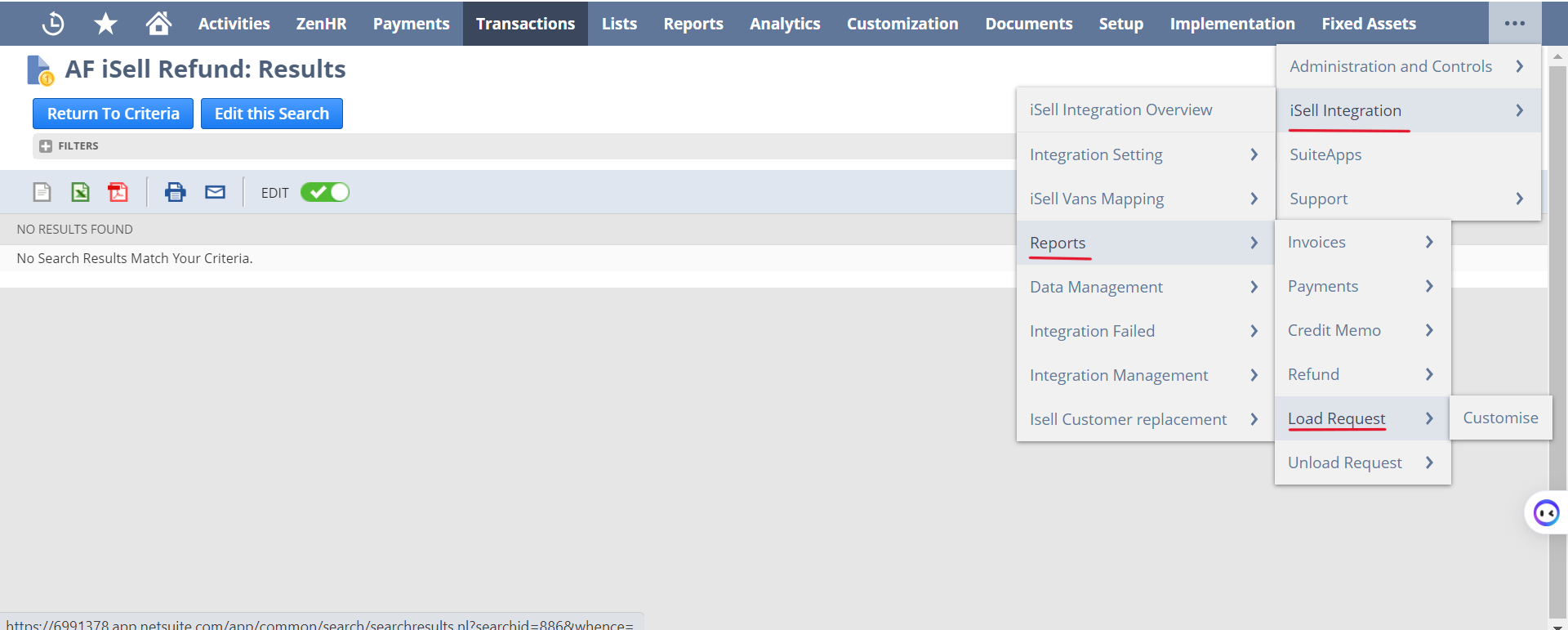
Please follow the below steps to find the Load Request on NetSuite:
Go to: ISell Integration → Report → Load Request
Integration Schedule
Daily
Trigger
Done
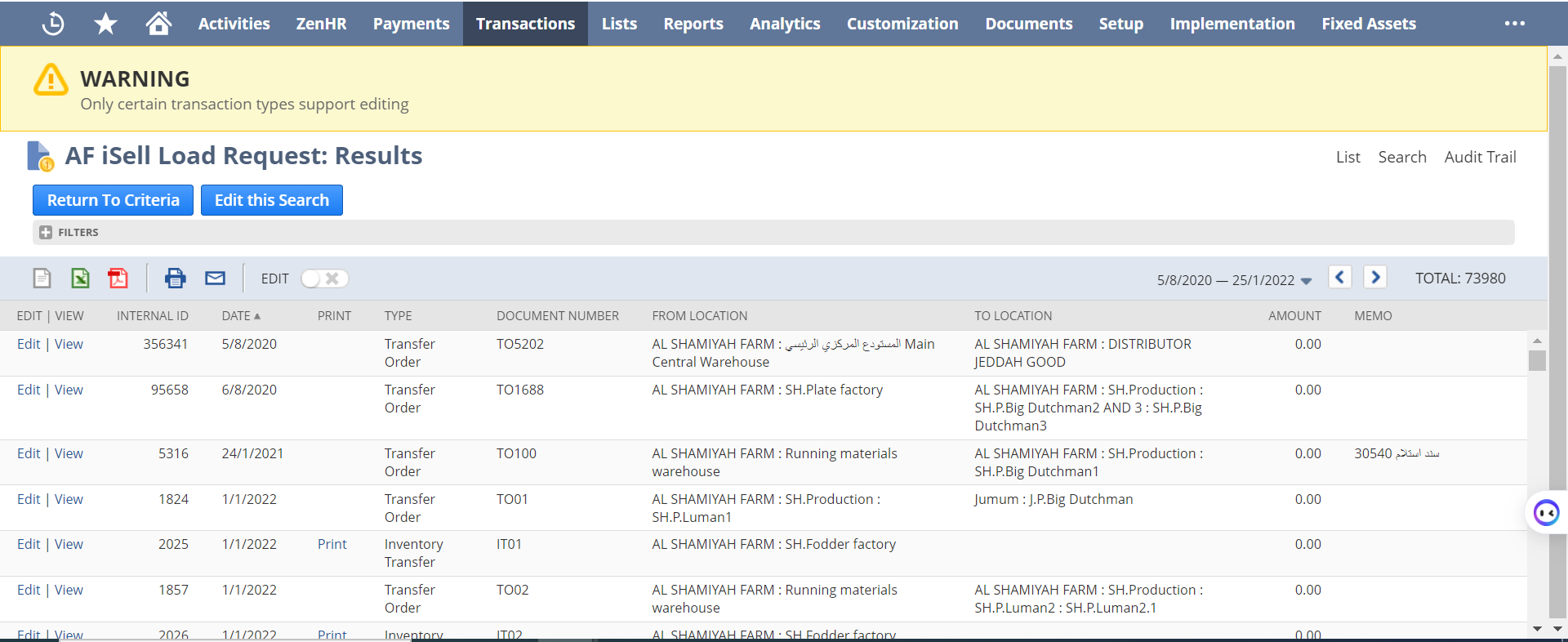
From the page below, the user can see all the Load Request From ISell to the NetSuite.
Unload Request Integration
ISell
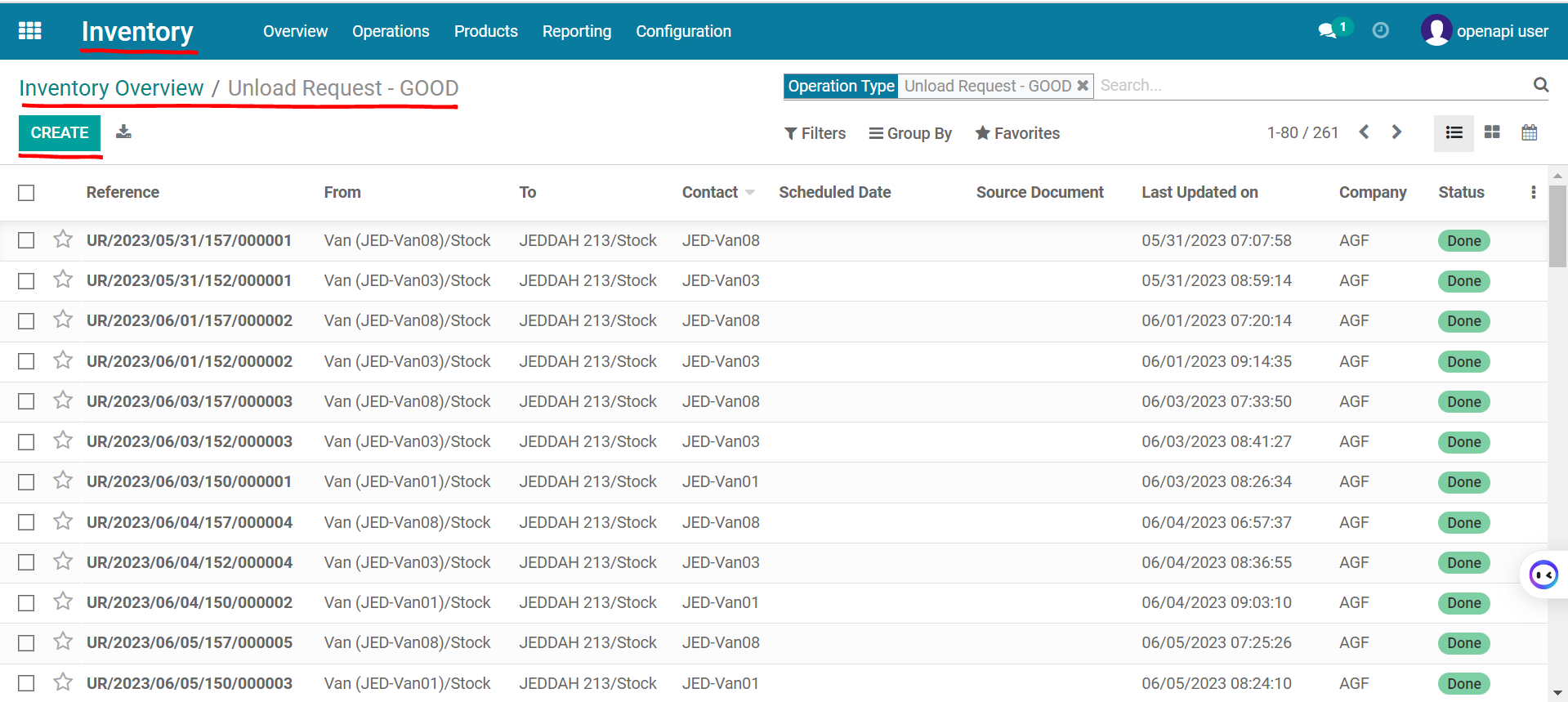
Please follow the below steps to find Unload Request in ISell:
Go to: ISell Home Page → Inventory → Inventory Overview → Unload Request
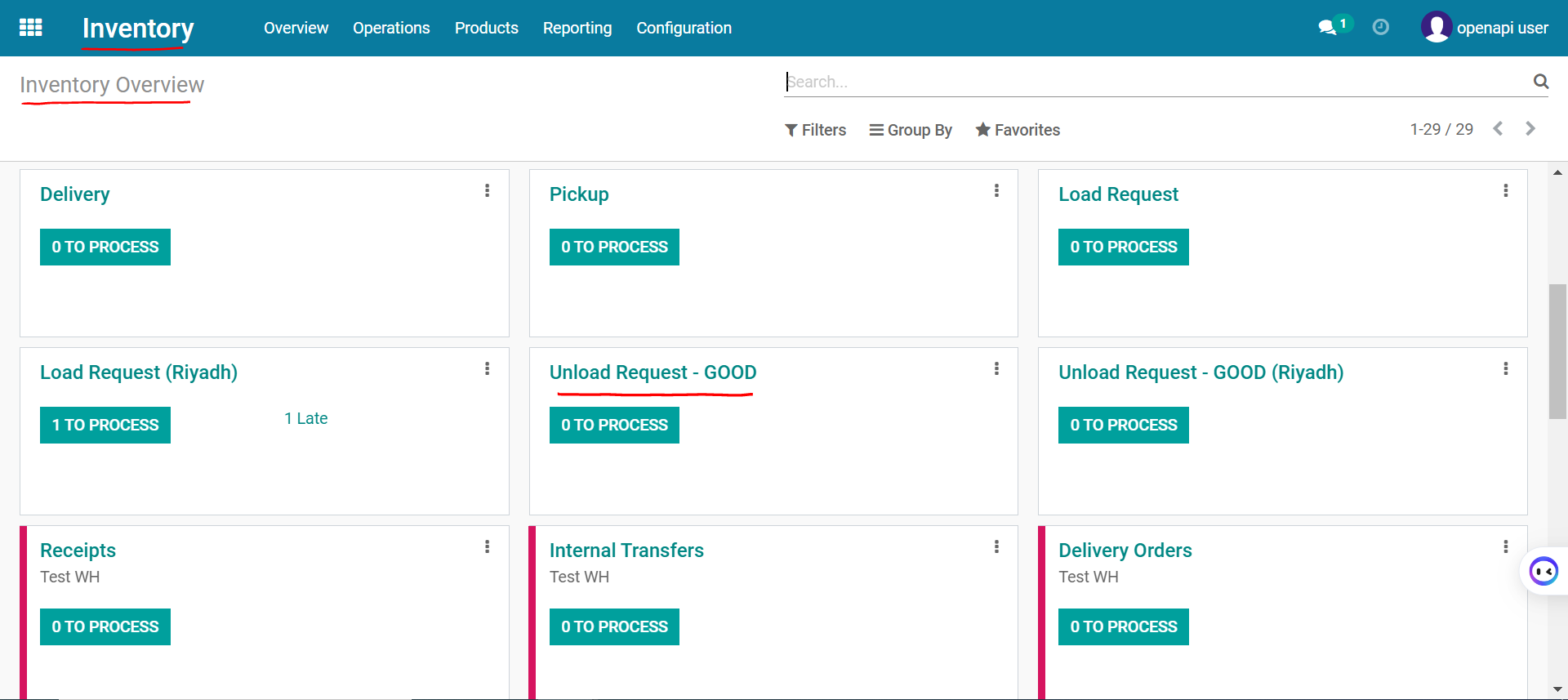
Note: The user can create Unload Request here.
NetSuite
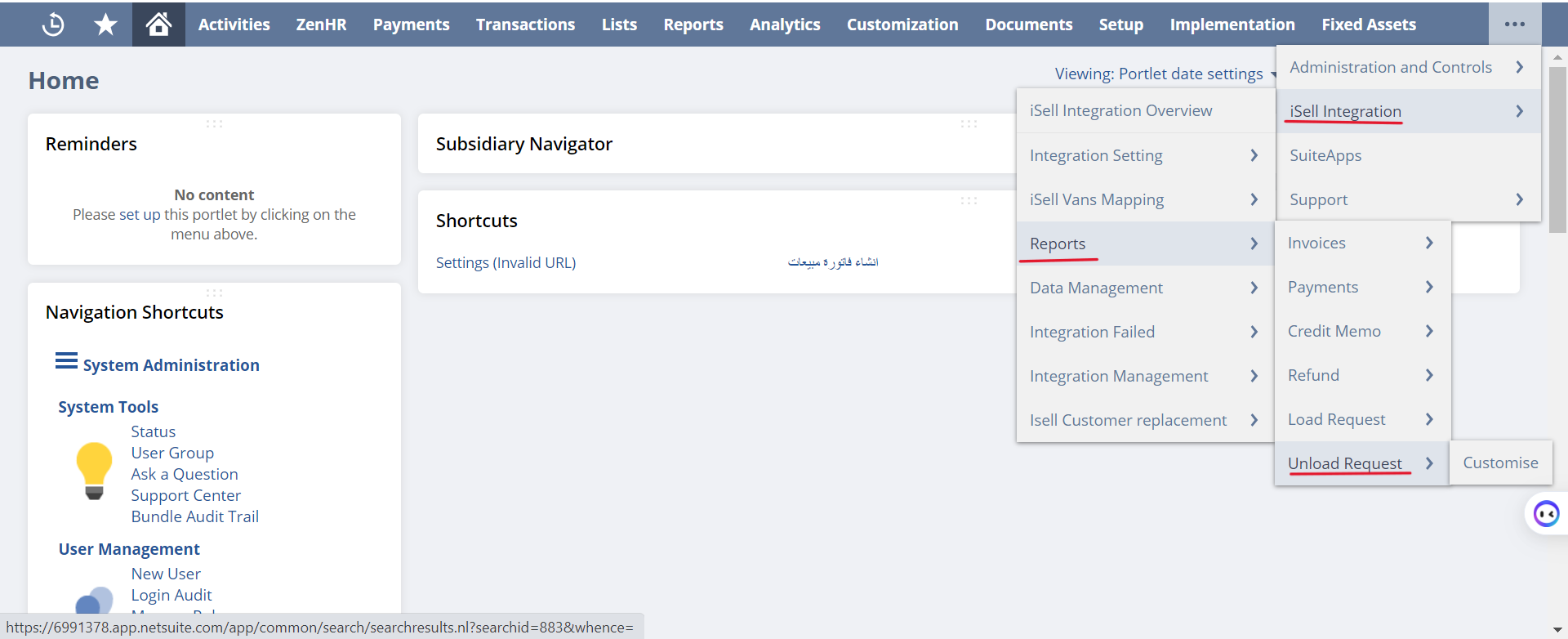
Please follow the below steps to find Unload Request In NetSuite:
Go to: ISell Integration → Report → Unload Request
Integration Schedule
Daily
Trigger
Done
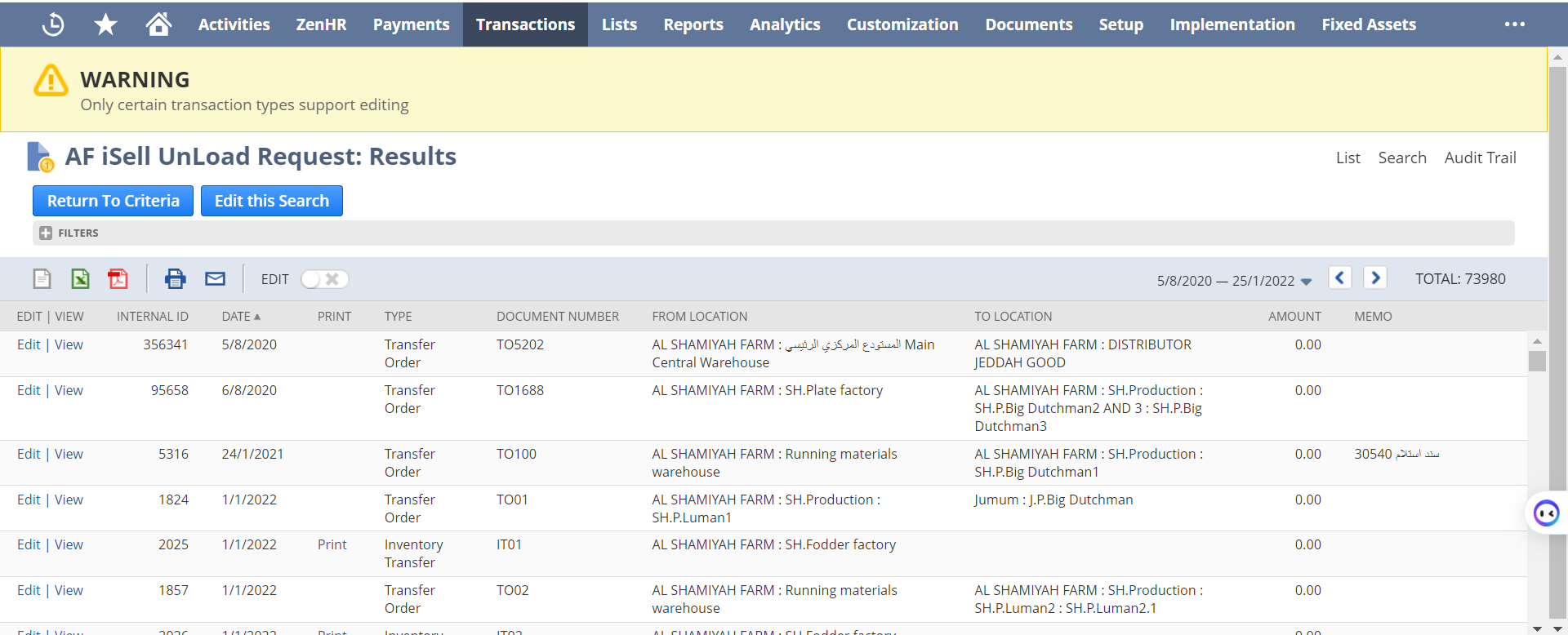
From the page below, the user can see all the Unload Request from ISell to the NetSuite.
Customer
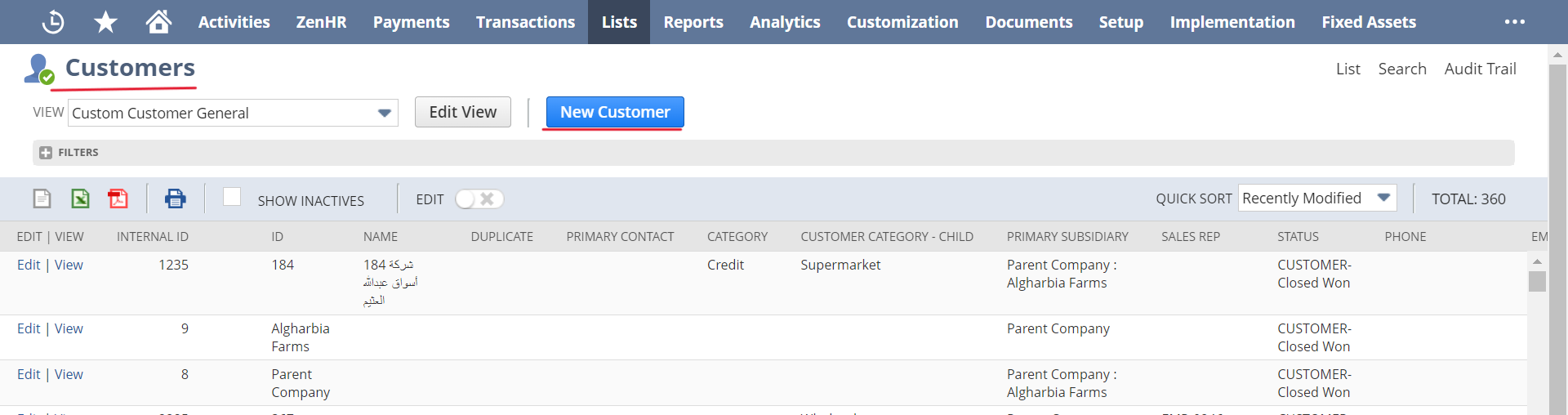
Please follow the below steps to find Customer Page of the integration on NetSuite:
Go to: List → Relationships → Customer
Step 1:
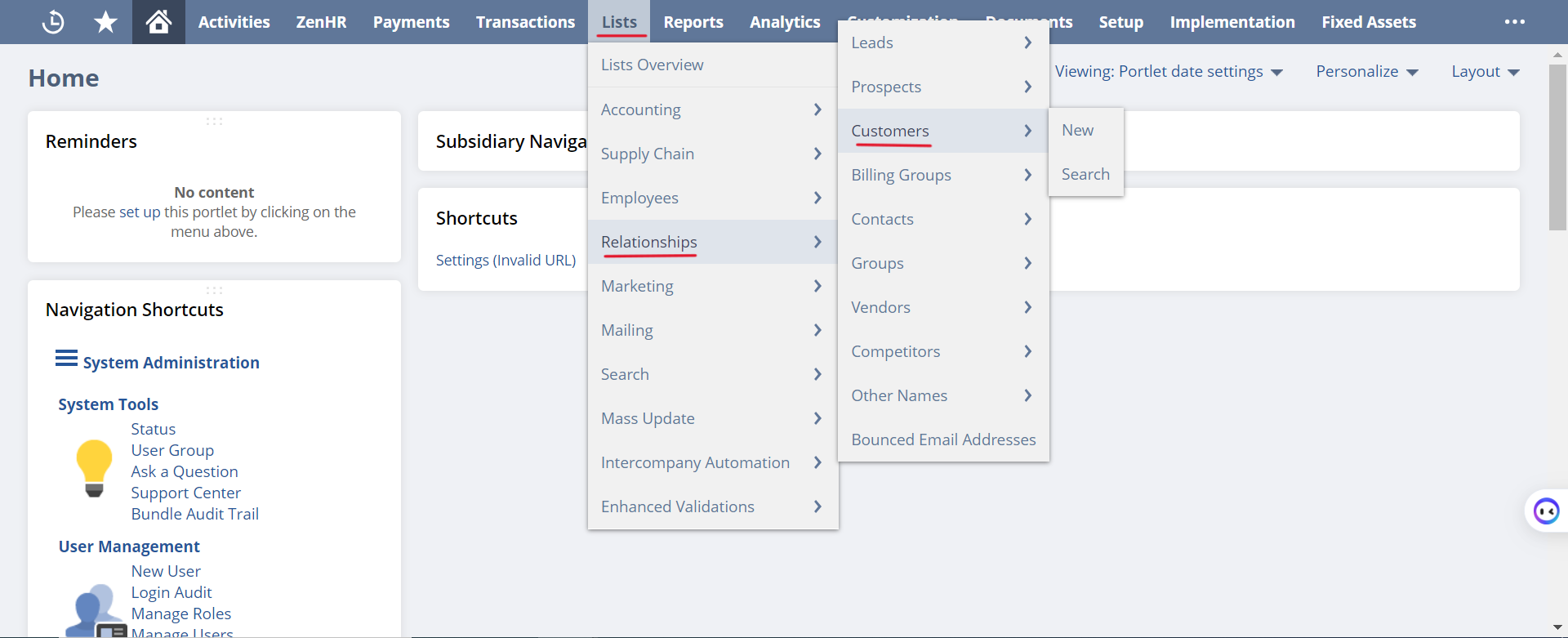
Step 2: From this page you can see where to create a new customer, by selecting New Customer
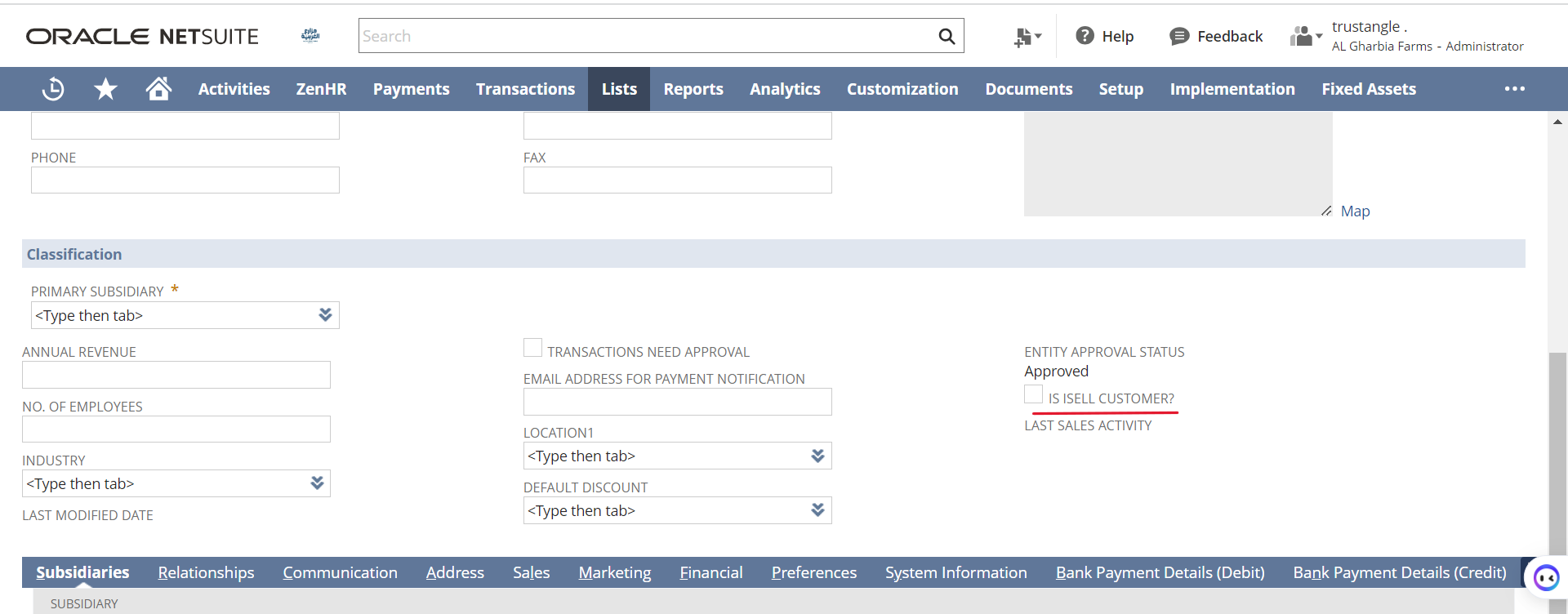
Step 3: Enter the required data for the customer

Step 4: Make sure to assign the customer to ISell customer
Product
Please follow the below steps to find Product Page of the integration on NetSuite:
Go to: List → Accounting → item
Step 1:
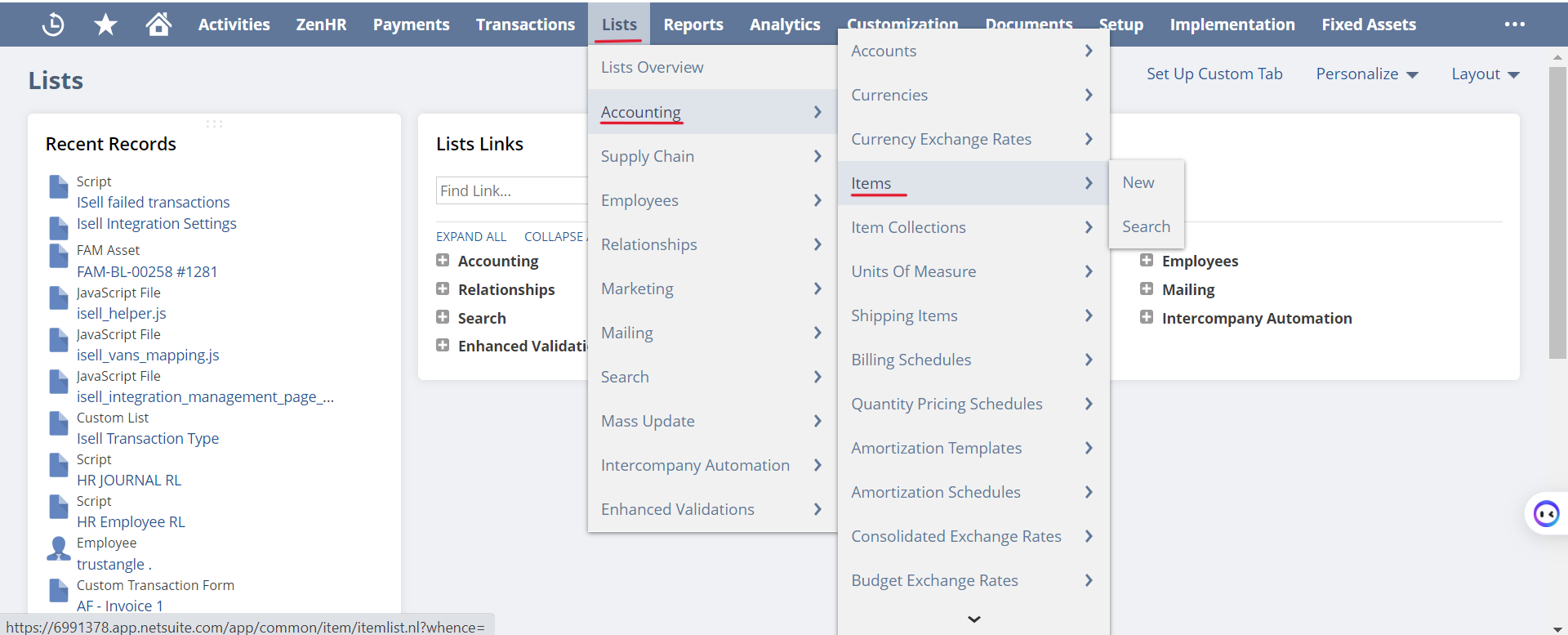
Step 2: From this page select new item.
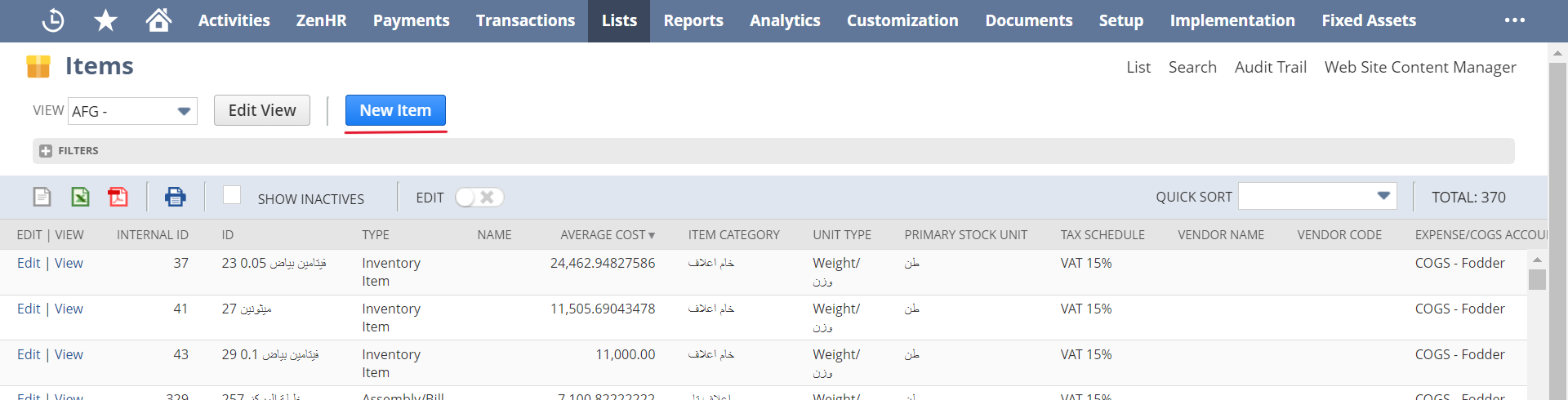
Step 3: Select Inventory Item
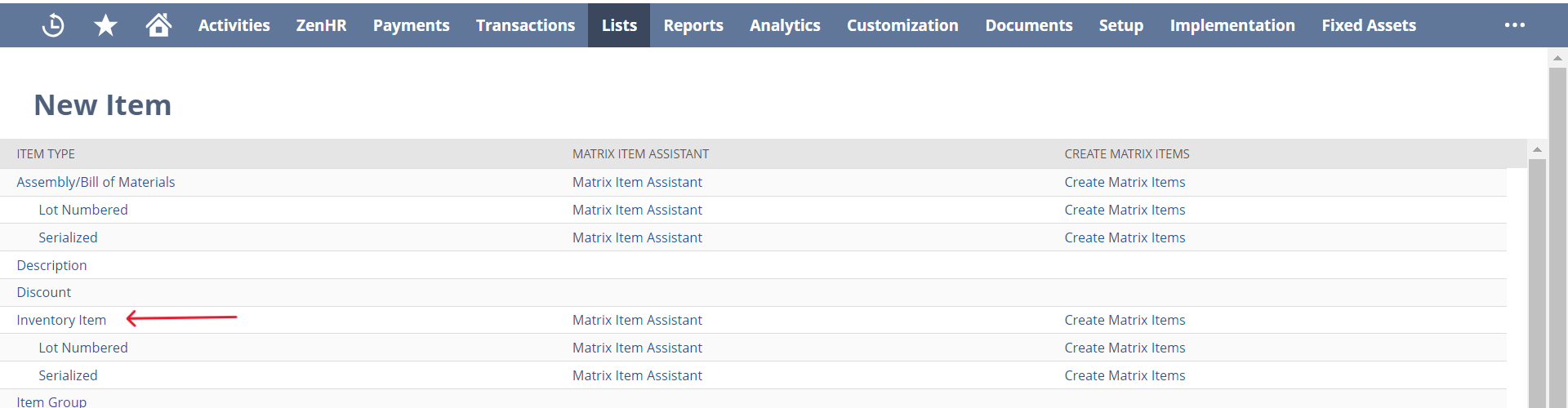
Step 4: Make Sure to assign the Item to ISell item and for Sale.
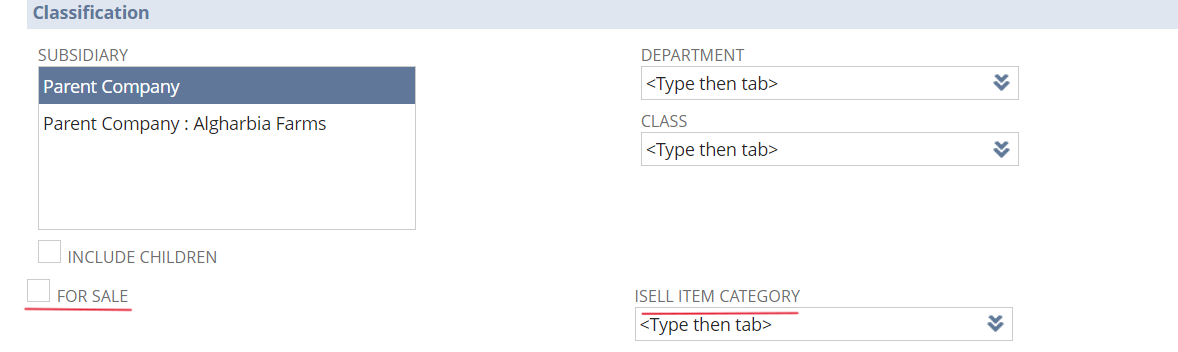
Step 5: Make sure to assign the Credit Limit Item
UOM Integration
ISell
Please follow the below steps to find UOM Category in ISell:
Go to: ISell Home Page → Inventory → Inventory Overview → Configuration → UOM Category
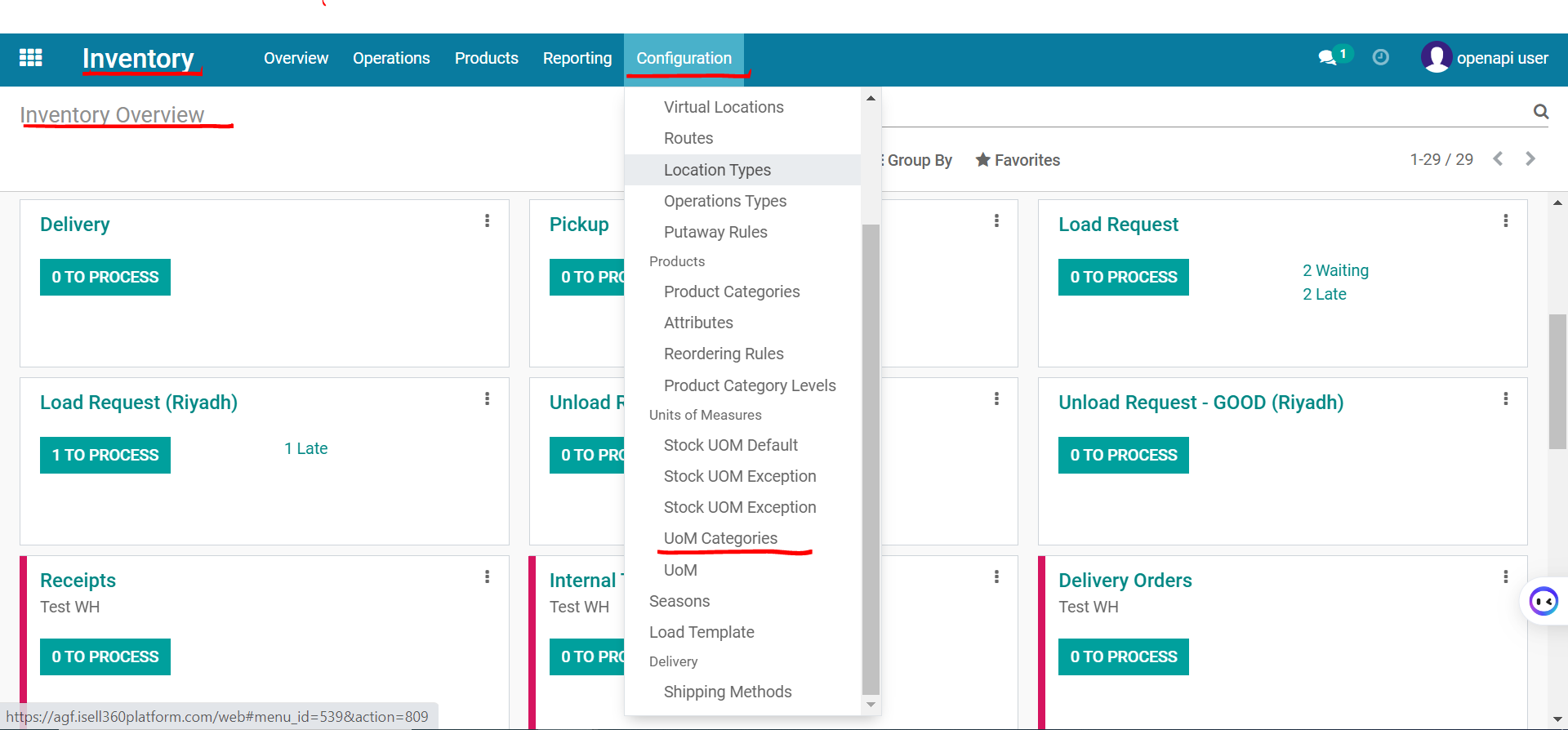
Note: The user can create UOM Category here.
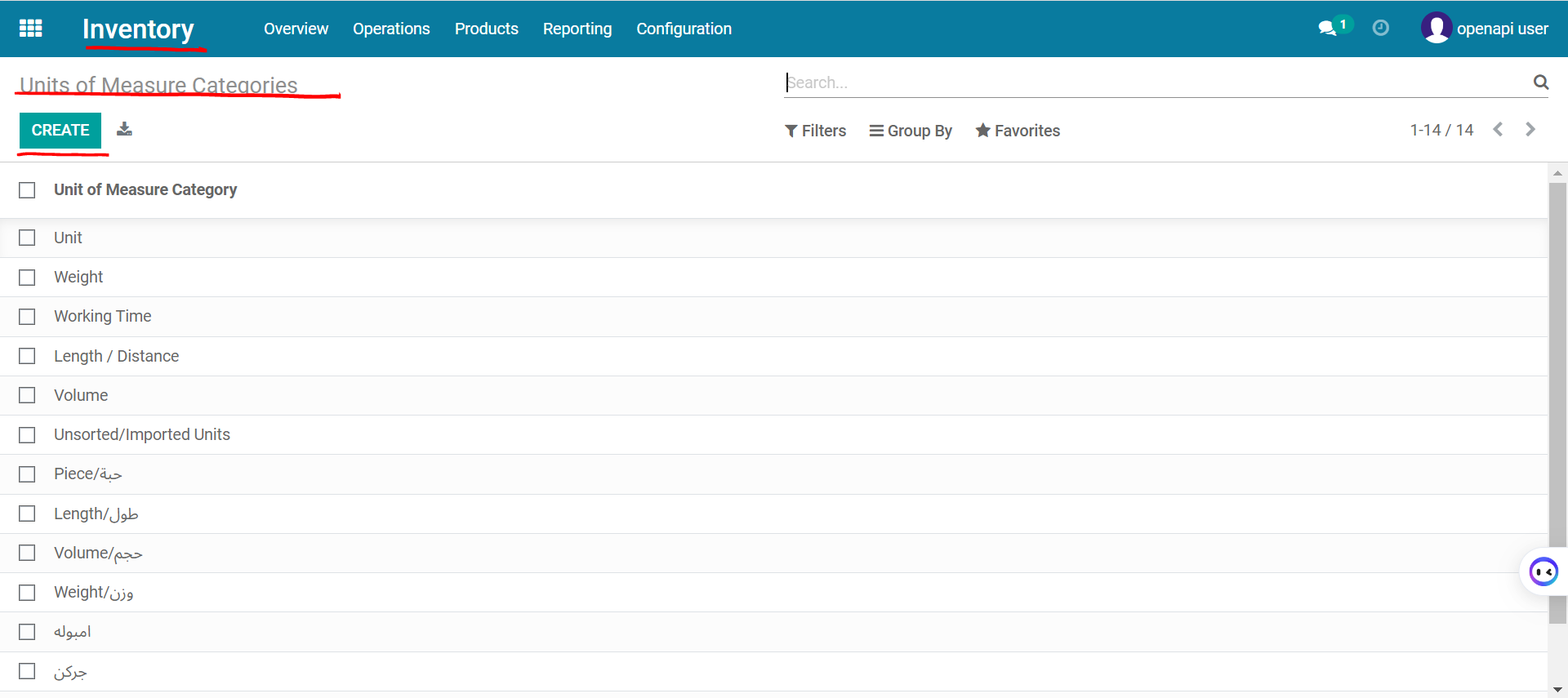
NetSuite
Please follow the below steps to find the UOM on NetSuite:
Go to: List → Accounting → UOM
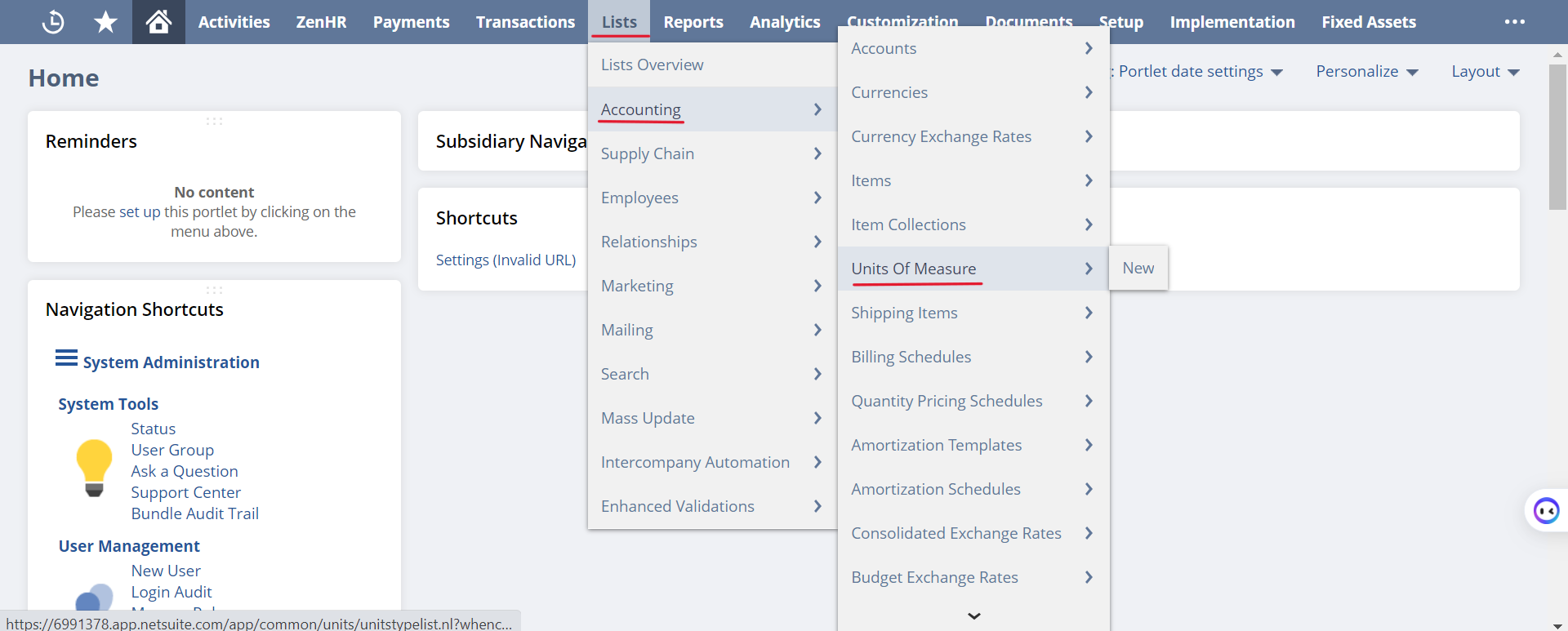
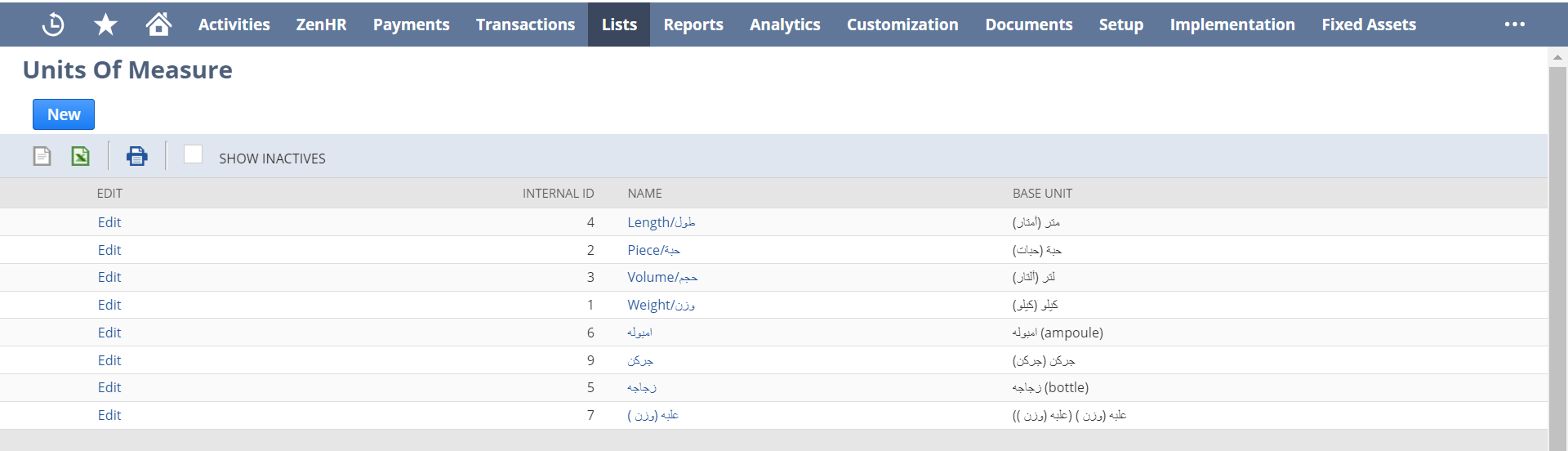
From the page below, the user can see all the UOM from ISell to the NetSuite.
Was this article helpful?
That’s Great!
Thank you for your feedback
Sorry! We couldn't be helpful
Thank you for your feedback
Feedback sent
We appreciate your effort and will try to fix the article