In Reachware, Connections store customer information and account credentials, enabling seamless integration with external systems. This guide walks you through the steps to add a new connection, validate it, and ensure it’s ready to use in integration flows.
Steps to Add a New Connection
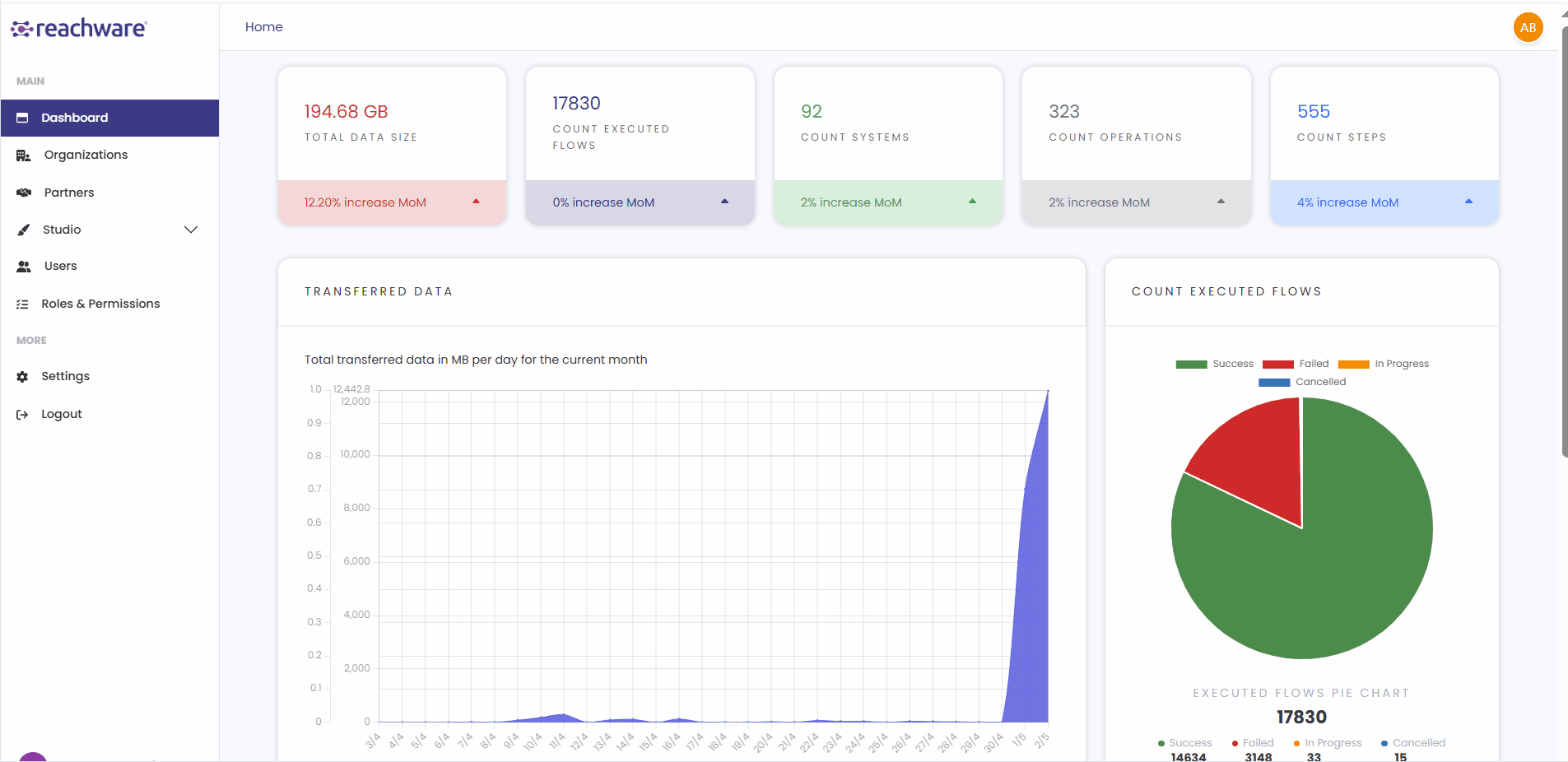
Log in to your Reachware Admin Dashboard.
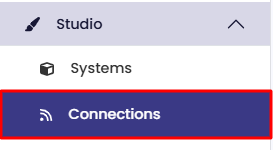
Go to the System Management section in the side menu.
Click on "Connections" to open the Connection Management page.
Click the "Add New Connection" button on the top-right.
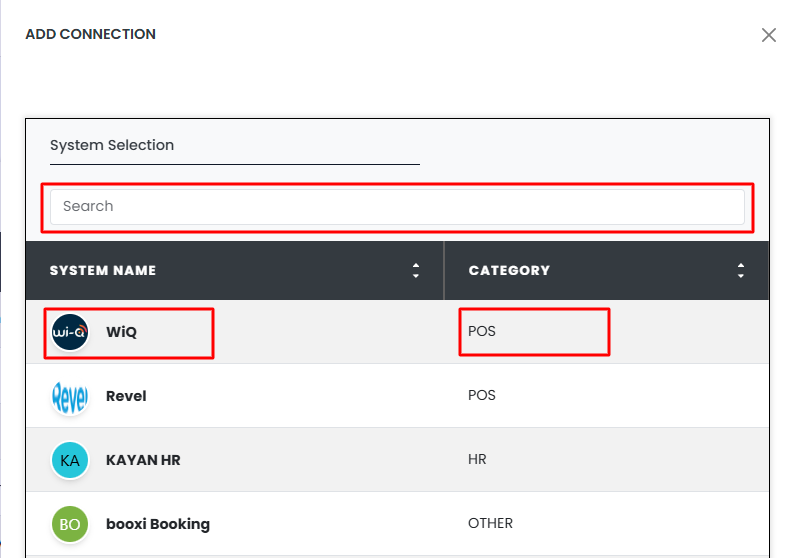
You will see a list of pre-defined systems displaying:
System Logo
System Name
Category
Use the search bar to quickly find a system by name.
Click on the system you want to connect to.
After selecting a system, you will be directed to a form to configure the connection.
Basic Information
Connection Name (Required): A unique name to identify this connection.
System Name: Auto-filled based on your selection (not editable).
Description: Optional details about the connection.
Base URL: Auto-filled and disabled for editing—retrieved from the system definition.
Important Notes
The Base URL cannot be changed manually it is tied to the system you selected in Step 1 (Adding New System).
Variables Section
Some systems may require additional connection variables.
For each variable, provide:
Name
Initial Value (Editable if needed)
Base URL & Headers: These are automatically pre-configured from the selected system and cannot be edited on the Connection.
System Variables (e.g., API Key, Domain Name): You can enter values here specific to each client.
This allows reusability of the same system for multiple client connections, eliminating the need to recreate the system every time.
Once you've filled in the details:
- Scroll to the Connection Validation section.
- Configure:
- Method: Select
GET(or other applicable method). - Retrieve URI: Input the endpoint used for testing.
- Method: Select
- Click "Test Connection" to initiate validation.
- The platform will return:
- HTTP Request
- HTTP Response
- Connection Status:
OnlineorOffline
You can optionally download the request/response data in JSON format for documentation or troubleshooting.
- Review all fields and test results.
- Click "Save" to complete the connection setup.
- A confirmation message will appear:
✅ "Connection successfully added."
The new connection will now be listed under Connections and ready to use in integration flows.
Related Topics
Was this article helpful?
That’s Great!
Thank you for your feedback
Sorry! We couldn't be helpful
Thank you for your feedback
Feedback sent
We appreciate your effort and will try to fix the article