System refers to external software or service—such as POS, ERP, or Mobile App—that is integrated with our solution. Each system must be configured with specific technical details to enable secure and accurate communication.
System Configuration Includes:
- Base URL: The main endpoint used to connect to the system. Supports domain-specific variables (e.g., https://{{domain}}.system.com).
- Authentication Type: Defines the authentication method (e.g., Basic Auth, OAuth 2.0, API Key) and any required domain variables.
- Headers: Used for authentication, content type, and other metadata in API requests.
- System-Specific Variables: Custom values like tokens, API keys, or environment-specific parameters.
Configuring a system properly is crucial to ensure seamless and secure data exchange between Reachware and the connected software.
How to Add a New System?
Navigate to Studio > Systems:
Go to the Studio section on the Reachware platform. In the left-hand navigation, select Systems to access the system management interface.
Click the "Add New System" button to initiate the process of adding a new system.
Complete the system information form with the following fields:
- System Name: The official name (required)
- Logo: Upload the logo (size and format enforced)
- Description: Brief system overview
- Website: Official site
- Category: ERP, POS, Mobile App, HR, etc. (required)
- Status: Active or Inactive
- Publish: Toggle for public Marketplace visibility
A validation check will ensure all required fields are complete. Upon success, the new system will appear in the public-facing Systems section.
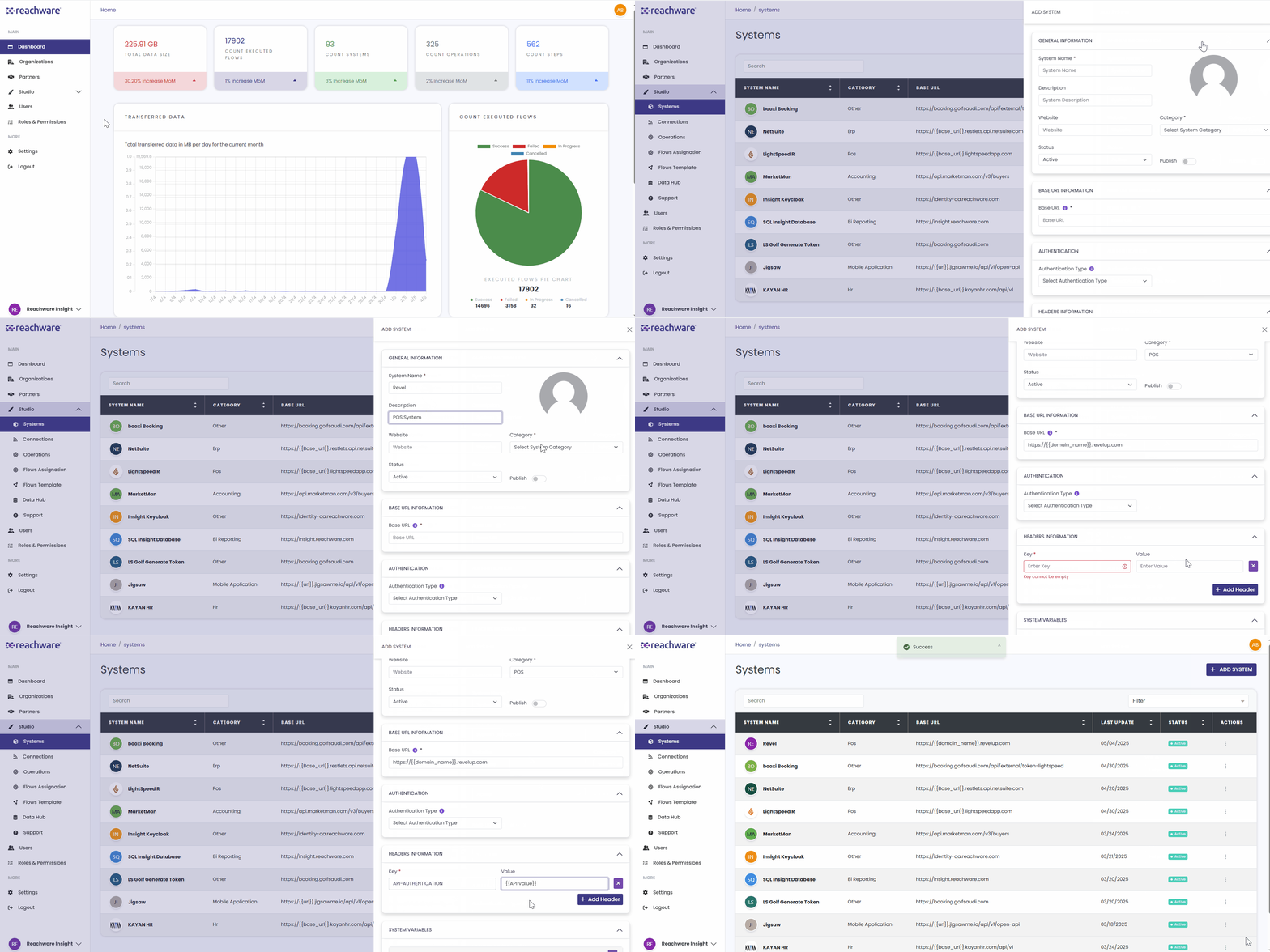
When adding a system and selecting the Authentication Type, store key info such as the API Key and identifiers as system variables. These make it easy to reuse across multiple customers with unique credentials via Connections.
Related Topics
Was this article helpful?
That’s Great!
Thank you for your feedback
Sorry! We couldn't be helpful
Thank you for your feedback
Feedback sent
We appreciate your effort and will try to fix the article