TABLE OF CONTENTS
Dashboard
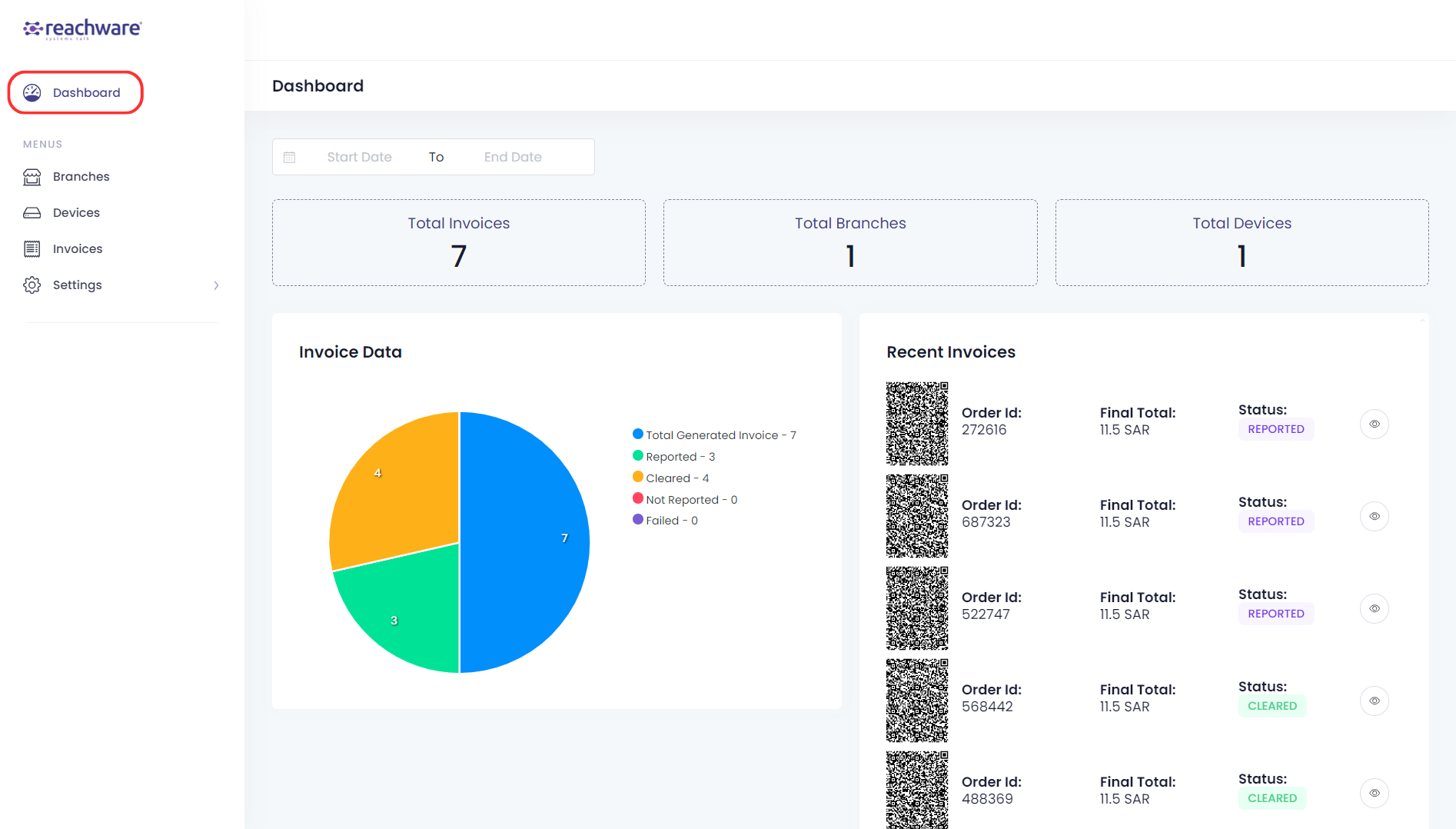
The following illustrates the Dashboard for the Reachware Fatoora portal:
Filtering Date
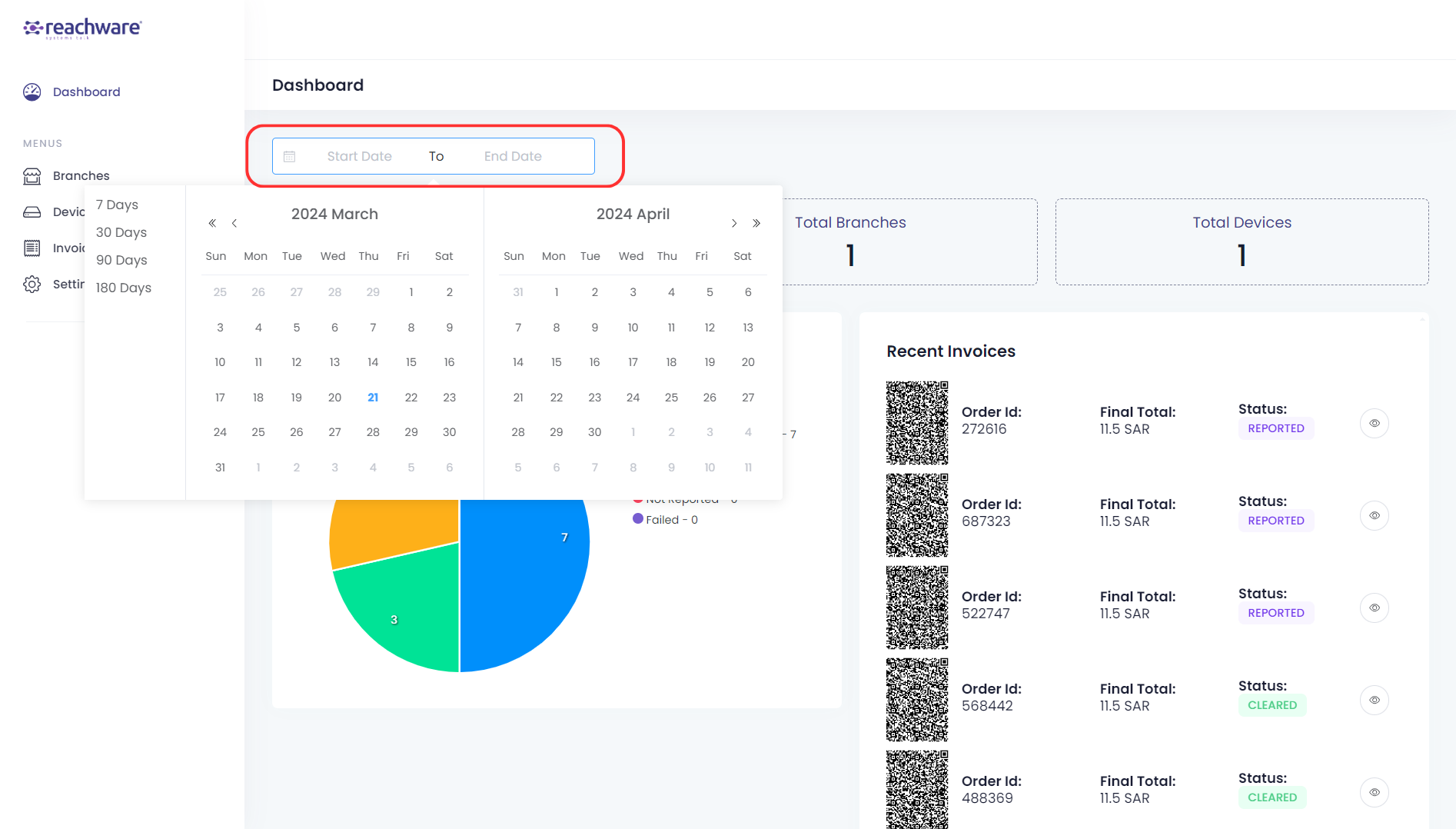
You can view invoices data by choosing specific date ranges for analysis:
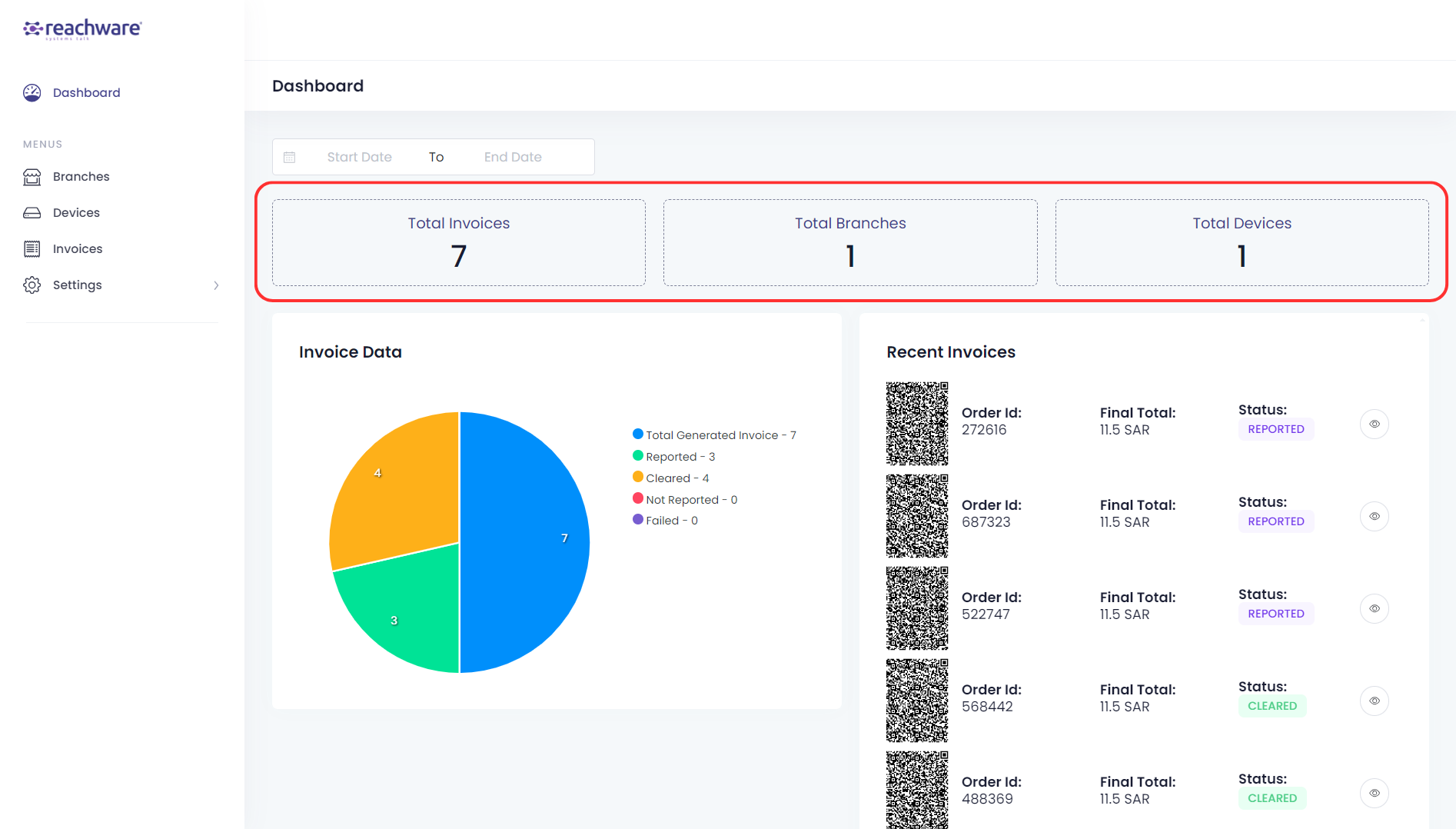
The following shows:
Total invoices posted on the platform
Total number of branches is the number of brands your business has
Total devices that have been onboarded and used to communicate with ZATCA
Invoice Data
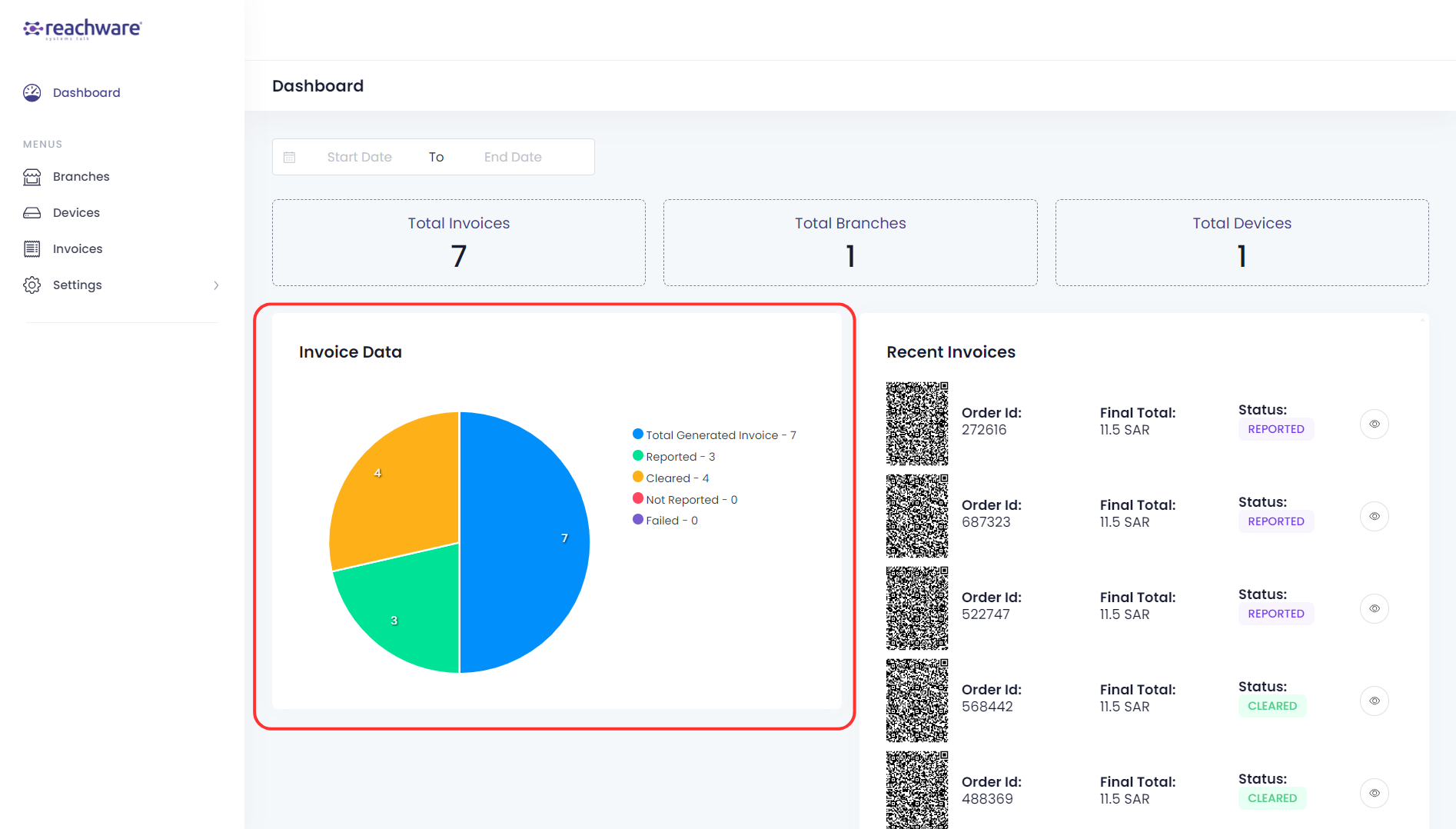
The following shows the invoice data in general or based on the filtered data as a pie chart with 5 sections:
Total Generated Invoice
Reported (ZATCA reply of the sent B2C (Business to Customer) invoice status)
Cleared (ZATCA reply of the sent B2B (Business to Business) invoice status)
Not Reported (the invoice is not accepted by ZATCA because of missing required fields needed to be filled)
Failed (an error in the system)
Recent Invoices
The following shows the recent invoices that have been posted with a QR code, Order Id, Final Total, Status of the invoice, and a view option of the invoice as a .pdf file:

Branches
View Branches
Your created Branches will appear here:

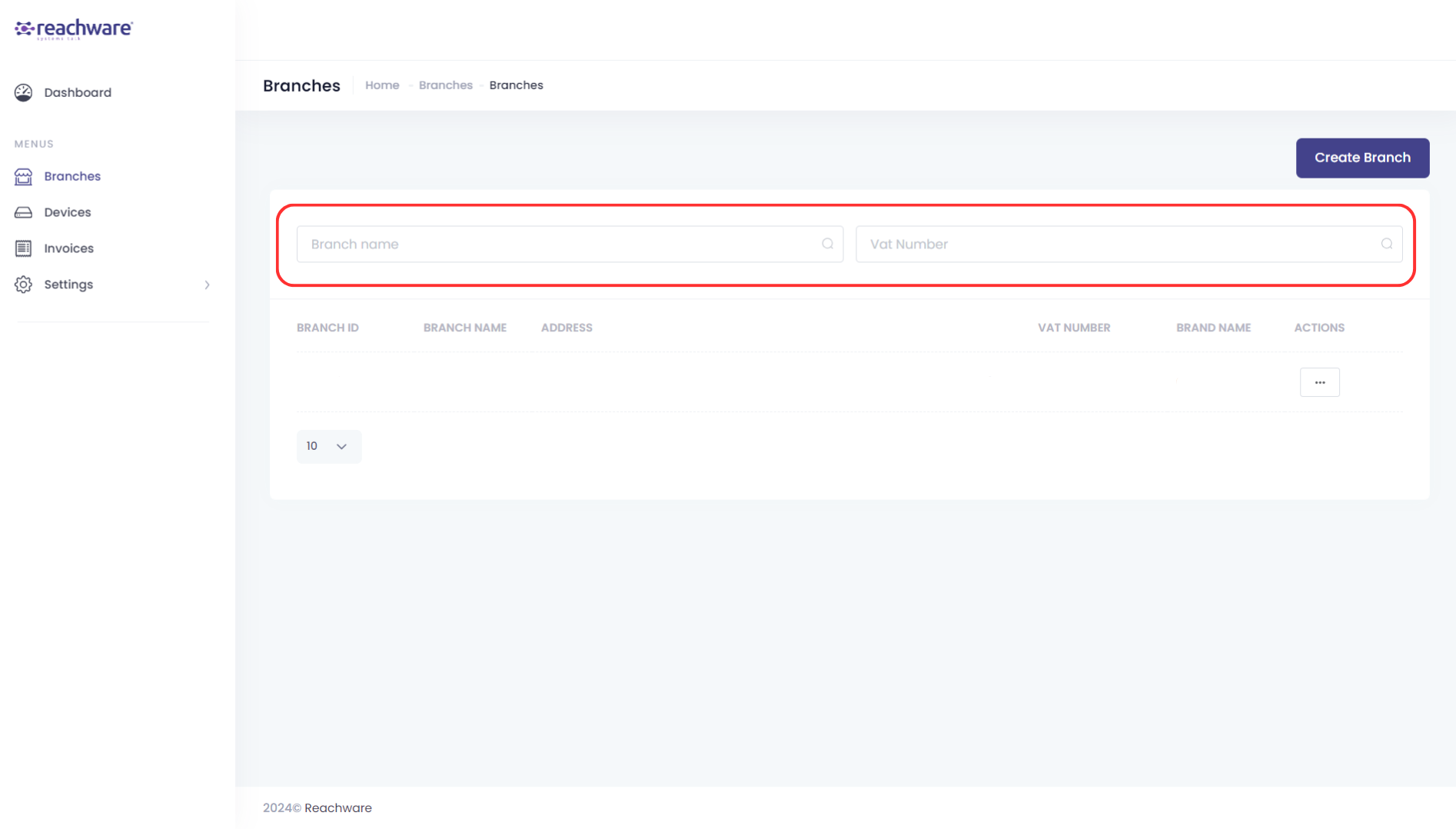
You can search for a Branch name or VAT number by clicking on the following search bars:
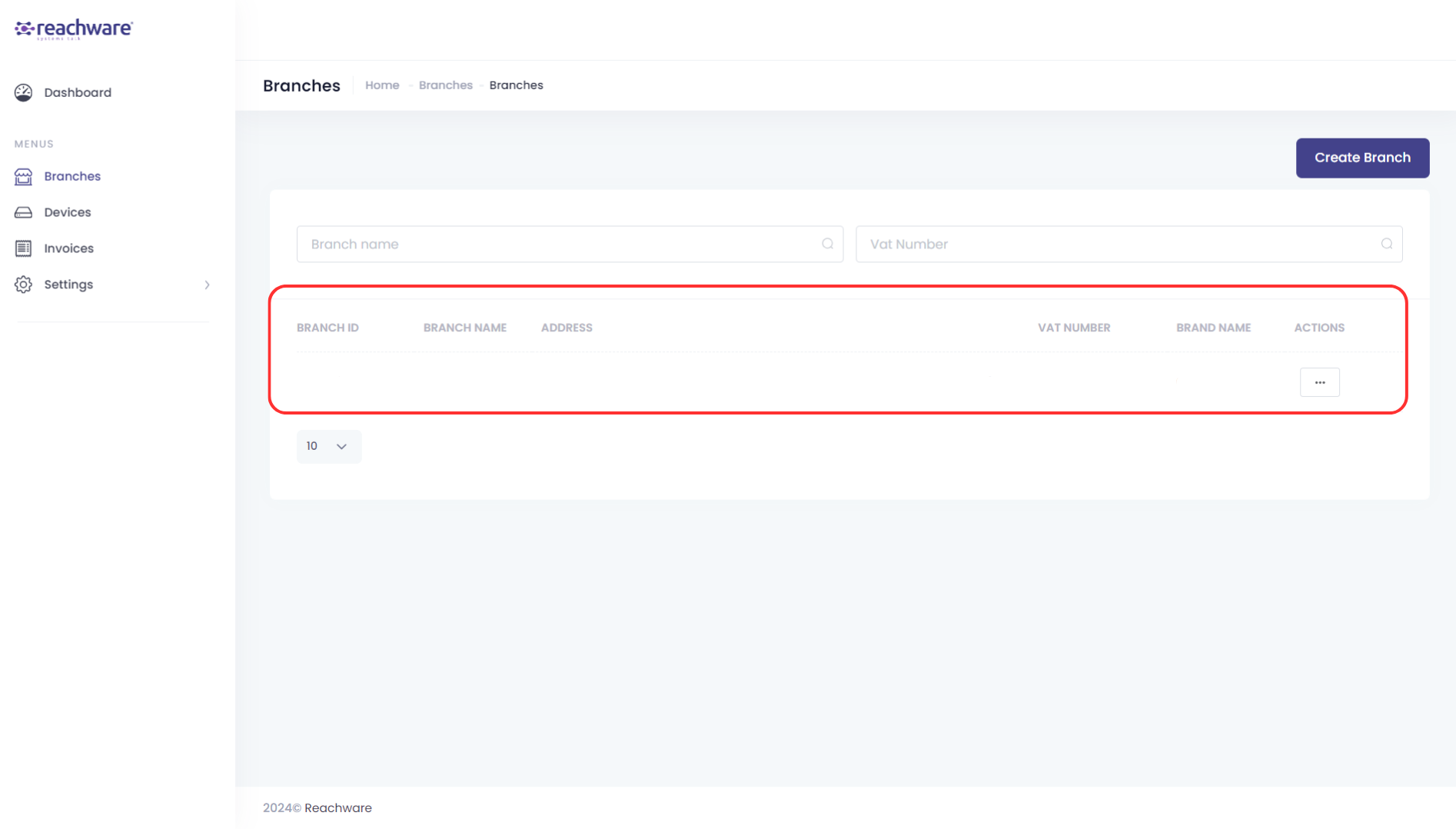
The following shows the branch details which include:
Branch ID
Branch Name
Address
VAT Number
Brand Name
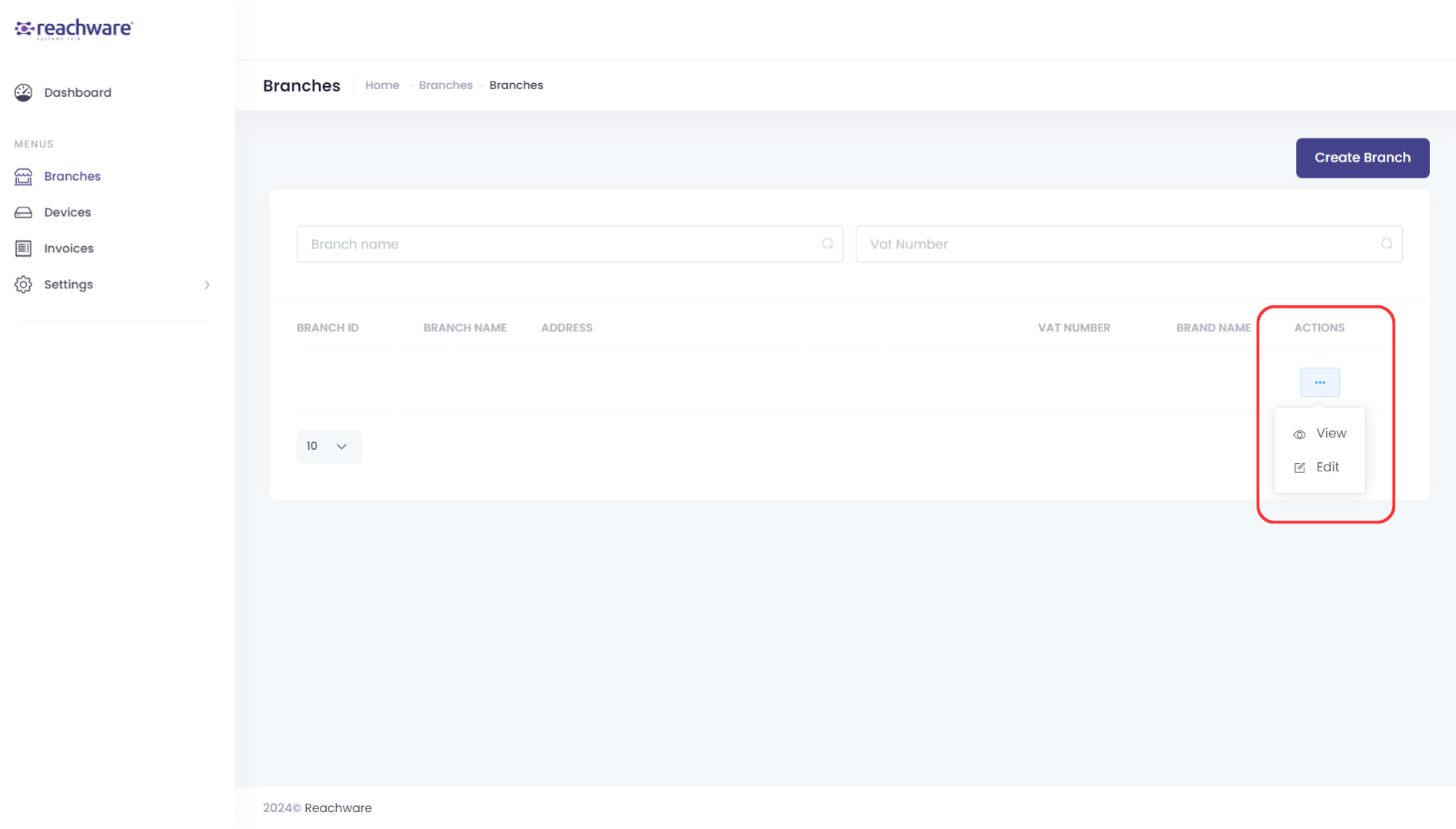
When you click on the more options in ‘Actions’ you can view or edit your branch:
Create Branch
1- To create a branch click on ‘Create Branch’

2- Fill in the details of your branch
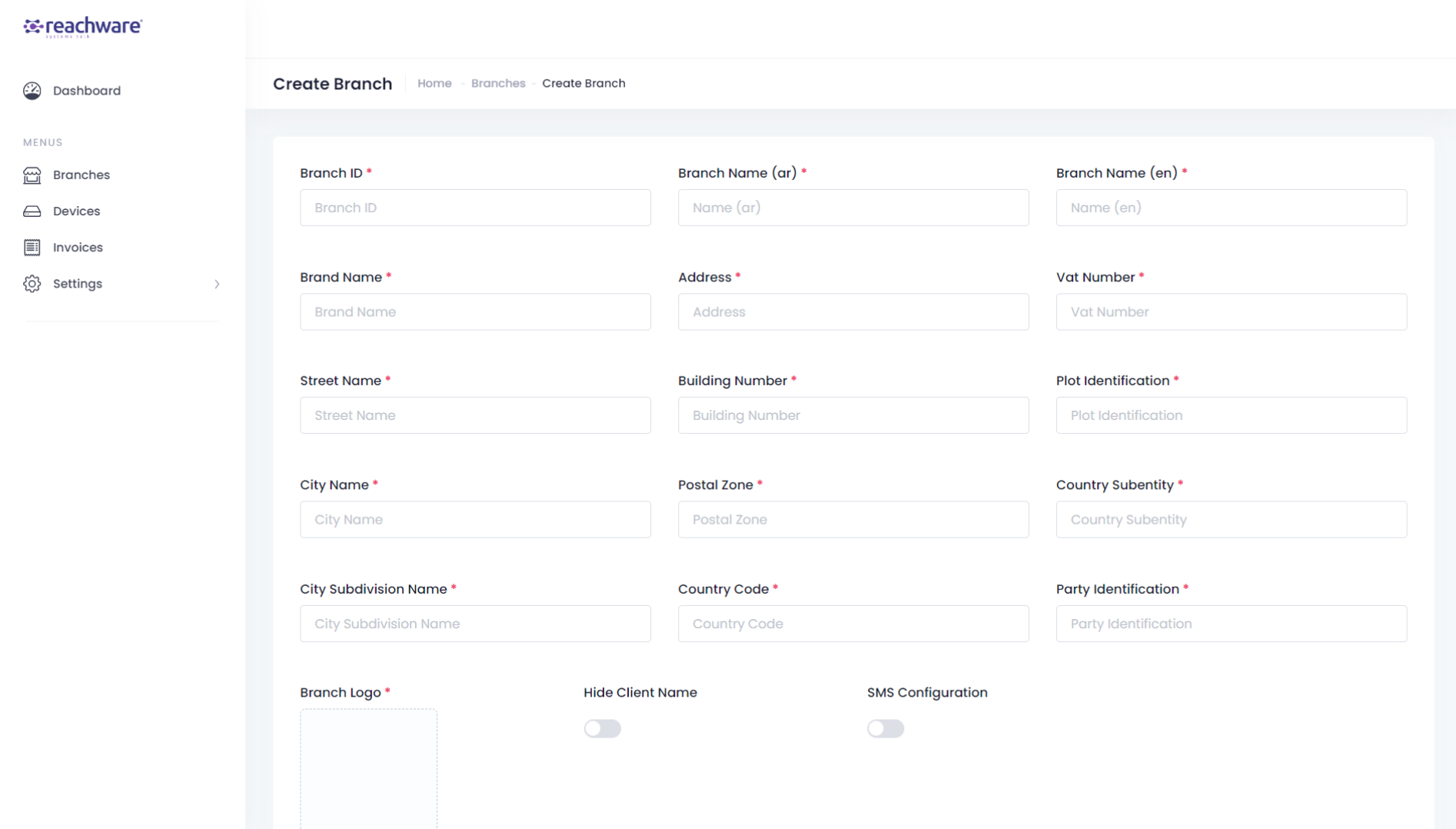
3- When you are done click on ‘Submit’ to save the branch

Devices
View Devices
Your created Devices will appear here:

You can search for a device by typing the Device Number or selecting a Branch by clicking on the following:
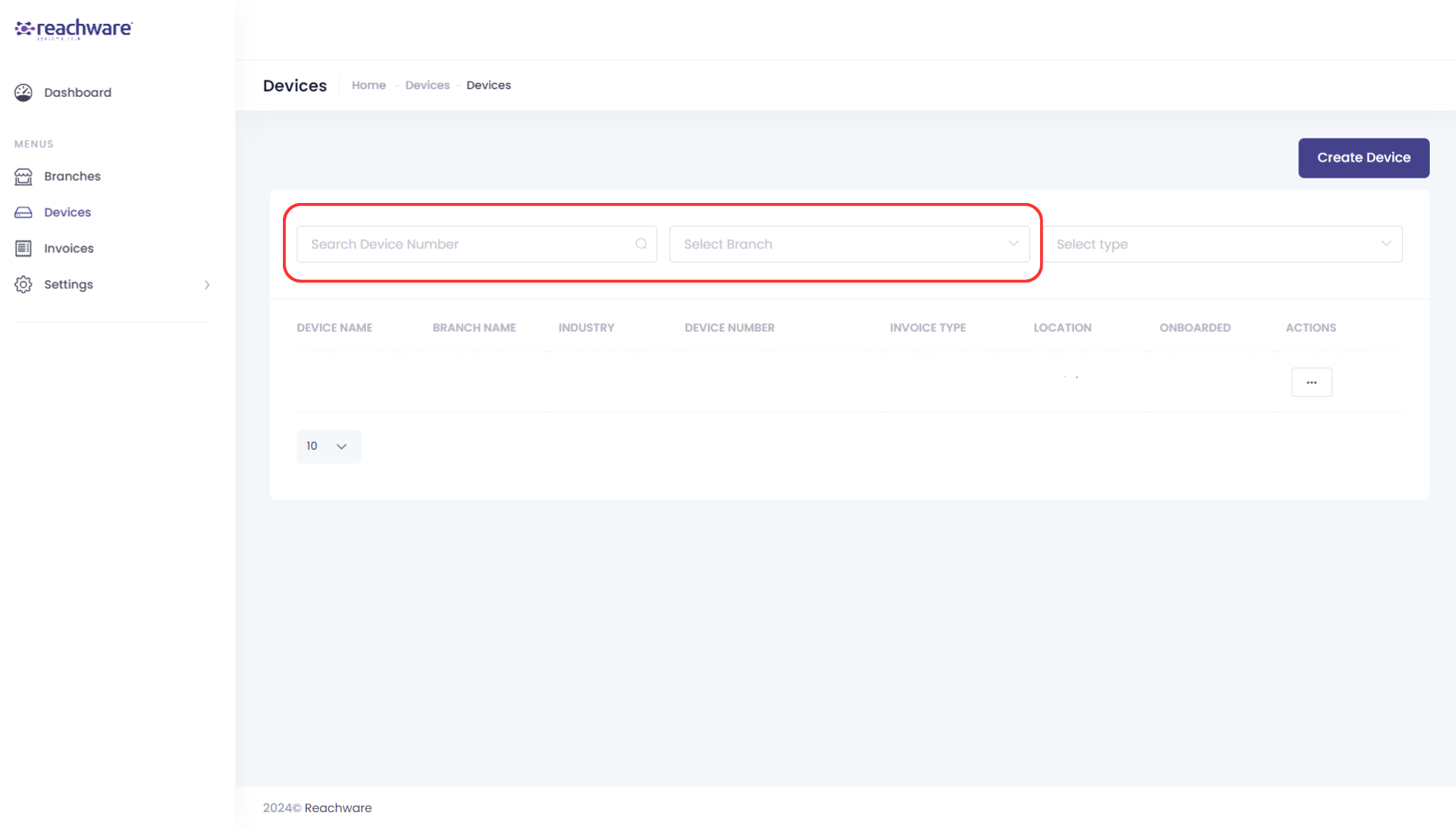
You can also search for a device based on the type of invoice by clicking on the following:

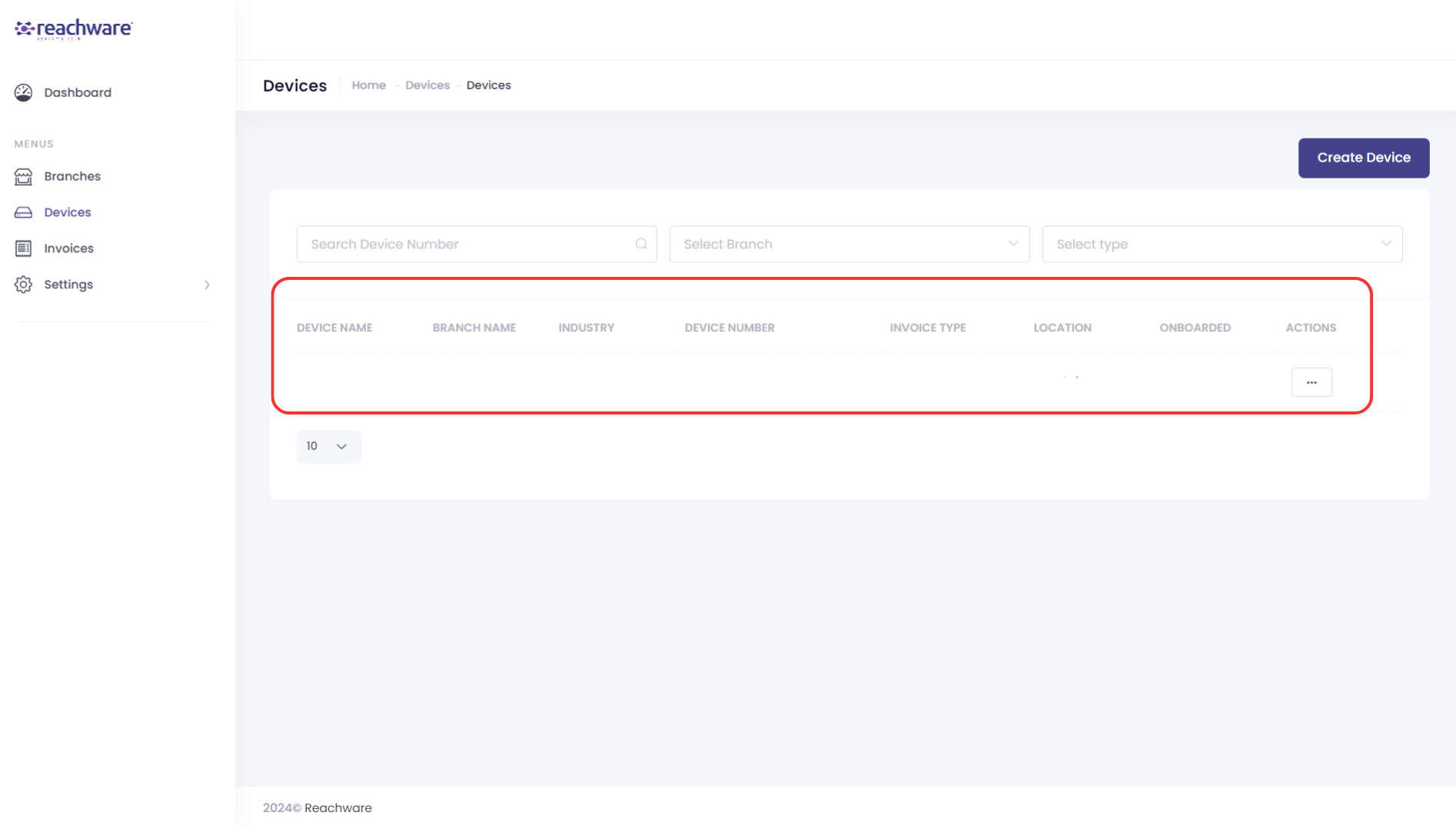
The following shows the branch details which include:
Device Name
Branch Name
Industry
Device Number
Invoice Type
Location
Onboarded
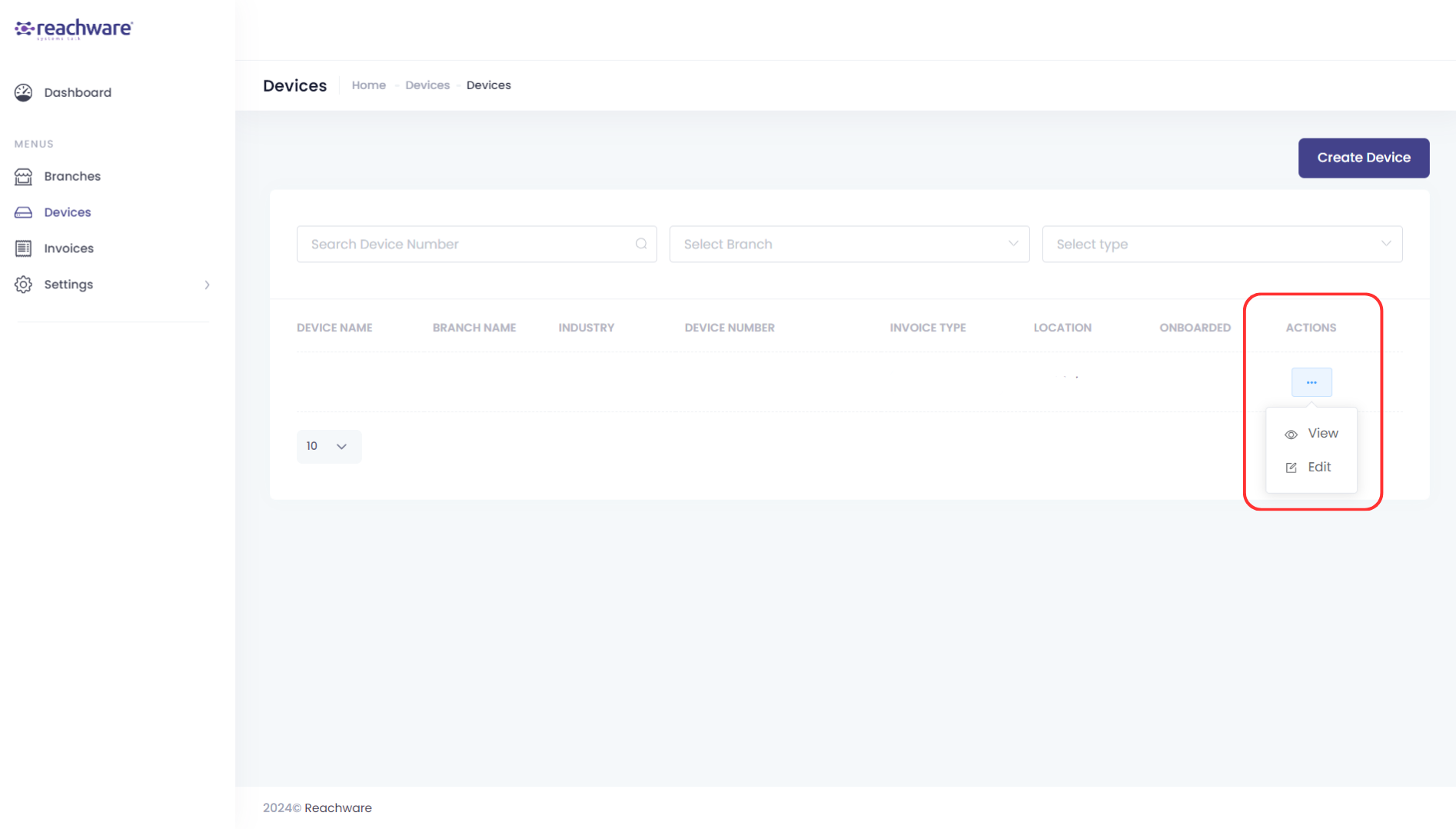
When you click on the more options in ‘Actions’ you can view or edit your Device:
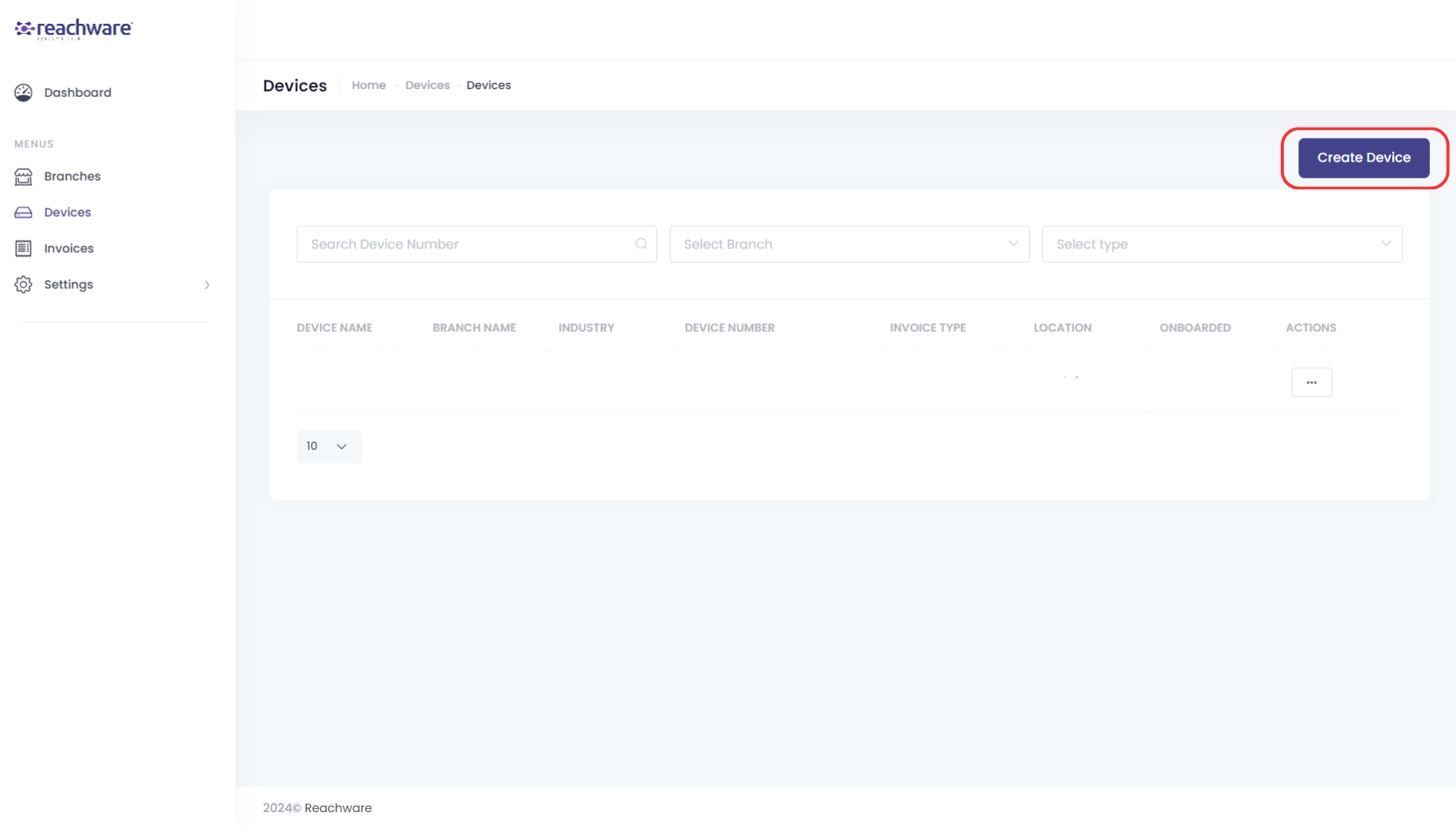
Create Device
1- To create a device click on ‘Create Device’
2- Fill in the details of your Device
Note:
The device number should be in this format :
1-SystemName|2-SystemName|3-000000 for example: 1-Oracle|2-Netsuite|3-000035
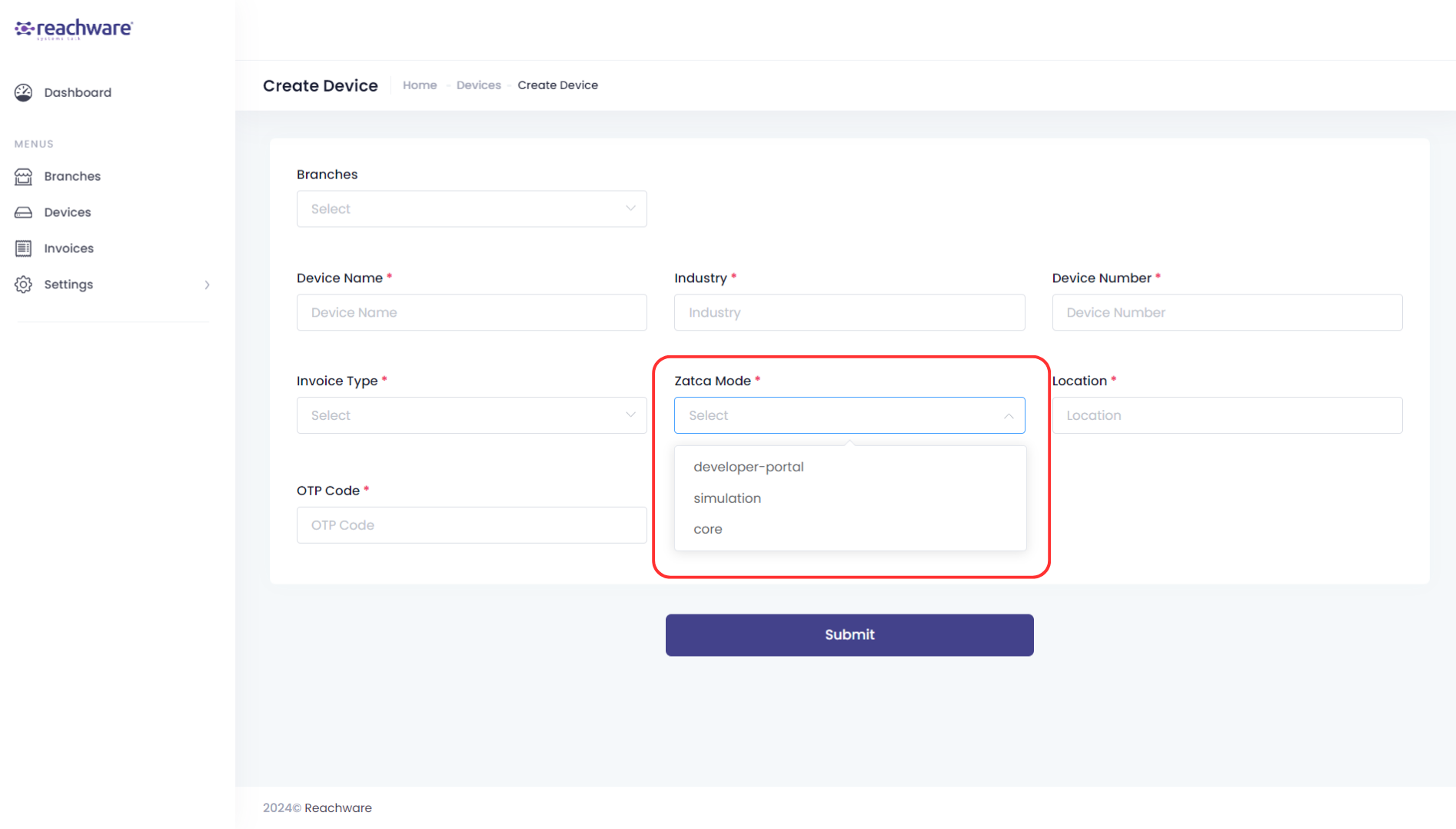
ZATCA Modes are:
Developer-Portal Environment: Testing environment, the OTP can be any six digits
Simulation Environment: Sandbox environment, the OTP is generated from ZATCA Fatoora Portal
Core: Production environment, the OTP is generated from ZATCA Fatoora Portal
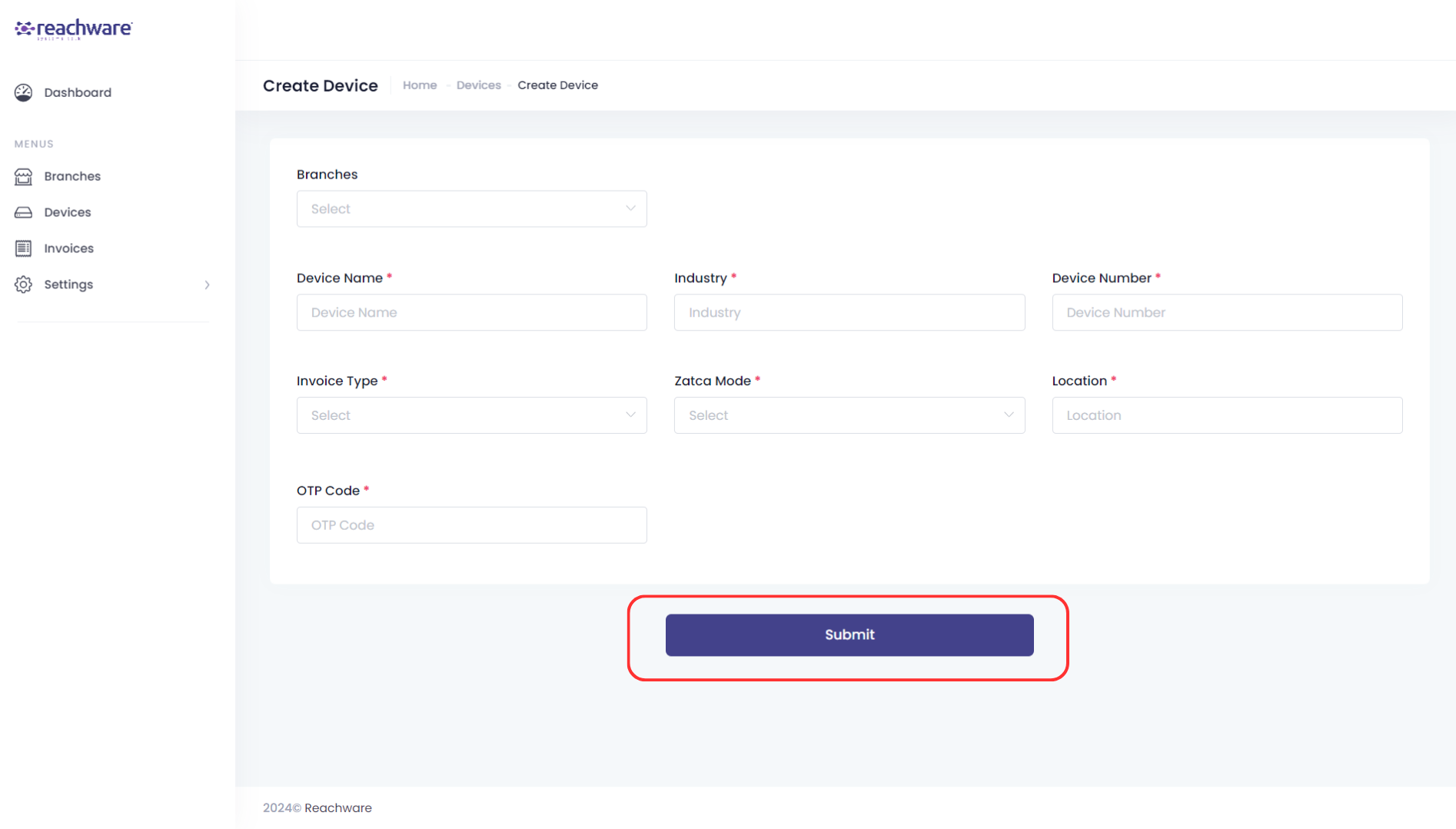
3- When you are done click on ‘Submit’ to save the device
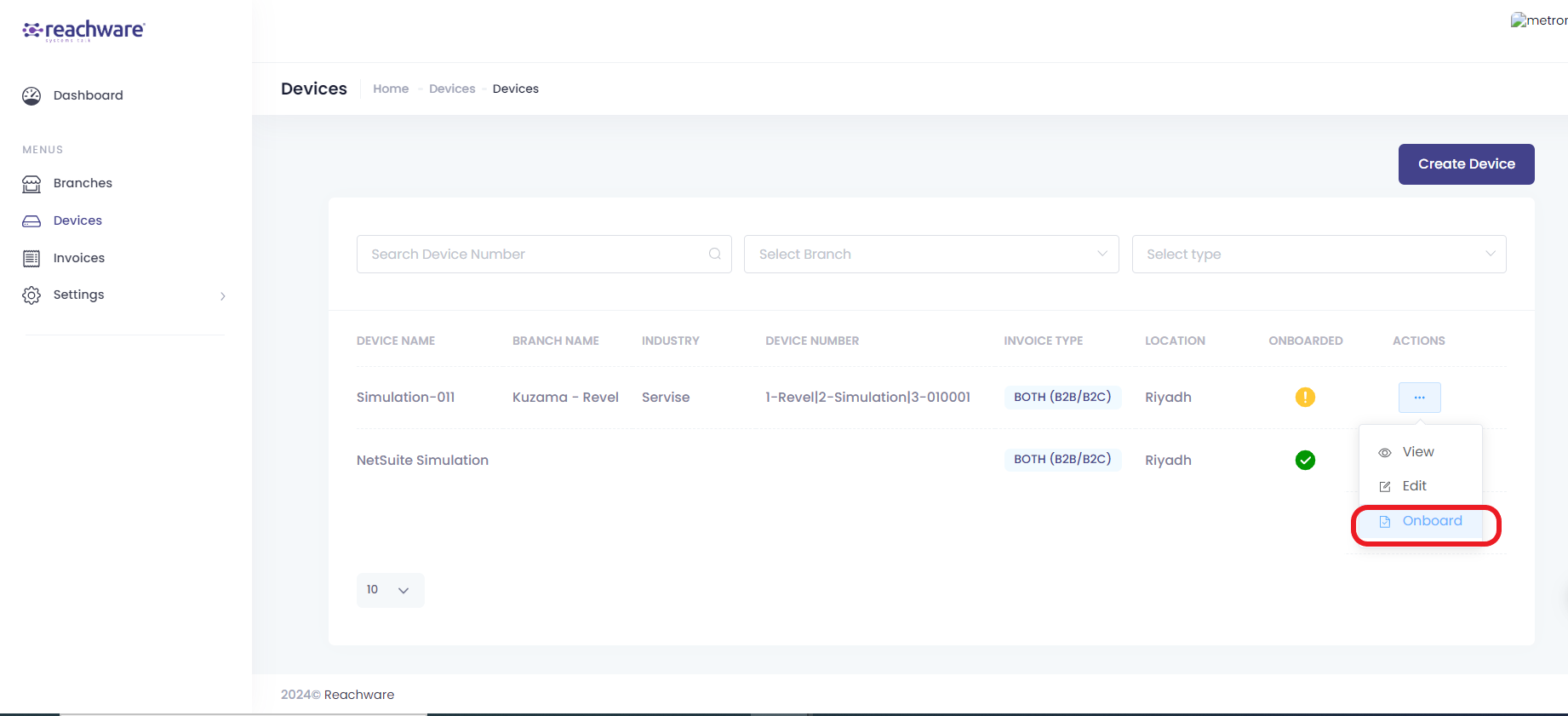
Device Onboarding
To onboard a device click on ‘Action’ then onboard.
Verify all of the below:

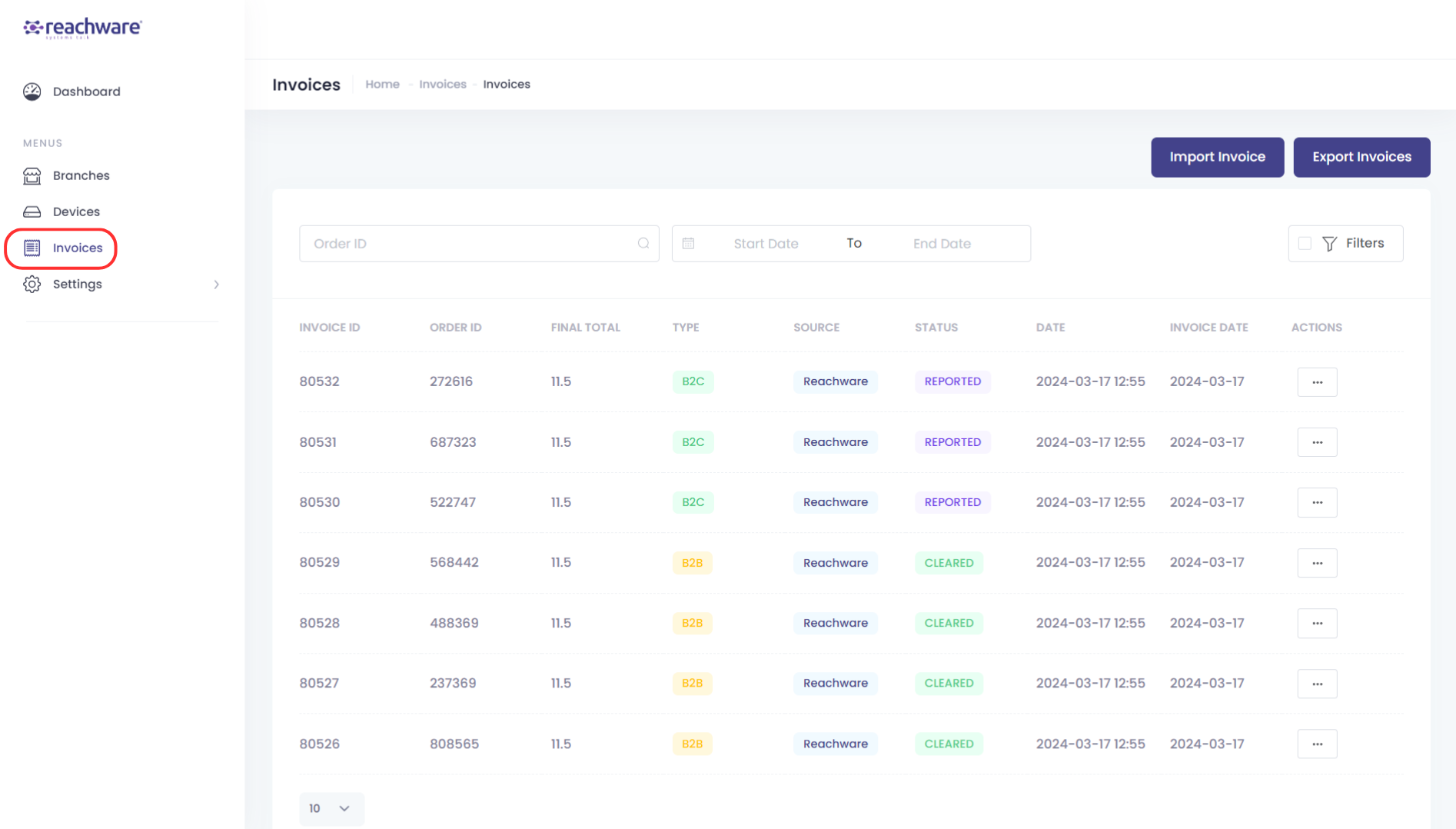
Invoices
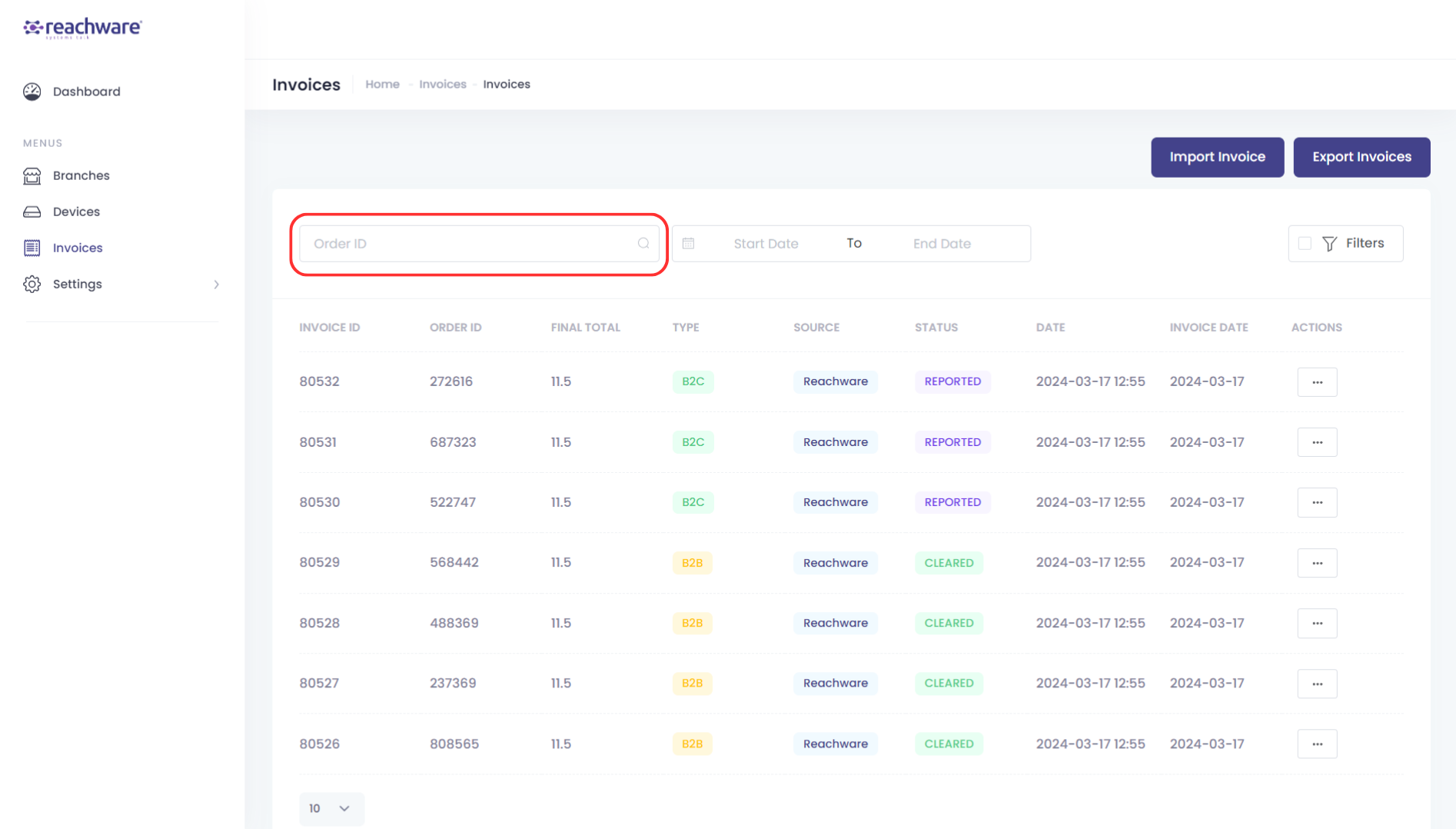
All your invoices will appear here:
Filter
You can search for invoices based on the Order ID:
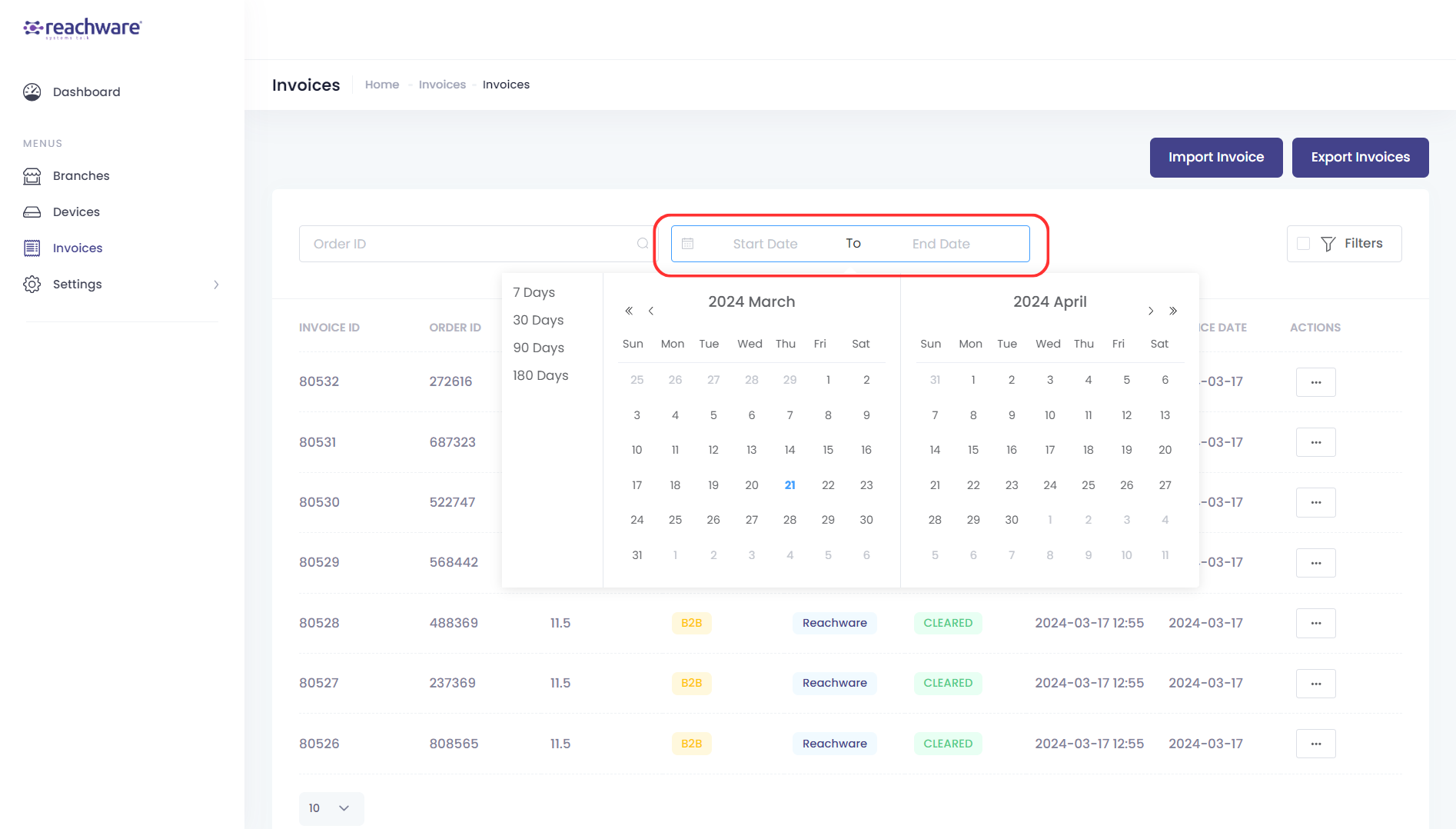
Filtering Date
You can view invoices by choosing specific posting date ranges:
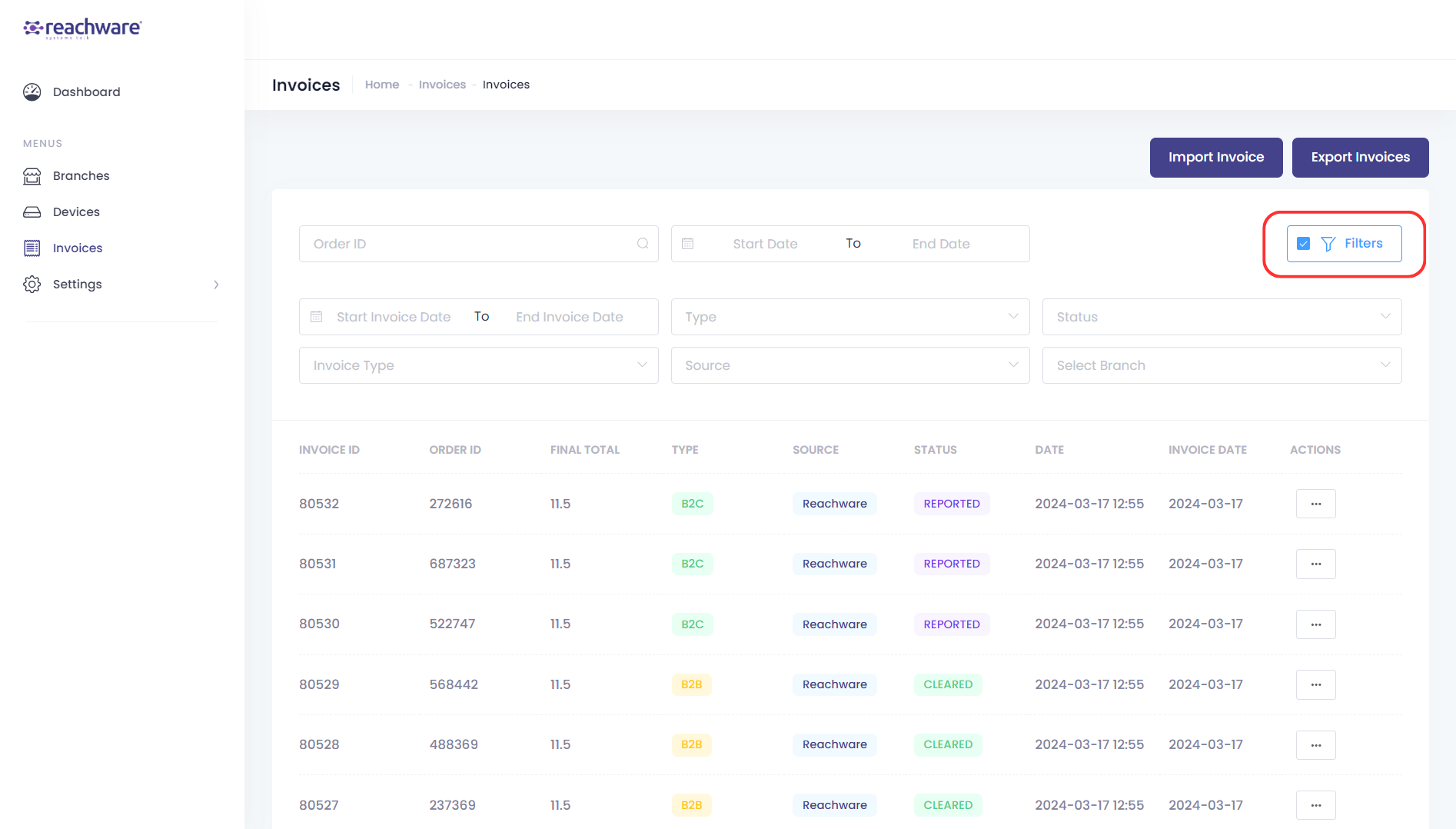
Advance Filtering
For advance filtering, you can click on ‘Filters’.
You will have the ability to filter by:
Invoice date
Invoice type
Invoice status
Transaction type
Invoice Source
By branch
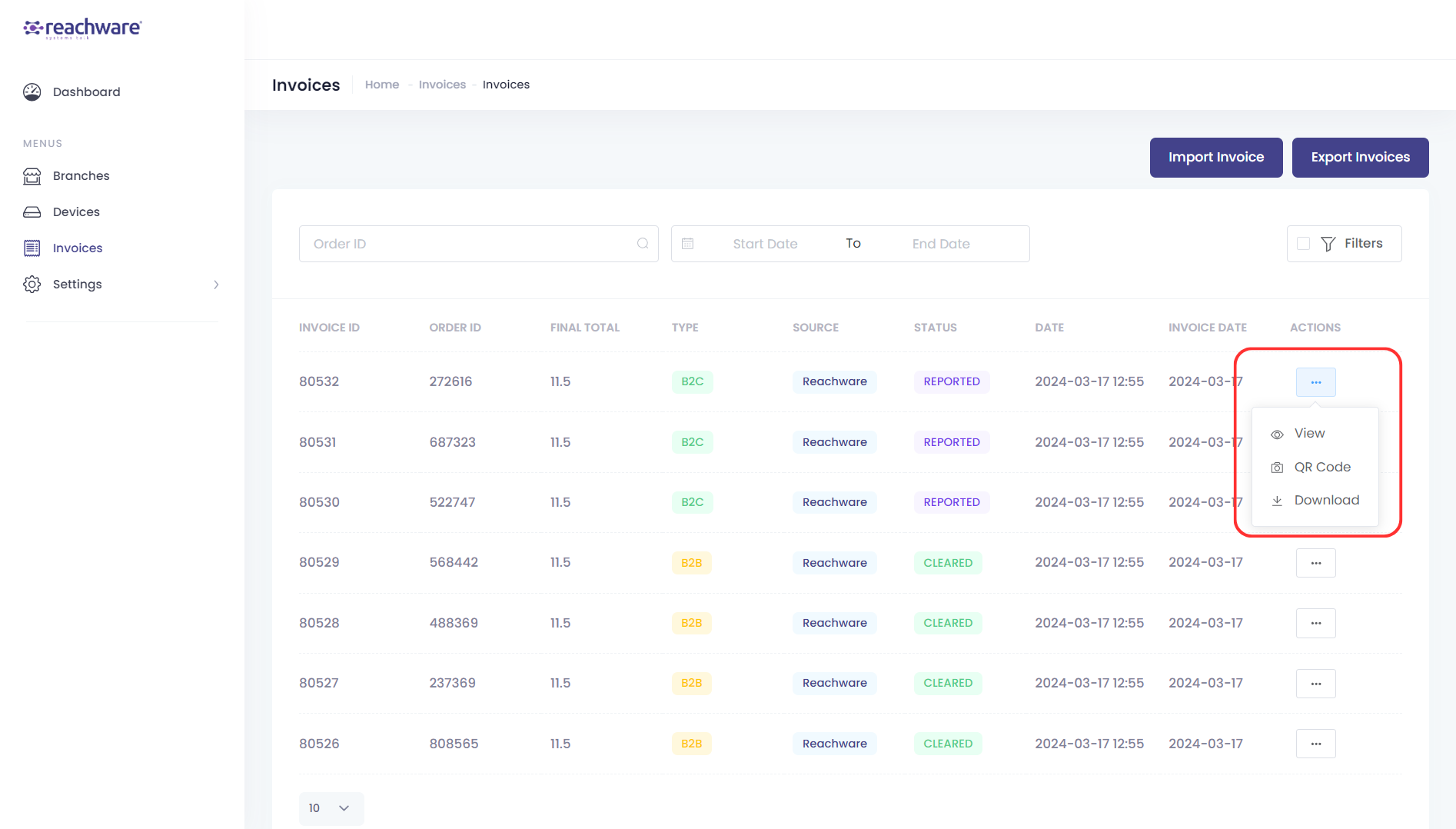
When you click on the more options in ‘Actions’ you can view the invoice as a .pdf file or invoice QR Code or download the invoice as a .xml file:
Import Invoice


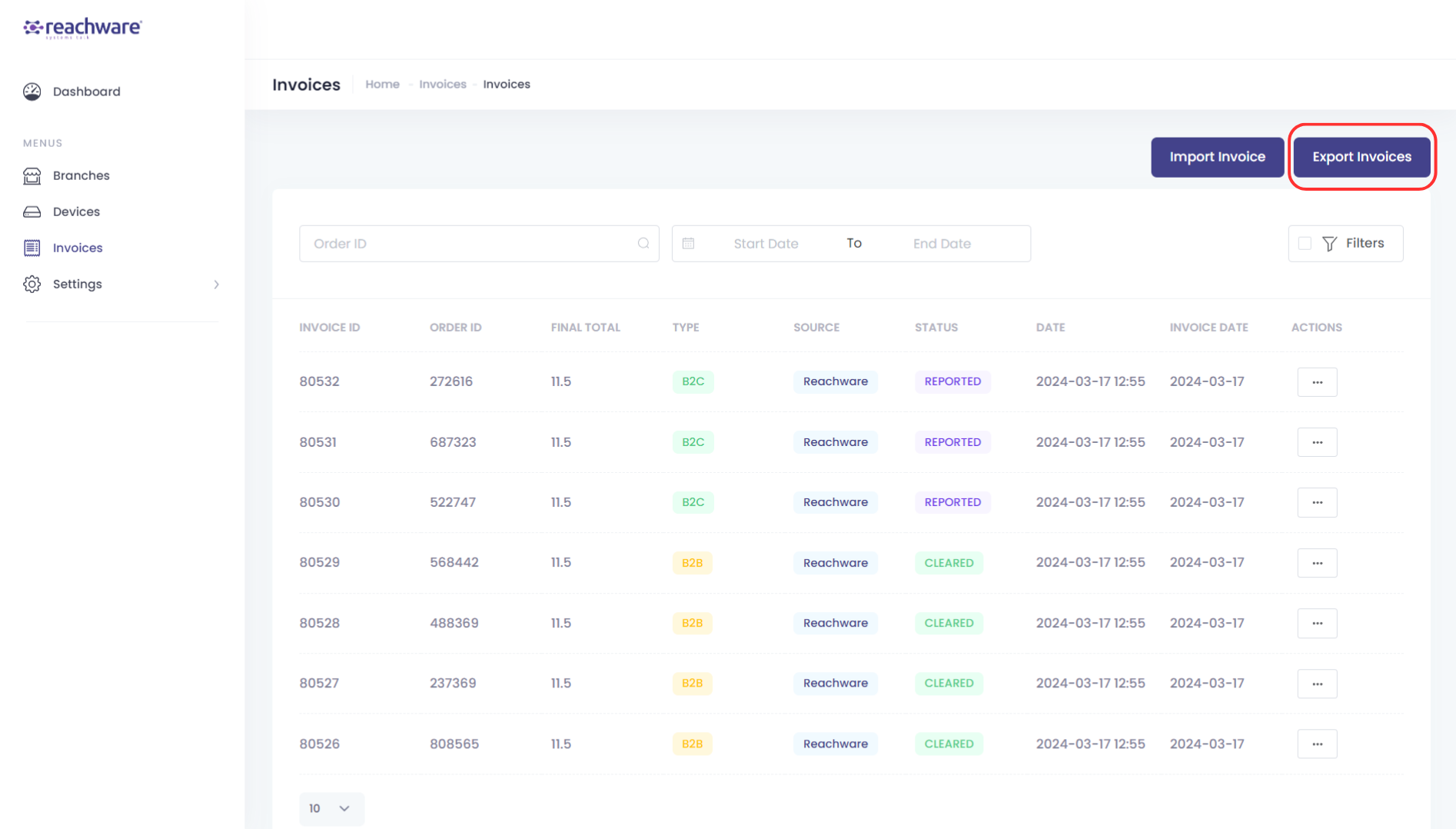
Export Invoices
You can export the invoices (by any filtered date) as a .csv file by clicking on the ‘Export Invoices’ button:
Settings
API Integration
You can generate a token.
Note: As a user, if you have generated a token, kindly inform Reachware team as this action will affect the integration.

Email Settings
You can add emails where the error notification will be sent to.

Was this article helpful?
That’s Great!
Thank you for your feedback
Sorry! We couldn't be helpful
Thank you for your feedback
Feedback sent
We appreciate your effort and will try to fix the article