Flow Execution in Reachware
In Reachware, Flows can be executed in two main ways:
Manually by the user
Scheduled using the Flow Timetable feature:
Flow Timetable - Preset Options
Flow Timetable - Custom Expressions
Flow Timetable - Custom Expressions
Feature enables users to define their own execution schedules based on their unique requirements.
How to Use It?
1
Select Flow:
- Go to Flow Templet.
- Select Your Flow, Click on View Flow.
- Go to Flow Templet.
- Select Your Flow, Click on View Flow.
2
Select Your Timetable Option:
- Click on Calendar Icon.
- will appear Prompt window to you.
- Select custom option.
- Click on Calendar Icon.
- will appear Prompt window to you.
- Select custom option.
3
Custom your Timetable
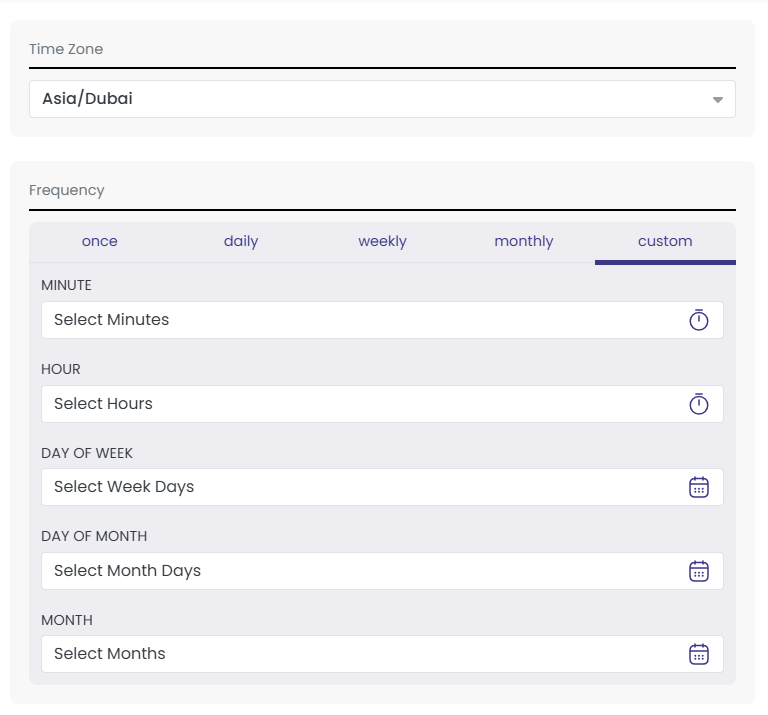
Fill out your custom timetable to schedule when the flow should run based on your input.
- Minutes and Hours - Define the exact time the flow should run.
- Days of the week - Choose specific weekdays (e.g., Monday, Wednesday).
- Days of the Month - Select particular dates (e.g., 1st, 15th).
- Month - Choose the months in which the flow should be executed.
This allows for highly flexible and customized scheduling tailored to your operational needs.
Fill out your custom timetable to schedule when the flow should run based on your input.
- Minutes and Hours - Define the exact time the flow should run.
- Days of the week - Choose specific weekdays (e.g., Monday, Wednesday).
- Days of the Month - Select particular dates (e.g., 1st, 15th).
- Month - Choose the months in which the flow should be executed.
This allows for highly flexible and customized scheduling tailored to your operational needs.
4
Save
Click Save to apply your configuration.
Click Save to apply your configuration.
Related Topics
Was this article helpful?
That’s Great!
Thank you for your feedback
Sorry! We couldn't be helpful
Thank you for your feedback
Feedback sent
We appreciate your effort and will try to fix the article